


Gravatar (Globally Recognized Avatar) is a service that allows you to manage your online avatar and ensure it appears the same across various platforms. It lets you display an avatar image next to your name on WordPress sites.
With years of experience in WordPress, we have seen firsthand the benefits of using Gravatar for both personal and business branding. And in this article, we will discuss what a Gravatar is and why you should start using it right away.

History: Avatar
The term Avatar was borrowed from online gaming communities in the late 90s and early 2000s.
Before that, online forums were mainly text-based communities where users were only identified by their user names.
As these communities grew, it was becoming harder to identify users only by their names.
To solve this, online forums allowed their users to upload an image as their profile photo. They called this an “Avatar” image instead of a profile photo.
The term Avatar refers to an image that represents a person or a user. This image could be their own or any other image they want to use as their profile photo.
As the web and blogging evolved, WordPress blogs faced a similar problem. WordPress comments became the conversation hub for many blogs, and it was harder to identify commenters with just names.
Unlike online forums, where users were required to create an account, WordPress commenters generally didn’t need to make an account to leave a comment.
This is when the Gravatar came in.
Related: See our guide on the History of Blogging.
What Is a Gravatar?
Gravatar stands for Globally Recognized Avatar. It is a popular web service that allows people to create a profile and associate avatar images with their email addresses.

Once you add a Gravatar, it is going to be recognized on all the platforms that come with built-in Gravatar support, including WordPress, Slack, GitHub, Stack Overflow, Atlassian, and more.
This means that when you leave a comment on one of the sites that support Gravatar, it will pull your Globally Recognized Avatar from their servers and showcase it next to your name in the comments and other areas.
For instance, when a user leaves a comment on a WordPress site, their Gravatar is automatically shown next to their comment.
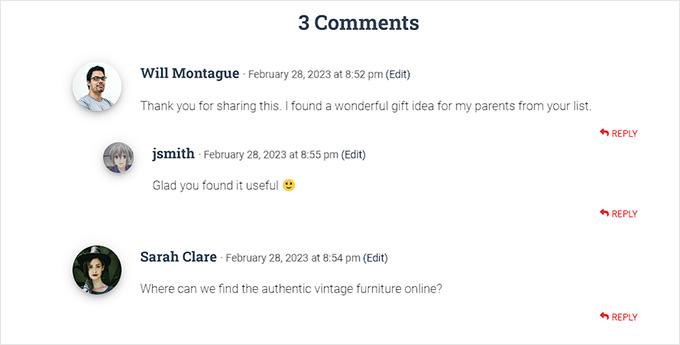
This allows each commenter to have their identity throughout the interwebs.
Why Should I Add Gravatar?
If you are a blogger, non-profit, small business, or anyone wanting to build a brand, you need to start using Gravatar.
A Gravatar allows you to build your identity on the web and build an authoritative voice in your industry.
At first, when you comment on blogs, your Gravatar might not be noticeable immediately.
However, if the same person sees your comment on numerous sites they read, they will probably visit your website.
Some website owners complain that Gravatar slows down their websites, and this is the most cited reason why bloggers choose to disable Gravatar.
Pro tip: See our ultimate guide to speed up WordPress for more performance optimization.
How Can I Get a Gravatar?
You can get a Gravatar by visiting the Gravatar website and signing up for a free account.
It is quite easy to create a Gravatar for your profile.
First, you need to visit the Gravatar website and click on the ‘Get Started Now’ button.
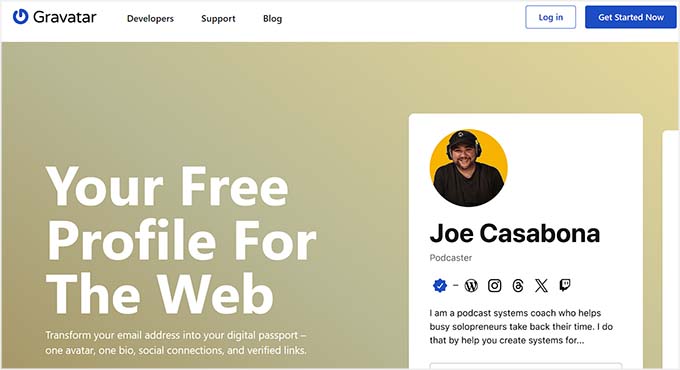
You will now be taken to the signup page.
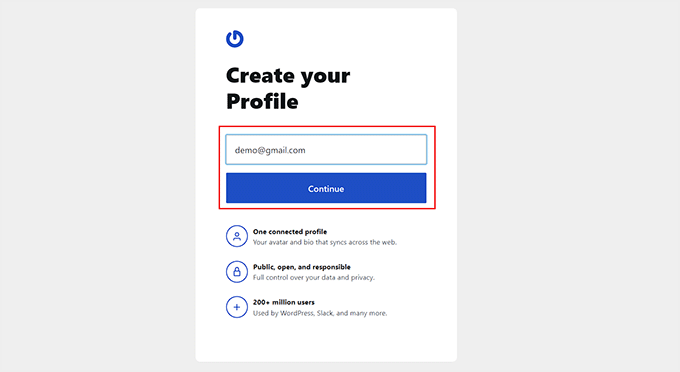
Here, you must add your email address and click the ‘Continue’ button. Once you do that, you will be sent an email with a verification code. Simply enter that code and click the ‘Continue’ button.
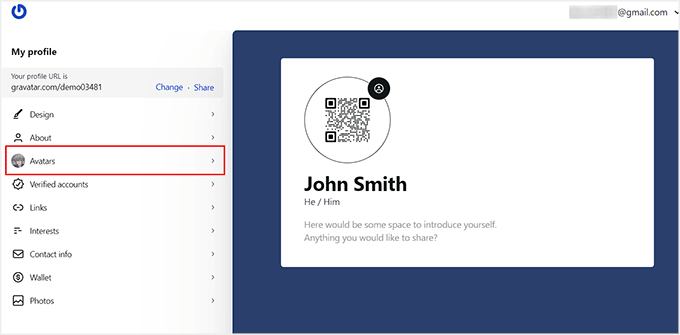
You will now be taken to your Gravatar account dashboard.
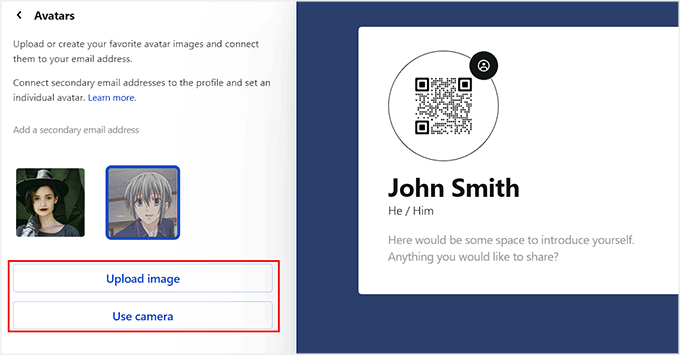
Here, click on the ‘Avatars’ tab in the left column to open some new settings.
Once you are there, click the ‘Upload Image’ button in the left column to add a Gravatar image from your computer. You can also take your own picture in real-time by clicking the ‘Use Camera’ button.
We recommend choosing a nice profile picture of yourself or your company logo for the Gravatar. However, if you want to remain anonymous, you can use any other image that represents you.
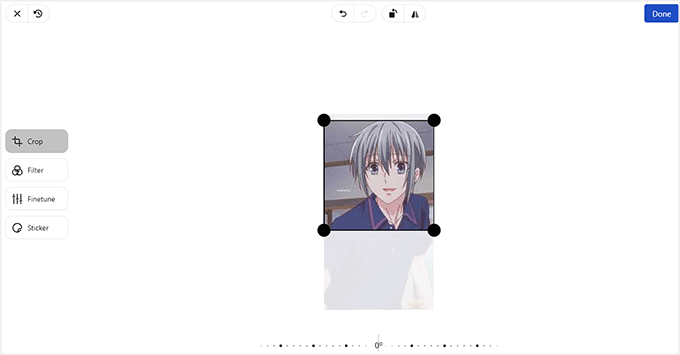
This will open Gravatar’s image editor, from where you can crop, rotate, zoom, and preview your image.
You can also add filters, and configure the brightness, saturation, and contrast for the image according to your liking. Once you are satisfied, just click the ‘Done’ button at the top.
Your Gravatar has now been set up.
To show this Gravatar on your WordPress site, expand the ‘Verified Accounts’ tab from the left column in the dashboard.
This will open a list of platforms where you can activate your Gravatar. From here, select the ‘WordPress’ option.
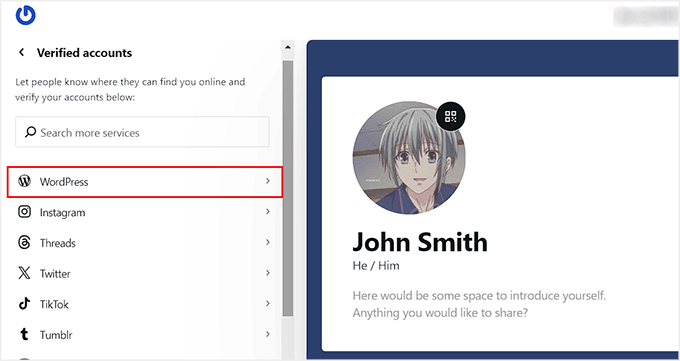
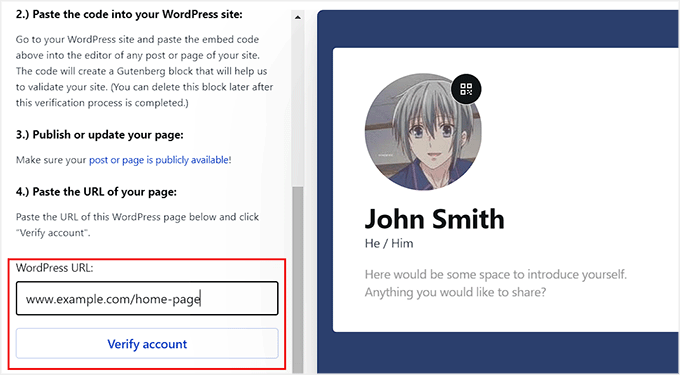
This will open some new settings, where you will need to follow the onscreen instructions in the left column to add a Gravatar to your website.
To do this, copy the embed code given in the sidebar and paste it on a published page or post on your website. Once you do that, add the URL of the page under the ‘WordPress URL’ option.
Then, click the ‘Verify Account’ button.
Now, you can try out your Gravatar by leaving a comment on a website or by checking the author profile on your WordPress blog.
This is how our Gravatar looked in the author bio section on a demo site.

Frequently Asked Questions About Gravatars in WordPress
Users often ask us questions about using Gravatar for their own avatar image as well as using Gravatar on their websites.
Following are the answers to the most frequently asked questions about using Gravatar.
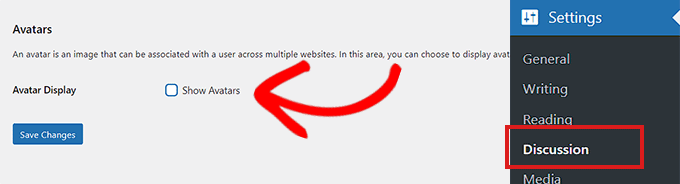
1. How do I turn off Gravatar on my WordPress website?
You can turn off Gravatar on your WordPress website by simply visiting the Settings » Discussion page and unchecking the box next to the Avatar Display option.
For more details, see our tutorial on how to disable Gravatar images in WordPress.
2. What happens when a user does not have a Gravatar image?
By default, WordPress will show the mystery man image next to the comments where the comment author does not have a Gravatar image associated with their email address. This is called the default Gravatar image.
You can change this image by visiting the Settings » Discussion page and scrolling down to the Default Avatar section.
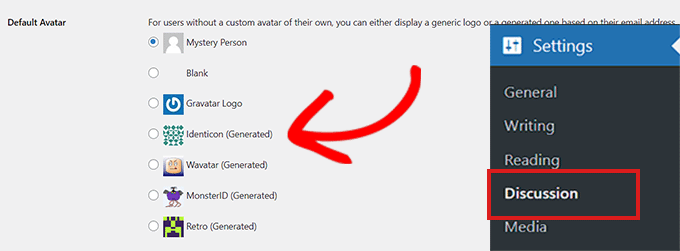
From here, you will see several options. Some of them will automatically attempt to generate a unique image using an algorithm based on the user’s name or email address.
3. Can I add more than one image or email address to my Gravatar account?
Yes, you can add multiple images and email addresses to your Gravatar account. However, you can only use one image as your Gravatar for each email address.
4. Can I disable my Gravatar account?
Yes, you can disable your Gravatar account at any time. Simply log in to your account on the Gravatar website and select the ‘Account Settings’ option from the dropdown menu on the right.
This will open a prompt. You must switch to the ‘Security & data’ tab and click the ‘Disable’ button for your account.
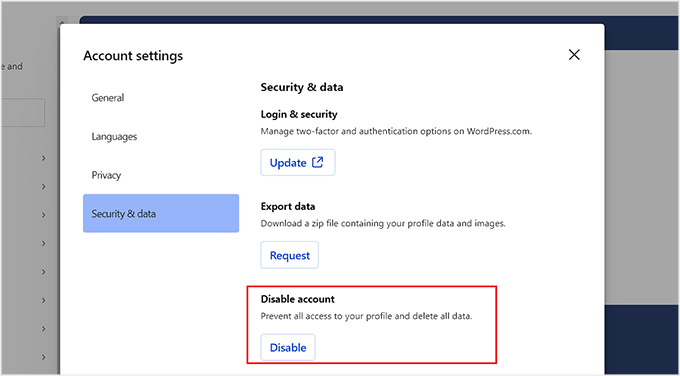
Disabling your Gravatar image will stop processing your images, and any websites where you left comments will stop showing your Gravatar image.
We hope this article helped you learn about what Gravatar is and why you should start using it. You may also want to see our tutorial on how to change the default Gravatar in WordPress and our top picks for the best plugins to improve WordPress comments.
If you liked this article, then please subscribe to our YouTube Channel for WordPress video tutorials. You can also find us on Twitter and Facebook.




Vicky
Thanks
WPBeginner Support
Glad our article could help
Admin
Nnaemeka
Very informative. Thank you.
WPBeginner Support
Glad our article could be helpful
Admin
catherine orourke
another test
WPBeginner Support
It appears to have worked
Admin
catherine
test
WPBeginner Support
It looks like your Gravatar is set
Admin
cheryl
This is very interesting. I never knew about a gravatar.
WPBeginner Support
Glad we could bring it to your attention
Admin
Vunderlist
Very cool. Thanks
Alex
Thanks! Very useful!
Amalie
Thanks. This helped to understand the concept.
Shikha
Thanks for sharing the article, let’s see it works or not
chris appleby
Testing Gravatar
Nikesh Sheth
Thanks for sharing insights
Mitch
Really helpful, thanks.
Matthew
Was trying to figure out how to insert the avatar pic in the default wordpress theme and stumbled across this article.
Excellent and simple to read guide!
And now my readers will be able to see my replies to their questions/replies at a glance!
Valen pat
I love this article, it’s really amazing thanks a lot
michele woody
hmm, my first try at submitting a comment didn’t work. Trying again, would love to be able to make a custom default avatar for my comment section of a blog I’m starting.
louise
Be great to see some suggestions on how to create a professional looking gravatar that isn’t necessarily a photo…
Meg
I’m testing this out…it should be my photo. I’d love to find a small logo for this, but haven’t been able to find anyone who will just sell a small logo…still searching for that.
Kevin Ellwood
Very interesting, thanks.
Ashrita
This was really helpful!
Sukumar Thingom
I have recently made my own Gravatar. Let’s see how it comes up here.
kerry
Well I’ll be the naysayer, the arguments *against* gravatar as a site owner:
– having your Gravatar profile appear on the same sites with different logins is confusing,
– there is an unknown privacy factor about ‘will this cross post to other sites?’,
– a lot of people (at least me) make community sites to be SEPARATE from other social networks, not a part of them.
Dulci
1 Can we use gravatar for any website except for word press is there any other services that can do the same if you don’t have word press please help
Nesh Pejak
Thank you for educational guide.
Just finishing my website and trying my
very own Gravatar.
Nonce
I used gravatar some time ago, but I still don’t understand how it work.
Is it pulling my avatar off Gravatar server whenever gravatar-supported-comment found my email in their database? Oh. make sense.
Vicky
Cool!! Nicely described.
Heather
Testing out Gravatar, thanks
Sheryl
Interesting and apparently i’ve already in the past.. cool
Ediong adaka
wow.its gonna work
Ashish Pradhan
Is it working?
Sam
Do most people use actually pictures of themselves or other icons for their gravatar?
Kyle Zahorodnyj
Cheers very much guys!
Heather
Still can’t get mine to show
Carlos
Looks really cool
Marion
test
vijay
checking gravtar
vimal
testing my gravatar
Rudy
I have had trouble getting my Gravatar to show up on some sites. Hopefully this works. Thanks for letting me test it out.
Barbara Fisher
My picture used to show, but now this image shows on my Facebook blog post memory.
Robert Fonock
Just trying GRAVATAR out.
vikrant chaudhary
I am commenting here just to check if it’s really helpful. Do people really like the gravatar pic or anything that have been described
Erin
Pretty useful!
Davide Galizzi
Thank you for the information!
CassandraD
This is some good information. Thank you for sharing.
Nancy Beach
When I click on my gravatar it doesn’t link to my blog. Is there a way for that to happen?
WPBeginner Support
Hi Nancy,
It depends on where your Gravatar is appearing. For example, if you are commenting on your own WordPress site while signed in to your WordPress admin account, then your email, name, and URL fields will be automatically filled.
To add your blog URL linked to your gravatar, you will need to go to Users » Your Profile page and enter your URL in the website field.
In some WordPress themes, comment author name is linked instead of Gravatar image.
Admin
Alexis
Thank you !
Maria Gabriela
Interesting. I am starting a blog, Totally new on this. I want to understand all the new words I am encountering, and this “gravatar” was something new. Now, thanks to your explanation it is clear. One more thing I learned today! thank you, I will start using it.
WPBeginner Support
You are welcome
Admin
Leslie Groves
Thank you for the information.
Ania
Thank you
malik umair
really a very beautiful information dear
Joey Yan
very helpful, thx
Deb Dutton
Very helpful – thanks!