


Fazer upload de um grande lote de fotos para o WordPress pode muitas vezes parecer um teste de paciência. Você pode ficar olhando para uma barra de progresso lenta ou encontrar limites de tamanho de arquivo que interrompem o processo completamente.
Nós encontramos esse problema muitas vezes ao gerenciar grandes bibliotecas de mídia para nossos próprios sites. O uploader padrão muitas vezes tem dificuldades em mover centenas de arquivos de uma vez.
A boa notícia é que você pode usar FTP para fazer o upload de tudo de uma vez. É mais rápido, mais confiável e evita aqueles erros irritantes de tempo limite.
Neste guia, mostraremos como fazer upload em massa de arquivos de mídia usando FTP e garantir que eles apareçam corretamente em sua biblioteca do WordPress.
Aqui está um breve resumo do que abordaremos neste guia:
Por que fazer upload em massa de arquivos de mídia do WordPress usando FTP
Geralmente, o uploader padrão do WordPress é tudo o que você precisa para fazer upload em massa de arquivos. Simplesmente clique na aba 'Upload de arquivos' na biblioteca de mídia e depois clique em 'Selecionar Arquivos'.
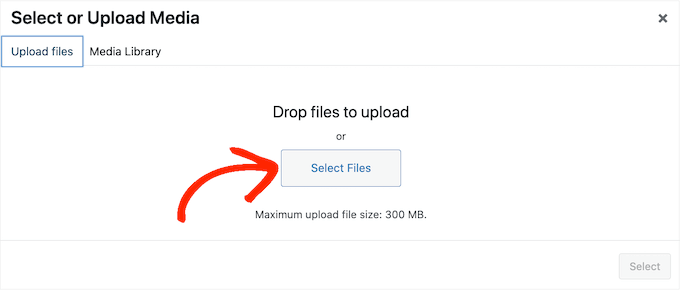
Isso abre uma janela pop-up onde você pode selecionar quantos arquivos de mídia desejar e, em seguida, fazer o upload deles para o WordPress.
Outra opção é ir para Mídia » Adicionar Nova no painel do WordPress. Aqui, você pode arrastar e soltar arquivos na biblioteca de mídia ou clicar em ‘Selecionar Arquivos’ e, em seguida, escolher as fotos, imagens, áudio ou outros arquivos que deseja carregar.

Na maioria das vezes, é tudo o que você precisa para carregar arquivos em massa. No entanto, às vezes você pode encontrar um erro do WordPress, como um limite máximo de tamanho de upload de arquivo, ou os arquivos de mídia podem demorar muito para serem carregados.
Se isso acontecer, você sempre pode carregar arquivos de mídia em massa usando FTP. O problema é que o WordPress não reconhece arquivos carregados via FTP, portanto, esses arquivos de mídia não aparecerão dentro do painel do WordPress.
Vamos ver como fazer upload em massa de arquivos de mídia usando FTP e garantir que eles apareçam corretamente dentro do painel do WordPress.
Upload em massa de arquivos de mídia no WordPress via FTP
Primeiro, você precisa se conectar ao seu site WordPress usando um cliente FTP. Esses aplicativos permitem que você gerencie arquivos em seu servidor diretamente.
Existem muitos clientes FTP excelentes disponíveis, mas recomendamos o FileZilla, pois é gratuito e funciona em todos os principais sistemas operacionais. Se você é novo nisso, confira nosso guia para iniciantes sobre como usar FTP para carregar arquivos no WordPress.
Visão de Especialista: Na WPBeginner, nossa própria equipe de desenvolvimento confia no FileZilla para transferir grandes lotes de arquivos. É uma ferramenta confiável e gratuita que lida com uploads em massa de forma eficiente, tornando-a um item essencial em nosso fluxo de trabalho.
Assim que estiver conectado ao seu site via FTP, navegue até a pasta /wp-content/uploads/.
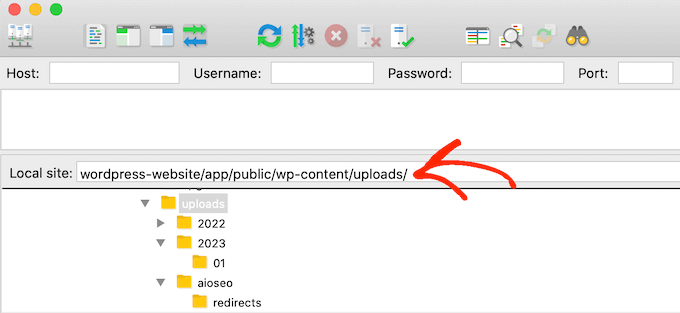
Dentro da pasta ‘uploads’, você verá subpastas organizadas por ano e mês. É assim que o WordPress armazena arquivos de mídia por padrão.
Você deve fazer o upload de seus arquivos para a pasta do ano e mês atuais. Se uma pasta não existir, você pode simplesmente criá-la. Por exemplo, dentro da pasta '2025', você criaria uma nova pasta chamada '11' para novembro.
Em seguida, carregue todos os seus arquivos de mídia nessa pasta. O tempo de transferência dependerá da sua velocidade de internet, tamanhos dos arquivos e seu provedor de hospedagem WordPress.
Depois que todos os arquivos estiverem em seu servidor, você estará pronto para a etapa final: torná-los visíveis na biblioteca de mídia do WordPress.
Tornando seus uploads de mídia FTP visíveis no WordPress
Neste ponto, você carregou com sucesso os arquivos de mídia no servidor do seu site. No entanto, quando você carrega arquivos usando FTP, o WordPress não armazena as informações do arquivo em seu banco de dados. Isso significa que esses arquivos de mídia não aparecerão no painel do WordPress.
Vamos consertar isso.
A primeira coisa que você precisará fazer é instalar e ativar o plugin Bulk Media Register. Para mais detalhes, veja nosso guia passo a passo sobre como instalar um plugin do WordPress.
Após a ativação, você deve ir para Registro em Massa de Mídia » Registro em Massa. Agora você pode abrir o primeiro menu suspenso e selecionar a pasta específica onde você acabou de fazer o upload de seus arquivos de mídia.
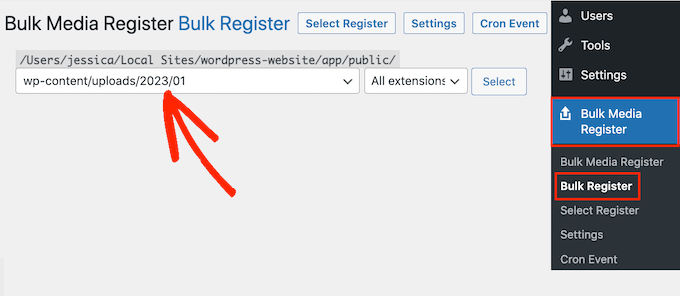
Você pode deixar o segundo menu suspenso definido como 'Todas as extensões' ou escolher uma extensão de arquivo específica.
Por exemplo, se você quiser importar apenas arquivos de mídia PNG, poderá abrir o menu suspenso e selecionar ‘PNG’.

Com isso feito, clique em 'Select Register'.
O plugin agora mostrará todos os arquivos de mídia que correspondem aos seus critérios de pesquisa. Simplesmente marque a caixa ao lado de cada arquivo que você deseja importar.
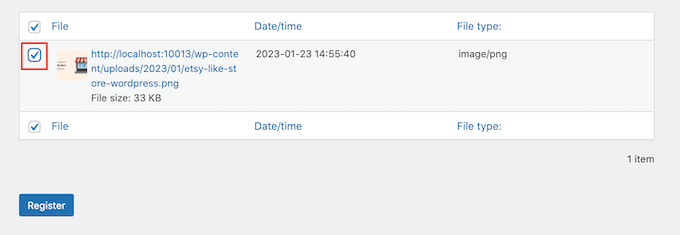
Depois disso, clique no botão 'Register'. O Bulk Media Register importará os arquivos selecionados para sua biblioteca de mídia.
Se você for para Mídia » Biblioteca, verá todos os arquivos que você fez upload usando FTP.
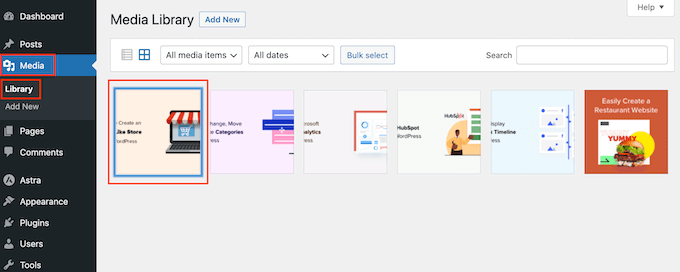
Agora você pode prosseguir e adicionar essas imagens, áudio e outros arquivos de mídia às suas postagens e páginas do WordPress.
Perguntas frequentes sobre upload em massa de mídia
Aqui estão as respostas para algumas das perguntas mais comuns que recebemos sobre o upload em massa de arquivos de mídia para o WordPress usando FTP.
1. Posso fazer upload de mídia via FTP sem usar um plugin?
Embora você possa fazer o upload dos arquivos diretamente para o seu servidor usando um cliente FTP, o WordPress não os verá em sua biblioteca de mídia.
Um plugin como o Bulk Media Register é necessário para escanear a pasta e registrar esses arquivos no banco de dados do WordPress, tornando-os visíveis e utilizáveis em suas postagens e páginas.
2. O upload via FTP ignora o limite máximo de tamanho de arquivo para upload?
Sim. Como você está fazendo o upload de arquivos diretamente para o seu servidor, você não está sujeito ao limite máximo de tamanho de upload que às vezes é imposto através do uploader de mídia do WordPress. Isso torna o FTP o método ideal para transferir arquivos de mídia muito grandes.
3. O WordPress criará tamanhos de imagem diferentes para meus arquivos enviados?
Sim. Quando o plugin registrar suas imagens, ele também tentará gerar os vários tamanhos de imagem (como miniatura, médio e grande) usados pelo seu tema. Apenas tenha em mente que para lotes muito grandes, este processo pode levar alguns minutos.
4. Qual é o melhor cliente FTP para usar?
Existem muitas ótimas opções, mas recomendamos o FileZilla porque é gratuito, confiável e funciona em todos os principais sistemas operacionais (Windows, macOS e Linux). É a ferramenta que nossa própria equipe usa para essas tarefas.
Próximos passos: Otimizando seu site WordPress
Esperamos que este artigo tenha ajudado você a aprender como fazer upload em massa de arquivos de mídia facilmente usando FTP. Para melhorar ainda mais seu site, recomendamos que você confira estes recursos adicionais:
- O Guia Definitivo para Aumentar a Velocidade e Desempenho do WordPress – Aprenda nossas principais dicas para fazer seu site carregar mais rápido para todos os visitantes.
- Plugins Essenciais do WordPress para Sites de Negócios – Descubra nossas escolhas especializadas para os plugins essenciais que todo site de negócios precisa para crescimento e segurança.
Se você gostou deste artigo, por favor, inscreva-se em nosso Canal do YouTube para tutoriais em vídeo do WordPress. Você também pode nos encontrar no Twitter e no Facebook.




Mrteesurez
Guia útil, obrigado.
Eu costumava fazer upload de vários arquivos através da biblioteca de mídia padrão do WordPress e geralmente levava muito tempo para fazer o upload, como você disse neste artigo.
Usar FTP é bastante útil e poderoso, mesmo para fazer upload de outros tipos de mídia.
Carlos Rangel
Thanks for this article. Just what I was looking for
Jiří Vaněk
Felizmente, as hospedagens de hoje em dia têm um tempo máximo de execução e tamanho de arquivo bastante grandes que você pode enviar usando php. Graças a isso, felizmente, muitos usuários não precisam lidar com esse problema. No entanto, o upload de dados via FTP é às vezes muito útil, e não apenas para mídia. Obrigado pelo ótimo tutorial.
Mrteesurez
Esta é uma ótima observação. Embora os serviços de hospedagem atuais geralmente ofereçam tempos máximos de execução e limites de tamanho de arquivo generosos, o uso de FTP continua sendo incrivelmente útil. Por exemplo, achei o FTP essencial ao fazer upload de arquivos grandes de plugins ou ao fazer uploads de mídia em massa, contornando as limitações do uploader do WordPress. Também é útil para gerenciar e solucionar problemas de arquivos diretamente quando surgem problemas. Este tutorial é excelente para entender a versatilidade do FTP além do simples upload de mídia, destacando seu papel no gerenciamento eficiente do site.
Jiří Vaněk
Sim, exatamente. Pessoalmente, eu não gostaria de uma hospedagem compartilhada sem acesso FTP. E sim, tais opções são oferecidas aqui na República Tcheca também, onde eles apenas incluem um instalador de aplicativos. Sempre que tenho um problema com o WordPress, quase sempre preciso de FTP, por exemplo, para desativar um plugin que causou um conflito. Então você está absolutamente certo - o FTP é essencial, senão crítico, para um site, e qualquer pessoa que queira trabalhar com o WordPress e resolver problemas com mais facilidade deve se familiarizar com ele mais cedo ou mais tarde. Entender a estrutura de arquivos do WordPress também é crucial para a solução de problemas. Pessoalmente, prefiro hospedagem que oferece acesso FTP e SSH. Essa é uma combinação realmente ótima para trabalhar com eficiência.
Muhammad Rafiq
Existe alguma solução sem ftp?
WPBeginner Support
Se o seu provedor de hospedagem tiver um gerenciador de arquivos, você poderá usá-lo em vez de FTP, se desejar.
Admin
Randy C
Em maio de 2022, o plugin listado não é atualizado há mais de um ano, pode não ser compatível com as últimas 3 versões do WP e está caminhando para ser depreciado. Existe outro que você recomenda?
WPBeginner Support
No momento, não temos um plugin alternativo que recomendaríamos, mas para esse aviso, recomendamos dar uma olhada em nosso artigo abaixo:
https://www.wpbeginner.com/opinion/should-you-install-plugins-not-tested-with-your-wordpress-version/
Admin
Janek
Life saver! Thank you, even though the AddFromServer plugin has not been updated for a while I am running WP 5.7.2 an it worked perfectly.
WPBeginner Support
Glad our recommendation was still helpful
Admin
Kam
Incrível, isso funcionou perfeitamente. Obrigado!
WPBeginner Support
Glad our guide was helpful
Admin
Paolo
Obrigado pelo seu tutorial, amigo.
Isso me ajudou a superar os limites definidos pelo meu mantenedor de site.
WPBeginner Support
Glad our guide was helpful
Admin
James
Existe alguma alternativa a isso? Este plugin não é mais suportado em versões posteriores do WP e tentei encontrar outra solução.
WPBeginner Support
No momento, ficaremos de olho em alternativas.
Admin
Andrew Marks
Acabei de usá-lo com o WordPress 5.4.2 e funcionou bem, embora não tenha conseguido fazer o upload em massa das 2.000 imagens de produtos que precisava de uma vez (o processo pareceu expirar). Para fazê-lo funcionar, eu apenas fiz o upload das imagens em grupos de 100 a 200 por vez.
O plugin não está mais sendo mantido, então eu não o deixaria instalado em um site de produto, mas ele ainda atende ao propósito.
Dan
Parece que este plugin não funciona mais, o que é lamentável.
Eis o que recebo ao instalá-lo:
“Este plugin falhou ao carregar corretamente e está pausado no modo de recuperação.”
Ao ter este instalado, como administrador você não conseguirá fazer login, apenas no modo de recuperação.
Este plugin tem problemas de compatibilidade quando usado com versões mais recentes do WordPress.
WPBeginner Support
Obrigado por nos informar, com certeza vamos analisar a atualização do artigo quando possível.
Admin
martin
Obrigado por este artigo! era exatamente o que eu precisava.
WPBeginner Support
Glad our article was helpful
Admin
Kris
Este método irá autogerar os tamanhos de miniatura? O atual uploader de mídia adiciona versões redimensionadas da imagem para você.
WPBeginner Support
Normalmente, você precisaria usar um plugin como o Regenerate thumbnails para que os outros tamanhos sejam criados pelo seu site.
Admin
Olagist
Minha pergunta agora é, depois de importar os arquivos para a mídia do WordPress, o que acontecerá com o original que você importou, ele será excluído automaticamente após a importação para a mídia do WP?
Obrigado.
WPBeginner Support
Este método não deve sobrescrever as imagens em sua biblioteca de mídia, mas adicionará as imagens à sua biblioteca de mídia.
Admin
Mehedy
Thanks a lot. Working Perfectly
scottio
O plugin Add-From-Server parece estar inativo a partir de 23 de março de 2018. Você continua dizendo que substituiu o plugin. Não vejo onde isso se aplica aqui.
WPBeginner Support
Olá Scottio,
O plugin está disponível para download no WordPress.org. Deve ter sido uma falha temporária o que você presenciou.
Admin
Yacine
Olá,
O plugin não está mais disponível...
A notificação “Este plugin foi encerrado em 11 de janeiro de 2018 e não está mais disponível para download.”
WPBeginner Support
Olá Yacine,
Obrigado por nos notificar. Substituímos o plugin.
Admin
Ken
O plugin foi encerrado e não está disponível para download no momento
WPBeginner Support
Olá Ken,
Obrigado por nos notificar. Substituímos o plugin.
Admin
Sahil Malik
Você pode me guiar sobre como desenvolver um site de comparação de preços no WordPress? Quero dizer, um site que possa mostrar preços diferentes para um único produto de diferentes sites de compras.
Pantelis Koumelas
Obrigado por este artigo.
Eu me pergunto se ele cria cópias diferentes da mesma imagem, mas com tamanhos diferentes, como acontece no caso de upload usando a mídia do wp.