WPBeginner WordPress-Tutorials helfen Ihnen, WordPress zu lernen, damit Sie Ihre Website verbessern können. Unsere Schritt-für-Schritt-WordPress-Tutorials sind leicht verständlich und helfen Ihnen, die WordPress-Best Practices zu befolgen. Verschwenden Sie nicht Ihre Zeit mit dem Kauf von WordPress-Büchern oder veralteten WordPress-Tutorial-PDFs, die nur die Grundlagen abdecken. Unsere WordPress-Tutorials werden von Experten mit über 15 Jahren WordPress-Erfahrung geschrieben und enthalten reale Beispiele und Tipps, die es Ihnen ermöglichen, WordPress schneller zu lernen. Wir halten unsere Tutorials auch auf dem neuesten Stand.
Sie finden unsere anderen neuesten kostenlosen WordPress-Tutorials unten, und Sie können jederzeit die Suchfunktion auf unserer Website nutzen, um hilfreiche WordPress-Tutorials schneller zu finden.
Wenn Sie kein WordPress-Tutorial finden, das Sie suchen, dann wenden Sie sich bitte an Ihr Team und lassen Sie es uns wissen. Alle unsere Ideen für WordPress-Tutorials werden von unseren Nutzern in den letzten 13+ Jahren vorgeschlagen.
Fühlen Sie sich durch Ihr kostenloses WordPress.com-Blog eingeschränkt? Der Umzug zu einem selbst gehosteten WordPress.org ist der beste Weg, um die volle Kontrolle über Ihre Website zu übernehmen. Viele Anfänger zögern diesen Wechsel hinaus, weil sie Angst haben, ihre Website zu beschädigen. Sie machen sich vielleicht Sorgen, Ihre hart erarbeiteten Abonnenten zu verlieren… Weiterlesen »
Die Verwaltung von Mediendateien in WordPress kann sich mit der Erweiterung Ihrer Website überwältigend anfühlen. Eine unordentliche Mediathek kann Ihre Website verlangsamen und einfache Aktualisierungen zeitaufwändig machen. Wir haben vielen WordPress-Benutzern geholfen, ihre Websites aufzuräumen, und wir wissen, dass das Ändern des Speicherorts für Medien-Uploads… Weiterlesen »
Vor wenigen Tagen meldete einer unserer Benutzer ein ungewöhnliches Problem. Das Problem war, dass er das Limit für benutzerdefinierte Menüpunkte erreichte. Alles, was er speicherte, nachdem er das Limit für Menüpunkte erreicht hatte, wurde überhaupt nicht gespeichert. Davon hatten wir noch nie gehört… Weiterlesen »
Manuelles Posten in sozialen Medien kann viel Zeit und Energie in Anspruch nehmen. Deshalb nutzen wir seit langem Tools zur Automatisierung sozialer Medien auf den Websites unseres Unternehmens. Social Media Automatisierung kann Ihnen viel Zeit sparen, indem sie wiederkehrende… Weiterlesen »
Möchten Sie Instagram-Feeds in WordPress einbetten? Das Anzeigen von Instagram-Fotos und -Videos auf Ihrer Website hilft, Ihre Inhalte frisch zu halten, erhöht die Benutzerinteraktion und schafft Vertrauen. Es ist auch eine großartige Möglichkeit, Ihr Instagram-Konto zu bewerben und mehr Follower zu gewinnen. In diesem Artikel… Weiterlesen »
Der White Screen of Death kann der Albtraum eines Website-Besitzers sein. Dieser frustrierende WordPress-Fehler lässt Sie auf eine leere Seite starren, ohne Hinweise darauf zu geben, was schief gelaufen ist. Zu allem Überfluss kann dieser häufige WordPress-Fehler manchmal bestimmte Teile Ihrer… Weiterlesen »
Im Laufe der Jahre haben wir viele Fragen zu benutzerdefinierten Feldern erhalten und wie Benutzer sie auf ihrer WordPress-Website optimal nutzen können. Benutzerdefinierte Felder sind eine praktische WordPress-Funktion, mit der Sie Ihren Beiträgen zusätzliche Daten und Informationen hinzufügen können… Weiterlesen »
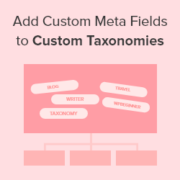
Möchten Sie noch mehr Organisationsmöglichkeiten in WordPress freischalten? Versuchen Sie, benutzerdefinierte Metafelder zu Ihren benutzerdefinierten Taxonomien hinzuzufügen. Benutzerdefinierte Taxonomien ermöglichen es Ihnen, Ihre Inhalte über Kategorien und Schlagwörter hinaus zu organisieren. Aber manchmal ist es nützlich, zusätzliche Details und Felder hinzuzufügen, um sie zu beschreiben, was… Weiterlesen »
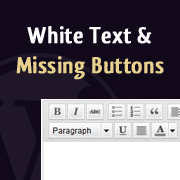
Kürzlich hat einer unserer Benutzer ein sehr seltsames Problem mit seiner Installation gemeldet. Beim Schreiben eines Beitrags konnte er nichts sehen, was er schrieb. Weil der Text des Beitragseditors weiß war. Wichtiger noch, alle Schaltflächen des visuellen Editors fehlten, und… Weiterlesen »
Ein defekter Link führt oft dazu, dass Besucher eine Website sofort verlassen. Dies erhöht die Absprungrate und verschwendet den Traffic, den Sie sich mühsam aufgebaut haben. Die Weiterleitung dieser 404-Fehler auf die Startseite ist eine einfache Möglichkeit, Benutzer zu binden. Sie gibt ihnen eine… Weiterlesen »
Used to store interaction and conversion data for campaigns in conjunction with Revenue Attribution.
1 year
_gat_omTracker*
Set, controlled and used by Google Analytics to collect and store data and then send that data to Google Analytics. OptinMonster provides the name if there is no existing tracker found on that page.
-
omCountdown-{id}-{elementId}
Used for countdown elements {elementId} in campaigns {id} to determine when it should complete.
-
om-{id}-closed / omSlideClosed-{id}
Used specifically with slide-in campaigns {id} to determine if it has been closed or not by a visitor.
30 days
om-success-cookie / omSuccessCookie
Used to determine if a visitor has successfully opted in to any campaign on your site to unlock content when using our Content Locking feature.
365 days
om-success-{id} / omSuccess-{id}
Used to determine if a visitor has successfully opted in to a campaign with the ID of {id} on your site.
365 days
omSeen-{id}
Used to determine if a visitor has been shown a campaign by the slug.
30 days
om-{id}
Used to determine if a visitor has interacted with a campaign ID of {id} on your site.
30 days
_omappvs
Used to determine when a new visitor becomes a returning visitor.