


Hai appena cliccato su ‘Aggiorna’ per una modifica importante, ma quando controlli il tuo sito live, non è cambiato nulla. È un problema frustrante e sorprendentemente comune che può farti pensare di aver fatto qualcosa di sbagliato.
Abbiamo affrontato questo esatto problema molte volte sui nostri siti web e la buona notizia è che la soluzione è solitamente semplice. Il ritardo è quasi sempre causato da un sistema di caching che funziona un po' *troppo* bene.
Questi sistemi sono progettati per rendere il tuo sito più veloce, ma a volte hanno bisogno di una piccola spinta per mostrare i tuoi contenuti più recenti. Fortunatamente, non hai bisogno di competenze tecniche speciali per risolvere questo problema.
In questa guida, ti mostreremo esattamente come svuotare queste cache e assicurarti che il tuo sito WordPress si aggiorni istantaneamente. Copriremo ogni scenario comune in modo che tu possa tornare a ciò che stavi facendo.

Risposta rapida: Come risolvere il problema del sito WordPress che non si aggiorna
Se il tuo sito WordPress non mostra le modifiche, si tratta quasi sempre di un problema di cache. Esegui un ricaricamento forzato nel tuo browser (Ctrl+Shift+R su Windows o Cmd+Shift+R su Mac). Se non funziona, cancella la cache nel tuo plugin di cache di WordPress o nel pannello di controllo dell'hosting.
Perché il tuo sito WordPress non si aggiorna subito?
La cache memorizza vecchie "istantanee" delle tue pagine in modo che si carichino più velocemente, ma può anche impedire la visualizzazione delle tue ultime modifiche.
- Molteplici livelli di cache: Il tuo browser, l'azienda di hosting e i plugin di cache possono tutti servire copie obsolete contemporaneamente.
- Facile da risolvere: Cancellare la cache a ogni livello richiede solo pochi clic e non eliminerà nessuno dei tuoi contenuti effettivi.
Come risolvere il problema del sito WordPress che non si aggiorna
Per risolvere il problema del sito WordPress che non si aggiorna, dovrai svuotare la cache. Inizieremo prima con la soluzione più rapida. Questa di solito funziona per molte persone, quindi potresti non aver nemmeno bisogno di andare oltre.
Passaggio 1. Forza il tuo browser a ricaricare o svuotare la cache
A volte, il tuo browser web è quello che trattiene una vecchia versione del tuo sito web. Ecco come farlo mostrare la versione aggiornata.
Innanzitutto, prova un "ricaricamento forzato". Questo dice al tuo browser di ignorare completamente i suoi file salvati e scaricare una copia nuova di zecca della pagina.
- Su Windows e Linux: Premi Ctrl + Shift + R sulla tastiera.
- Su Mac: Premi Cmd + Shift + R sulla tastiera.
Per molti utenti, questo semplice trucco fa il lavoro. Se ciò non funziona, il passo successivo è svuotare completamente la cache del browser.
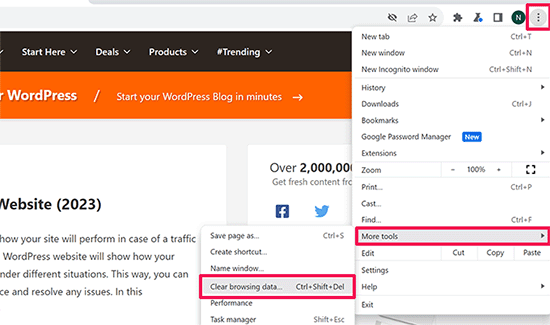
In Google Chrome, fai clic sul menu a tre punti nell'angolo in alto a destra. Dal menu, devi andare su Altri strumenti » Cancella dati di navigazione.
Per maggiori dettagli, consulta la nostra guida su come cancellare la cache in tutti i principali browser.
Passaggio 2. Svuota la cache di WordPress
Se la cancellazione della cache del browser non ha funzionato, il problema è probabilmente legato a un livello di cache sul tuo sito web. Potrebbe trattarsi di un plugin di caching di WordPress o della tua società di hosting.
Non preoccuparti, la maggior parte di questi strumenti rende semplicissimo cancellare la cache con un solo clic. Potresti vedere termini diversi come 'Cancella Cache', 'Elimina Cache' o 'Svuota Cache', ma fanno tutti la stessa cosa.
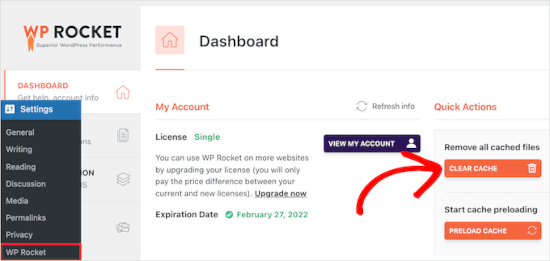
Se stai usando WP Rocket, che è il plugin di caching che utilizziamo per ottimizzare la velocità del sito, vai semplicemente alla pagina Impostazioni » WP Rocket.
Quindi, fai clic sul pulsante ‘Cancella Cache’ nella dashboard.
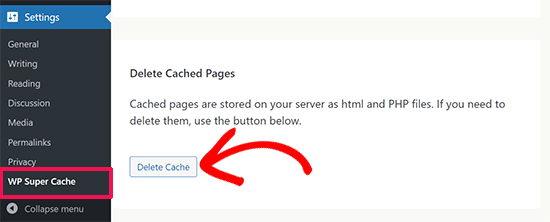
Se stai usando il plugin WP Super Cache, vai alla pagina Impostazioni » WP Super Cache.
Sotto la scheda Easy, scorri verso il basso fino alla sezione ‘Delete Cached Pages’ e fai clic sul pulsante ‘Delete Cache’.
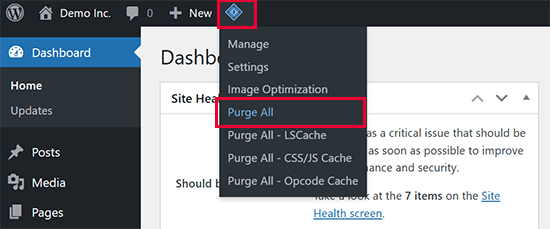
Se stai usando il plugin LiteSpeed Cache, fai semplicemente clic sull’icona del plugin nella barra degli strumenti e seleziona ‘Purge All’ per cancellare la cache.
Anche se non hai un plugin di caching, molte società di hosting hanno il proprio sistema di caching.
Se utilizzi Bluehost, noterai un pulsante 'Caching' nella barra degli strumenti di amministrazione in cima allo schermo.
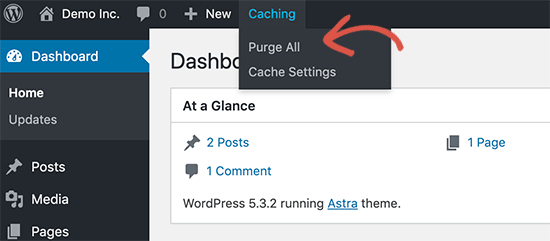
Passa il mouse sopra e seleziona l’opzione ‘Purge All’. Questo eliminerà tutti i file memorizzati nella cache dal tuo sito web.
SiteGround è un'altra azienda di hosting leader con un sistema di caching integrato. Infatti, è il provider di hosting che utilizziamo per il sito web WPBeginner.
Puoi gestire la cache di SiteGround installando e attivando il loro plugin Speed Optimizer. Per maggiori dettagli, consulta la nostra guida passo passo su come installare un plugin di WordPress.
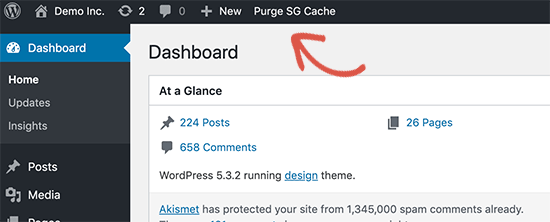
Dopo l'attivazione, fai clic sul pulsante 'Purge SG Cache' nella barra degli strumenti di amministrazione di WordPress in cima allo schermo. Questo cancellerà la cache di SiteGround per il tuo sito web.
Per istruzioni su altre società di hosting e plugin di caching, consulta la nostra guida completa su come cancellare la cache in WordPress.
Tutorial video
Preferisci guardare e imparare? Ecco un breve video tutorial che ti guiderà attraverso questi passaggi.
Domande frequenti
Perché devo cancellare sia la cache del mio browser che quella di WordPress?
Il tuo browser salva una copia sul tuo computer per la velocità, e il tuo sito web (tramite un plugin o l'host) memorizza una copia sul server. Se uno dei due conserva una versione vecchia, non vedrai i tuoi aggiornamenti. Cancellare entrambi assicura che tu stia visualizzando la versione più recente del tuo sito.
La cancellazione della cache eliminerà i miei contenuti o post?
No. Cancellare la cache è completamente sicuro. Rimuove solo i file temporanei "istantanea" salvati per le prestazioni. I tuoi post, pagine, immagini e impostazioni effettivi nel database di WordPress non vengono assolutamente influenzati.
Ogni quanto dovrei cancellare la cache di WordPress?
Solo quando noti che le modifiche non vengono visualizzate. La maggior parte dei plugin di caching moderni cancella automaticamente la cache quando pubblichi o aggiorni contenuti. La cancellazione manuale è solitamente necessaria solo quando qualcosa va storto.
La cancellazione della cache influisce sulla SEO o sul traffico del mio sito web?
No. La pulizia della cache non ha alcun impatto sui ranking SEO o sul traffico. I motori di ricerca scansionano le tue pagine effettive, non i tuoi file memorizzati nella cache. Dopo la pulizia, la cache si ricostruisce semplicemente la prossima volta che qualcuno visita il tuo sito.
Cosa succede se la pulizia della cache non risolve il problema?
Se il tuo sito non si aggiorna ancora dopo aver pulito le cache del browser e di WordPress, contatta il tuo provider di hosting. Potrebbero avere una cache lato server o uno strato CDN che deve essere svuotato separatamente.
Risorse aggiuntive per la risoluzione dei problemi di WordPress
Speriamo sinceramente che questa guida ti abbia aiutato a risolvere i problemi di aggiornamento del tuo sito WordPress. Se il problema persiste, non scoraggiarti.
Ecco alcune risorse aggiuntive che potrebbero guidarti verso una soluzione:
- Guida per principianti alla risoluzione degli errori di WordPress (passo dopo passo)
- Come controllare e aggiornare alla versione più recente di WordPress
- Il modulo WordPress non funziona: 7 suggerimenti per la risoluzione dei problemi
- Come risolvere l'errore del server DNS non rispondente in WordPress (5 modi)
Potresti anche voler consultare la nostra guida sui errori più comuni di WordPress e come risolverli o su come aggiornare correttamente il tuo sito WordPress.
Se ti è piaciuto questo articolo, iscriviti al nostro Canale YouTube per tutorial video su WordPress. Puoi trovarci anche su Twitter e Facebook.



Bradd Tuck
Grazie. Questo mi ha frustrato all'infinito quando vedo le modifiche e gli altri no!! Cancellare la cache su WPEngine ha risolto il problema facilmente. Ora non posso impazzire per mezz'ora.
Supporto WPBeginner
Siamo lieti che la nostra guida sia stata utile
Amministratore
kzain
Ho avuto problemi con contenuti obsoleti che apparivano sul mio sito web,
e questo post spiega perfettamente le ragioni dietro questo problema e offre soluzioni chiare. La spiegazione su come svuotare la cache sia dal sito web che dal browser è molto utile.
Supporto WPBeginner
Siamo lieti che la nostra guida sia stata utile!
Amministratore
Afif Khaja
La soluzione per me è stata aggiornare la cache CDN su hostinger.com (che era il mio sito di web hosting): hpanel.hostinger.com/websites//performance/cdn?redirectLocation=side_menu -> svuota cache
Supporto WPBeginner
Grazie per aver condiviso come fare questo su Hostinger
Amministratore
Jiří Vaněk
La cancellazione di tutta la cache potrebbe non aggiornare WordPress come previsto. Se il problema persiste, verifica se stai utilizzando una CDN. Le CDN hanno spesso la propria cache separata dall'amministrazione di WordPress. Ad esempio, CloudFlare cancella la cache sulla propria piattaforma.
Supporto WPBeginner
Questo è qualcosa da tenere a mente per chi utilizza le CDN
Amministratore
Afrasiab Sajid
Ho provato di tutto, anche diverse connessioni internet e dispositivi, ma ancora nulla sembra funzionare.
Supporto WPBeginner
Se nessuno dei metodi funziona, contatta il tuo provider di hosting per assicurarti che non ci siano problemi di caching dal lato del tuo host che potrebbero essere la causa.
Amministratore
terra
Grazie! Questo post mi ha aiutato tantissimo. Ho installato il plugin Siteground Optimizer e ho eseguito il Purge SG cache, e questo ha aiutato a risolvere la mia situazione. Phew. Ero così frustrato e mi hai salvato! Grazie!!!!!
Terra
Supporto WPBeginner
Lieti di sapere che il nostro post è stato utile!
Amministratore
Alita Pacio
Ciao, grazie mille per il post. Tuttavia, ho già fatto queste cose ma ancora il mio sito non si aggiorna. Ci sono altre possibili ragioni per cui il mio sito non si aggiorna?
Supporto WPBeginner
Se nessuno dei metodi della nostra guida funziona per te, ti consigliamo di contattare il tuo provider di hosting per assicurarti che non disponga di una cache lato server che stia causando un conflitto.
Amministratore
Talha
WP Rocket ha ripulito la cache, uff!!
Supporto WPBeginner
Felice che il consiglio sia stato d'aiuto!
Amministratore
Mike B
Grazie! Non mi ero reso conto che SiteGrounds stesse facendo questo, e che l'installazione del plugin avrebbe aiutato!
Supporto WPBeginner
Felice che la nostra guida abbia potuto aiutare!
Amministratore
Bri
Grazie mille! La correzione di SG Optimizer ha funzionato!!!!!
Supporto WPBeginner
Siamo lieti che la nostra guida sia stata utile
Amministratore
JAMES
Wow, sono così sollevato. SG OPTIMIZER ha funzionato per me. Ottimo lavoro ragazzi, grazie mille!!!
MikeP
Wow, grazie per queste informazioni eccellenti e concise! W3 purge e Google Chrome non mi stavano aiutando, quindi ho provato Siteground Optimizer e tutti i problemi sono scomparsi! Grazie!!
Cristian
Siete il meglio del meglio. Il problema è il plugin della cache.
Anjum Alden
È raro trovare una soluzione a un problema così rapidamente e con istruzioni così ottime. Il plugin Site Ground era ciò di cui avevamo bisogno e ha funzionato perfettamente. Grazie mille!!
Supporto WPBeginner
Siamo lieti che la nostra guida sia stata utile
Amministratore
Rachel
Il plugin SG Optimizer ha risolto immediatamente il problema. Grazie!
Supporto WPBeginner
Siamo lieti che il nostro suggerimento sia stato utile
Amministratore
kate
Il plugin SG è stato un successo – grazie!
Supporto WPBeginner
Siamo lieti che la nostra guida sia stata utile
Amministratore
Ruben
Il plug-in SiteGround ha funzionato per me. Grazie mille per i suggerimenti!! Saluti!
Supporto WPBeginner
Sono contento che il consiglio sia stato d'aiuto
Amministratore
Cheryl Strachan
Ho avuto questo problema e la cancellazione della cache l'ha risolto. Dovrò ancora capire PERCHÉ è successo in primo luogo, ma mi ha permesso di pubblicare un post con scadenza. Grazie!
Supporto WPBeginner
Siamo lieti che la nostra raccomandazione sia stata d'aiuto
Amministratore
Douglas Kempf
Ho provato tutte le soluzioni sopra. Alcune di esse più di una volta. E nessuna ha funzionato.
Supporto WPBeginner
Se nessuna di queste raccomandazioni funziona, ti consigliamo di contattare il tuo provider di hosting per assistenza, che dovrebbe essere in grado di esaminare il motivo.
Amministratore
Donna F
Ho avuto il problema due volte ora, dove il mio PC mostra immediatamente le modifiche apportate al sito ma i miei dispositivi Apple non mostrano ancora alcuna modifica dopo 8 ore o più. Ho notato che entrambe le volte che è successo c'era un plugin che doveva essere aggiornato sul mio sito Wordpress. Questa volta era il plugin di backup. Quando ho aggiornato il plugin, le informazioni sono apparse sui miei dispositivi Apple poco dopo.
Supporto WPBeginner
Sebbene possa essere così, potresti voler assicurarti di non avere un plugin di caching sul tuo sito che potrebbe anche essere parte del tuo problema.
Amministratore
Jessie
Nessuna di queste opzioni ha funzionato per me.
Supporto WPBeginner
Se nessuna delle nostre raccomandazioni è in grado di assistere, dovresti contattare il tuo provider di hosting per assicurarti che non abbiano una cache o che non stiano riscontrando un errore sul tuo sito.
Amministratore
Oliver
Ciao! Innanzitutto, guide sempre fantastiche! sei il mio punto di riferimento al 100%!
Ho questo problema, le modifiche che sto apportando non si aggiornano (parzialmente)
Le modifiche al layout non vengono aggiornate. Ho provato a vedere se fosse solo un ritardo, modificando leggermente del testo. Il testo si aggiorna istantaneamente, ma il layout rimane invariato.
Supporto WPBeginner
Se non è la tua cache, allora probabilmente vorrai contattare il supporto del tuo tema per assicurarti che le modifiche al tema non vengano sovrascritte da un'impostazione nel tema.
Amministratore
Jack
Dopo aver aggiornato la versione di WordPress, aggiorno anche Yoast. Poi il sito non si carica. Continua a elaborare e non mostra nulla se non uno strato arancione che è il colore principale del sito web. Ora sta succedendo la stessa cosa quando provo ad aggiornare plugin diversi ma non tutti. Non ricevo alcun messaggio di errore da WordPress o dal sito. Ho anche svuotato la cache, ecc...
Supporto WPBeginner
È difficile dire la causa specifica, come punto di partenza ti consigliamo di consultare la nostra guida alla risoluzione dei problemi qui sotto:
https://www.wpbeginner.com/beginners-guide/beginners-guide-to-troubleshooting-wordpress-errors-step-by-step/
Amministratore
Kathi
Ciao, ho aggiornato il design del mio intero sito web ma per qualche motivo, mi mostra sempre la pagina sbagliata.
È sempre la pagina principale, anche su dispositivi diversi, anche sul mio telefono. Le altre pagine vengono mostrate completamente corrette.
Supporto WPBeginner
Potresti voler provare i nostri passaggi generali per la risoluzione dei problemi per vedere se si tratta di un possibile conflitto tra plugin/tema:
https://www.wpbeginner.com/beginners-guide/beginners-guide-to-troubleshooting-wordpress-errors-step-by-step/
Amministratore
Javed Iqbal
Ho aggiornato la mia versione di WordPress 5.5. Ho creato dei post dopo, ma il mio post ora non viene mostrato completamente sul mio sito. Per favore, come posso risolvere questo problema. Ho usato il metodo menzionato sopra ma lo stesso risultato. Per favore, guidami su come posso risolvere questo problema.
Supporto WPBeginner
Dovresti contattare il supporto del tuo tema specifico e loro saranno in grado di assisterti.
Amministratore
Junaid
Ho avuto lo stesso problema sul mio sito WordPress. Ma ho risolto questo problema leggendo questo post.. Grazie amico.....
Supporto WPBeginner
Prego, sono contento che la nostra guida sia stata utile
Amministratore
Abhishek Gupta
Ho aggiornato il metodo di pagamento (Contrassegno) nel mio pannello WordPress ma non viene aggiornato sul sito web. Non so perché??
Supporto WPBeginner
Come afferma questo articolo, dovresti cancellare la cache del tuo sito e, se ciò non dovesse funzionare, potresti dover contattare il supporto del tuo plugin e-commerce per assicurarti che non ci siano problemi con il plugin stesso.
Amministratore
Marelize
Grazie! CTRL + F5 ha funzionato perfettamente! Questo era su Chrome.
Supporto WPBeginner
Siamo lieti che la nostra raccomandazione sia stata d'aiuto
Amministratore
Gman
Ottimo, grazie per l'articolo. ctrl+F5 ha funzionato per me.
In precedenza avevo provato a cancellare la cache, ma ancora non funzionava, ma ctrl+F5 ha funzionato subito per qualche motivo.
Grazie ancora
Supporto WPBeginner
È utile sapere di controllare la cache del browser oltre alla cache del sito web, poiché sembra che questo fosse il tuo problema
Amministratore
Octopus
Come mai tutte le “soluzioni” di Wordpress non funzionano mai?
Supporto WPBeginner
Le nostre soluzioni consigliate dovrebbero funzionare a meno che tu non abbia un errore di nicchia insolito. Non esitare a contattarci utilizzando il nostro modulo di contatto se nessuna delle nostre raccomandazioni ti aiuta
Amministratore
Archit
Ciao, ho aggiornato la versione di php sul mio host ma non si riflette su wordpress. Cosa devo fare??
Supporto WPBeginner
Dovresti contattare il tuo host per assicurarti di aver modificato il PHP nella posizione corretta e, se lo hai fatto, potresti provare a eliminare il file htaccess e a salvare nuovamente i tuoi permalink per ricreare il file.
Amministratore
Zeeshan Alam
Grazie per aver condiviso questo post, è davvero un plugin di cache. Ho rimosso la cache e il testo di aggiornamento del mio post viene mostrato sulla homepage
Grazie mille
Supporto WPBeginner
Siamo lieti che i nostri suggerimenti siano stati utili
Amministratore
Colton
Sei un salvavita, seriamente. Non riuscivo a capire perché le mie pagine non si aggiornavano, ma una volta che ho cancellato e disattivato la mia cache, sono apparse tutte. Sono così sollevata!
Supporto WPBeginner
Siamo lieti che il nostro articolo sia stato utile
Amministratore
Judith
Grazie, questo ha aiutato enormemente!
Supporto WPBeginner
Siamo lieti che il nostro articolo sia stato utile
Amministratore
Robin
Ho fatto tutto ciò che è stato suggerito più volte e i miei aggiornamenti non vengono ancora visualizzati sulla mia home page. Cos'altro posso fare?
Grazie.
Supporto WPBeginner
Probabilmente vorrai contattare il tuo provider di hosting per assicurarti che non ci siano errori o cache dal lato del tuo host.
Amministratore
Peter
Non capisco. Quando sono sulla home page è vuota, poi clicco su "Personalizza" in basso a destra e mi porta alla versione su cui ho lavorato, ma quando torno alla home page è ancora vuota. Non vedo nulla riguardo ai plugin a parte la pagina di download, ma dice che devo avere il piano business (io ho il premium).
La mia pagina web rimarrà così finché non passerò al piano business? Devo installare un plugin o il piano premium ne ha già uno? Sfortunatamente, cancellare la cache del mio computer non serve a nulla.
Supporto WPBeginner
Da quanto dici, sei su WordPress.com: https://www.wpbeginner.com/beginners-guide/self-hosted-wordpress-org-vs-free-wordpress-com-infograph/
I nostri tutorial e le soluzioni alternative sono per siti WordPress.org. Purtroppo dovresti contattare il supporto di WordPress.com per il problema, ma non dovresti aver bisogno di passare al loro piano business per farlo visualizzare correttamente.
Amministratore
Rahul
Davvero un articolo molto utile.
Supporto WPBeginner
Grazie
Amministratore
Arfaan
Ottimo video! tuttavia, non ho alcun plugin di cache di alcun tipo. Ho cancellato la cache del mio browser e ancora niente Altri suggerimenti? sto usando Chrome.
Supporto WPBeginner
Hai verificato con il tuo provider di hosting per assicurarti che non abbiano la cache per il tuo sito?
Amministratore
Adam
Ho avuto un problema con il mio sito web oggi e ho trovato questa soluzione e ha funzionato perfettamente. Grazie mille. WPBeginner è sempre il primo posto che guardo quando ho un problema con il mio sito web WordPress e finora sono sempre stato in grado di risolverlo con il materiale che trovo qui. Molto utile. Grazie mille.
Supporto WPBeginner
Siamo lieti che il nostro articolo abbia potuto aiutare a risolvere il problema
Amministratore
chinweike onwuchekwa
grazie mille per questo. ho avuto problemi con il mio sito web che non si aggiornava immediatamente. dopo questo video. ho disinstallato wp super cache e il mio sito web si è aggiornato immediatamente. grazie mille.
Kevin
Ciao! Ottimo articolo. Purtroppo non mi ha aiutato e non ho un plugin di caching. Ci sono altre soluzioni? Ho anche svuotato la cache in Chrome.
Bailey
Anch'io ho lo stesso problema. Hai qualche soluzione?
Heather
Ho apportato alcune piccole modifiche al contenuto del nostro sito web. Quando lo testo sul mio computer usando Chrome, gli aggiornamenti ci sono. Se uso IE sul mio computer non vedo le modifiche e i colleghi che usano IE, Chrome o Mozilla non vedono le modifiche. Ho apportato le modifiche e poi ho cliccato su aggiorna sulla pagina nella dashboard. Per favore, aiutatemi.
Supporto WPBeginner
Ciao Heather,
Questo potrebbe essere un problema di cache, consulta la nostra guida su come cancellare la cache in WordPress.
Amministratore
Ashley
Suggerimenti per questo problema? WordPress dice 'Tutti i temi sono aggiornati' ma il mio tema non è aggiornato, quindi non posso installare l'ultima versione. Il mio sito è rotto perché lo sviluppatore dice che ho bisogno dell'ultima versione ma sono bloccato perché WordPress dice che tutti i temi sono aggiornati. Hai mai sentito parlare di questo? Il mio sito è inattivo da 13 mesi a causa di questo e lo sviluppatore non offre supporto una volta pagato il tema.
Supporto WPBeginner
Ciao Ashley,
Puoi usare FTP per caricare i file del tema sul tuo server.
Amministratore
robiul islam
grazie per questo post, mi è stato utile
Christopher
Ho un problema diabolico. Ho cambiato un'immagine sulla mia home page... (woocommerce storefont) - e anche un'immagine di un prodotto. Ho provato ogni variazione di pulizia possibile... ma la home page continua a tornare alla forma precedente. L'ho cambiata altre volte... ho avuto alcuni problemi ma sono riuscito a farla funzionare. Infatti in questi casi... pulisco e ricarico, ecc... e ottengo la pagina corretta. Poi pulisco immediatamente tutto di nuovo... incluso il browser ovviamente... poi sembra funzionare. Poi chiudo e apro ed è di nuovo la pagina sbagliata.... OPPURE premo l'icona in alto che ti riporta alla home page ed è quella vecchia. I cellulari mostrano la home page precedente... e le vecchie immagini in altre posizioni. ?? - mi sento totalmente come se stessi sprecando un'enorme quantità di tempo per qualcosa che non dovrebbe nemmeno succedere. Ho disabilitato super cache... l'ho sistemato... e poi boom è tornato indietro di nuovo... riabilito super cache... ho pulito tutto... l'ho sistemato... un clic... di nuovo alla vecchia home page... QUALCHE IDEA?
Raj Trivedi
Ciao Team,
Non ho alcun plugin di caching di WordPress e i post non vengono aggiornati per almeno 2 ore o meno. Abbiamo CDN Cloudflare. Abbiamo provato tutto il possibile per risolvere il problema. Questo problema persiste con i post e l'elenco delle categorie dove vengono mostrati tutti i post della sua categoria. Questo accade in modo casuale, a volte viene aggiornato e a volte no. Quando si accede a WordPress, siamo in grado di vedere il contenuto aggiornato, ma non quando siamo disconnessi o come visitatore che visita il sito web.
Idealmente, dopo 2 ore tutto viene aggiornato in una volta sola.
Supporto WPBeginner
Ciao Raj,
Hai provato a disabilitare temporaneamente Cloudflare per vedere se questo risolve il tuo problema. Ti suggeriamo anche di contattare il tuo provider di hosting WordPress, in particolare se hanno le loro soluzioni di caching.
Amministratore
Vince
Non va bene. Ho provato di tutto e improvvisamente oggi NESSUNA modifica di menu, widget, logo, ecc. viene riflessa sul sito, a meno che non sia loggato nel pannello di amministrazione di WordPress.
Lucy
Ho avuto così tanti problemi con i miei aggiornamenti che non venivano visualizzati e, dopo aver seguito ogni consiglio che ho potuto trovare online, ero al limite.
Tuttavia, penso di averlo risolto – almeno per me.
Il mio hosting è tramite Bluehost e c'è un plugin installato automaticamente chiamato Endurance Cache (l'ho scoperto in seguito cercando su Google), che credo sia impostato di default al Livello 2. In un ultimo disperato tentativo, l'ho impostato al Livello 0 e, guarda caso, i miei aggiornamenti appaiono.
Sommer Arruda
Ho un problema strano. WordPress si è aggiornato... Ma solo su alcuni computer. 3 computer hanno la versione aggiornata del mio sito web, mentre gli altri 2 no.
Ho avuto un piccolo problema con il testo che svaniva casualmente e non tornava più sulla mia pagina principale, sono andato a risolverlo e ora ho il problema che computer diversi vedono cose diverse. Non sono sicuro se sia un problema di WordPress, di un plugin o di qualcos'altro.
Qualcun altro ha avuto questo problema? E l'avete risolto?
Mohamed atef
Non ho alcun plugin di cache e ho questo problema, cosa dovrei fare?
Per favore, aiutami