最も必要とされている時に、信頼できるWordPressチュートリアルを。
WordPress入門ガイド
WPBカップ
3000万以上
当社のプラグインを使用しているウェブサイト
20+
WordPress経験年数
3000+
専門家によるWordPressチュートリアル

Googleで最初にWPBeginnerの記事を表示する方法(2クリックで)

If you love WordPress and rely on WPBeginner for tutorials, tips, and guides, then we want to show you an easy way to make sure you can easily find WPBeginner tutorials when you search on Google.

Google search offers a feature called ‘Preferred Sources.’ This lets you choose websites with the content you want to see more of in search results.

Instead of scrolling through multiple pages of search results, you can make it easy for Google to show the most relevant WPBeginner articles, so you get the WordPress guidance you need, fast. 🎯

In this short guide, we’ll walk you through exactly how to set up WPBeginner as a Preferred Source in Google search (it only takes two clicks).

How to See WPBeginner Articles First on Google

💡 Why Set WPBeginner as a Preferred Source in Google?

Setting WPBeginner as a preferred source ensures that our WordPress tutorials and guides appear in the ‘Top Stories’ section and the special ‘From Your Sources’ section in the search results.

This way, whether you’re troubleshooting a plugin, customizing a theme, or fixing an issue on your WordPress website, you’ll see WPBeginner content first. It will save you time and help you get the answers you need faster.

This is especially important when you consider that AI (artificial intelligence) is playing an increasingly bigger role in deciding what appears in your Google search results. Setting up your preferred sources means you can get the content from trusted websites.

Here’s how to set up WPBeginner as a preferred source in Google:

1️⃣ Step 1: Go to Google Source Preferences for WPBeginner

First, simply click this link. You’ll be taken directly to WPBeginner in the Source Preferences list.

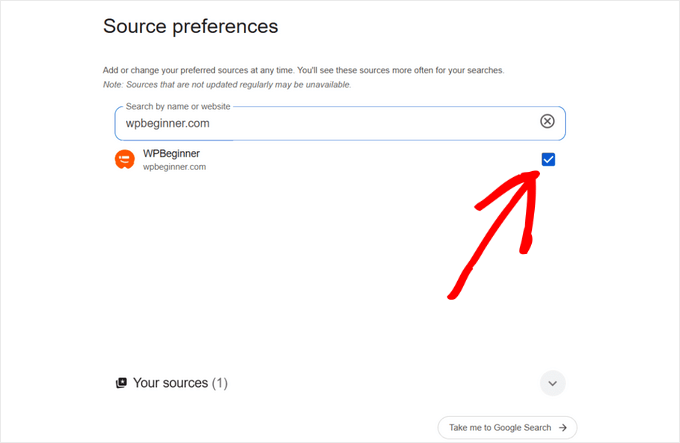
2️⃣ Step 2: Select WPBeginner

Next, click the checkbox next to WPBeginner to add it as a preferred source. ✅

Select WPBeginner as a preferred source in Google

3️⃣ Step 3: Refresh Your Results

Once you’ve selected WPBeginner, simply refresh your Google search results.

That’s it! You’ll now see WPBeginner content more frequently in the ‘Top Stories’ and ‘From Your Sources’ sections, making it easier to find our new tutorials and guides.

Keep Up to Date with WPBeginner

Adding WPBeginner as a preferred source is just one way to keep up to date with our latest articles.

You may also wish to:

We hope this article helped you learn how to see WPBeginner articles first on Google. You may also want to check out our ultimate WordPress SEO guide for beginners, or take a look at the best WordPress plugins we use daily to run our sites.

この記事が気に入った場合は、WordPressのビデオチュートリアルのために、YouTubeチャンネルを購読してください。また、TwitterFacebookでも私たちを見つけることができます。

開示: 当社のコンテンツは読者によってサポートされています。これは、一部のリンクをクリックすると、手数料が発生する可能性があることを意味します。WPBeginnerがどのように資金調達されているか、なぜそれが重要なのか、そしてどのように私たちをサポートできるかを確認してください。こちらが当社の編集プロセスです。

究極のWordPressツールキット

無料のツールキットにアクセスしましょう - すべてのプロフェッショナルが持つべきWordPress関連の製品とリソースのコレクションです!

読者とのインタラクション

コメント

  1. おめでとうございます。この記事の最初のコメント者になる機会を得ました。
    質問や提案はありますか?コメントを残して、議論を開始してください。

返信する

コメントいただきありがとうございます。すべてのコメントは、コメントポリシーに従ってモデレーションされ、メールアドレスは公開されません。名前フィールドにキーワードを使用しないでください。個人的で意味のある会話をしましょう。