


Ti sei mai imbattuto in un sito che ha forme personalizzate per gli avatar utente o gravatar? Vuoi aggiungere lo stesso stile sul tuo sito? In passato, abbiamo scritto su come aggiungere avatar rotondi usando CSS, ma ciò richiede la modifica del codice. In questo articolo, ti mostreremo come cambiare la forma degli avatar utente in WordPress senza alcun HTML o CSS.
Tutorial video
Se non ti piace il video o hai bisogno di ulteriori istruzioni, continua a leggere.
La prima cosa da fare è installare e attivare il plugin Avatar Shaper.
Once you have activated the plugin, you need to go to Settings » Avatar Shaper to configure the settings.
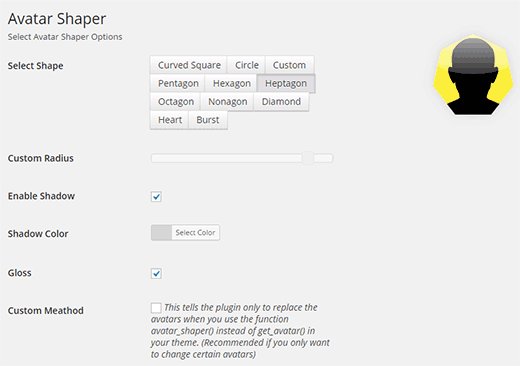
The plugin comes with 10 built in shapes that you can use for your gravatar images. You can see a live preview of each shape by clicking on the select shape button.
Avatar shaper comes with the following shapes: curved square, circle, pentagon, hexagon, nonagon, heptagon, diamond, burst, and heart shaped avatars.
You can customize the styles by changing the radius settings, adding or removing shadow, modifying the shadow color, and removing the gloss optin from each of these pre-defined shapes.
In case you don’t want to use any of these, then you can always click on Custom and create your own custom shape. When creating a custom shape, you can adjust border radius to your own liking.
Se sei un utente avanzato e desideri aggiungere manualmente avatar modificati, puoi selezionare la casella di controllo del metodo personalizzato. Utilizzando il metodo personalizzato, ti consente di aggiungere manualmente il tag del modello avatar_shaper() nel tuo tema dove desideri visualizzare avatar personalizzati. I principianti possono tranquillamente ignorare questa impostazione.
Una volta terminata la scelta della forma per i tuoi avatar, puoi premere il pulsante Salva modifiche per memorizzare le tue impostazioni.
Tutto qui. Ora puoi visitare il tuo sito web e vedere le forme degli avatar in azione.
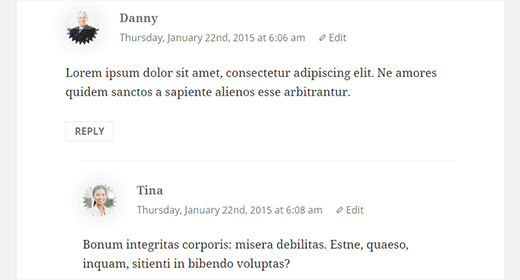
Speriamo che questo articolo ti abbia aiutato a cambiare la forma degli avatar utente in WordPress. Potresti anche voler consultare questo tutorial su come aggiungere nuovi avatar predefiniti in WordPress.
Se ti è piaciuto questo articolo, iscriviti al nostro canale YouTube per tutorial video su WordPress. Puoi trovarci anche su Twitter e Google+.





Hai una domanda o un suggerimento? Lascia un commento per iniziare la discussione.