


We check Google Analytics every day to monitor how our WordPress websites are performing. Because the analytics dashboard is so complex, we know how easy it can be for site owners to miss something important, like a sudden traffic drop, a broken conversion path, or an unexpected change that needs attention.
That’s why we recommend custom email alerts in Google Analytics to website owners who want to save time and stay informed.
These alerts automatically notify you when something changes with your traffic or conversions, so you don’t need to keep refreshing dashboards or worry about missing a key insight.
In this guide, we’ll show you two simple ways to create custom email alerts in Google Analytics, so you can stay on top of your site’s performance without the daily hassle. 🚀
What Are Custom Email Alerts in Google Analytics? And Why Do You Need Them?
Custom email alerts in Google Analytics 4, officially called Custom Insights, are automatic notifications that tell you about significant changes in your website’s data. They save you from having to constantly check your analytics dashboards.
GA4 refers to these important changes as anomalies.
With Custom Insights, you can create alerts for key anomalies, like:
- A drop in overall or organic traffic
- A spike in direct traffic
- A sudden decrease in sales or ad revenue
- A big jump in traffic or conversions
For example, you might wake up one morning to find your website traffic has suddenly dropped. Or maybe a social media post went viral overnight, bringing in thousands of new visitors.
Wouldn’t you want to know right away? That’s exactly why custom email alerts in Google Analytics can be so useful.
These alerts help you act fast, whether to fix an issue or make the most out of a new opportunity. 🙌
How to Get a Custom Email Alert in Google Analytics
Now that you know the benefits of custom email alerts in Google Analytics, let’s go over two ways to set them up.
Here’s a quick breakdown to help you choose:
- Method 1 (MonsterInsights): This is the easiest and most beginner-friendly option. If you’re a WordPress user and prefer a simple setup with reports inside your WordPress dashboard, this is for you. It requires a premium MonsterInsights plan.
- Method 2 (Manual GA4): This method is free and works for any website platform. It’s more hands-on and offers greater flexibility, like hourly alerts, but requires working directly inside the Google Analytics interface.
Feel free to use these jump links to go to your preferred method:
- Method 1. Get Custom Email Alerts Using a Google Analytics Plugin (Easy)
- Method 2. Get Custom Email Alerts in Google Analytics (Manual)
- FAQs: Custom Email Alerts in Google Analytics 4
- Further Reading: More Analytics and Tracking Guides
Let’s get started!
✏️ Note: You will need a Google Analytics account before following either of our tutorial methods. If you don’t have one yet, then please see our guide on how to install Google Analytics.
Method 1. Get Custom Email Alerts Using a Google Analytics Plugin
Navigating Google Analytics can be confusing. If you want an easy way to create custom email alerts, this method is for you. That said, do note that this will only work for WordPress users.
Here, we’ll be using MonsterInsights, which is the best Google Analytics plugin on the market. It brings Google Analytics 4 (GA4) right into your WordPress dashboard and makes reports easier to understand.
Plus, it has the Exception addon that automatically spots unusual spikes or drops in your data. With this addon, you’ll always be in the loop without extra work.
At WPBeginner, we trust MonsterInsights to track everything across our website, including our form, button, and referral link conversions. You can read our complete MonsterInsights review to see why we love it.
Step 1. Install and Activate the MonsterInsights Plugin
First, let’s create a MonsterInsights account. On the website, you can simply click on the ‘Get MonsterInsights Now’ button and choose your plan.
After that, simply follow the instructions for the checkout process.
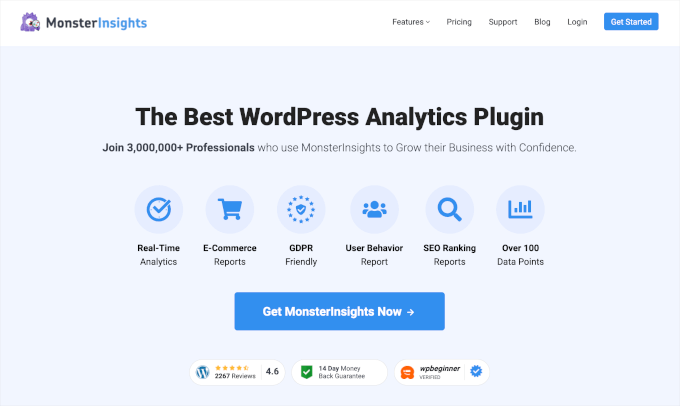
✏️ Note: In this tutorial, we’ll be using a premium version of MonsterInsights (Plus plan or higher), as it includes the Exceptions addon we’ll need in Step 3.
However, the free MonsterInsights version is still a great option if you want to get started with basic analytics reports directly in your WordPress dashboard.
With that done, you can install and activate the MonsterInsights plugin in your WordPress dashboard. For details, you can see our guide on how to install a WordPress plugin.
Step 2. Connect MonsterInsights to Your Google Analytics Account
Once you’ve installed MonsterInsights, the next step is to connect it to your site and Google Analytics.
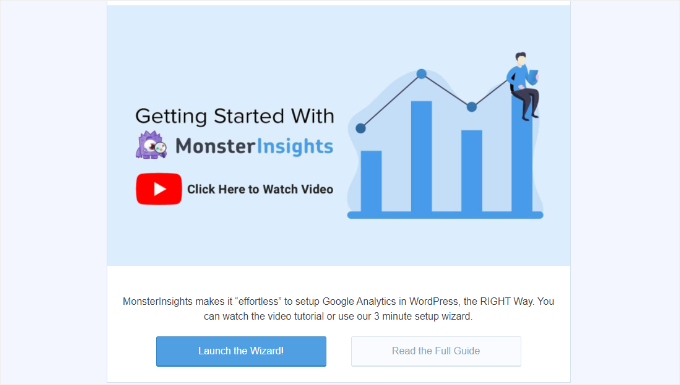
To do this, you’ll need to click on the ‘Insights’ menu from your WordPress admin area. Then, go ahead and click the ‘Launch the Wizard’ button to start the setup process.
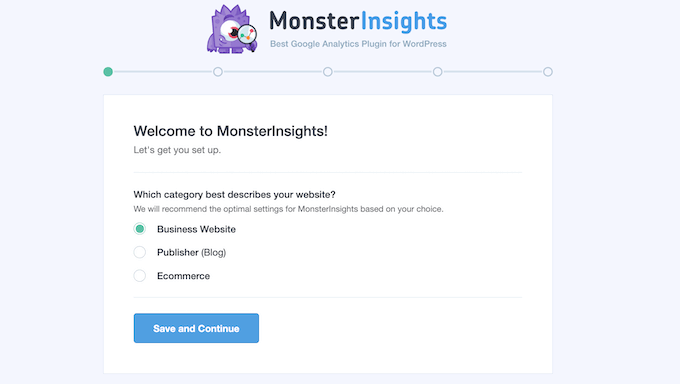
Next, you’ll need to choose the category that best describes your website – whether it’s a blog, business site, or online store.
After choosing a category, click ‘Save and Continue.’
In the next steps, simply follow the prompts to sign in to your Google Analytics account and select the website you want to track.
Once you see the ‘Complete Connection’ button, just click it – and you’re all set!
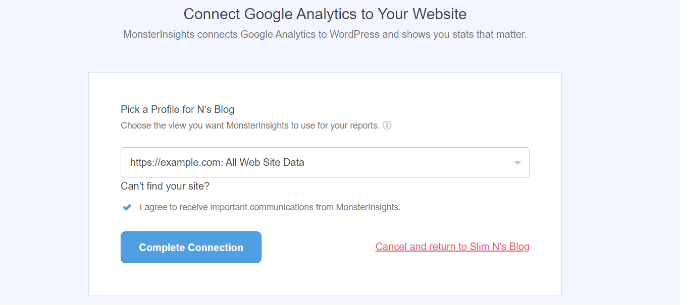
For a detailed walkthrough, you can read our guide on how to install Google Analytics in WordPress.
Step 3. Set Up the MonsterInsights Exceptions Addon
In this step, we’ll add the Exceptions addon to track 16 types of unusual activity, such as sudden drops in traffic, conversion spikes, unexpected bounce rate changes, and more!
Whenever something ‘exceptional’ happens, you’ll get a detailed record in your Exceptions report. This means you can spot issues early and take action before they turn into bigger problems.
To get the Exceptions addon set up, let’s go to Insights » Add-ons.
In the ‘Exceptions’ box, you can click the ‘Download & Activate’ button. Then, simply click on the switch when it appears.
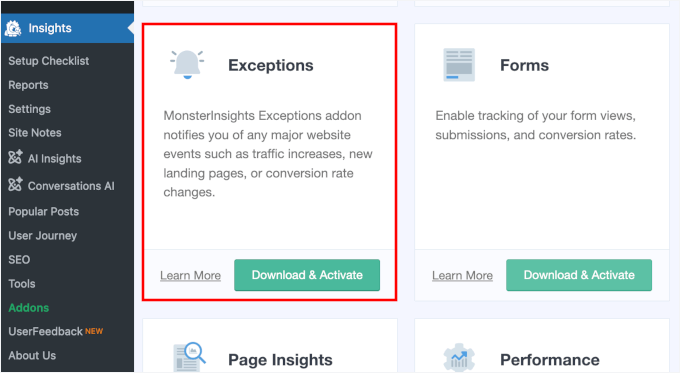
Upon activation, the addon will start tracking irregularities.
You can see the report by navigating to the dedicated ‘Exceptions’ tab from your ‘Reports’ page.
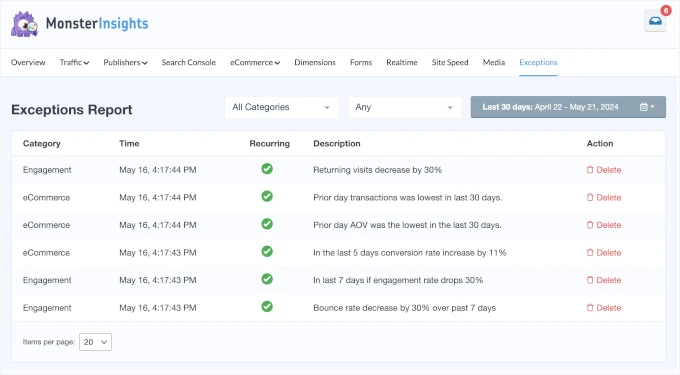
If you don’t use a MonsterInsights Agency account, no worries.
You can still monitor your site’s key metrics right from your WordPress dashboard.
Just go to the Insights » Reports page, where you’ll find useful insights on your website’s traffic, campaigns, and site speed, for example.
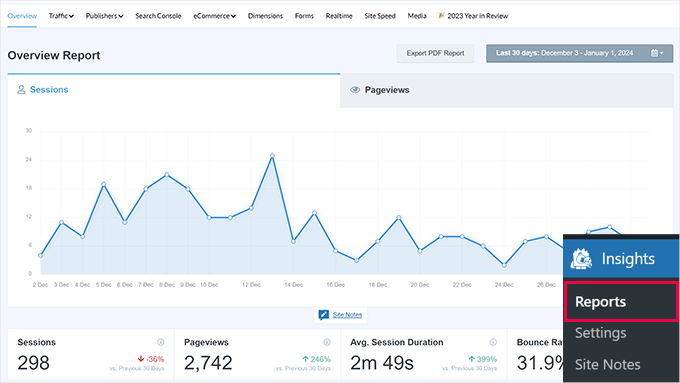
Step 4. Get MonsterInsights Exception Alerts
Now, it’s time to set up email alerts to keep track of sudden shifts on your site.
To do this, you can head over to Insights » Settings » Advanced.
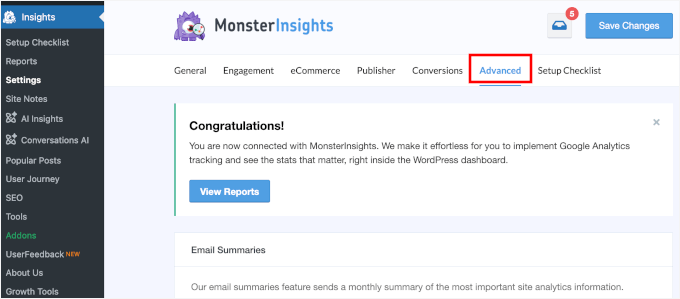
From here, let’s locate the ‘Exception Alerts’ section.
To get alerts, simply toggle the switch to ‘Enabled.’
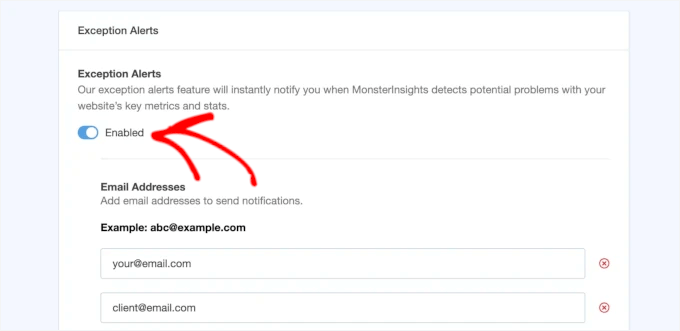
Next, you can add the email addresses that should receive notifications.
You can enter up to 5 email addresses. Just click the ‘Add Email’ button to include more.
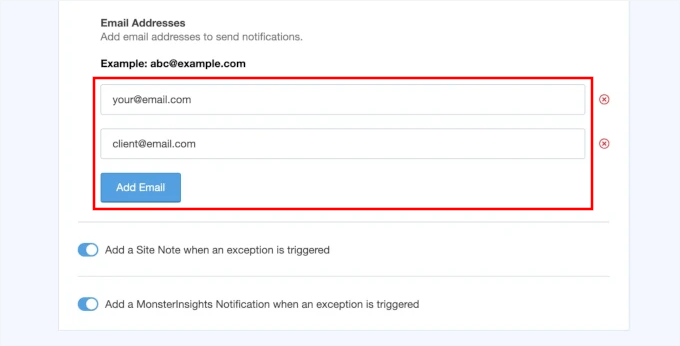
With that done, you’ve successfully set up Exception Alerts using MonsterInsights.
Keep in mind that MonsterInsights checks for exceptions daily, so you’ll typically receive an alert the day after a significant change is detected. This is great for monitoring trends.
If you need more immediate, near-real-time alerts, Method 2 offers an hourly check option.
💡 Expert Tip: Once your notification emails are set up, it’s a good idea to send a test email to make sure everything is working smoothly. If you run into any issues, then you can follow our guide on how to fix WordPress not sending emails.
Across our company, we use WP Mail SMTP to make sure our emails reach users’ inboxes and not the spam folder. Check out our full WP Mail SMTP review to see all the features!
Bonus Step: Set Up Weekly Email Summaries
With MonsterInsights, you can also receive weekly email summaries to track your WordPress site’s performance.
You can start by enabling the ‘Email Summaries’ feature under Settings » Advanced.
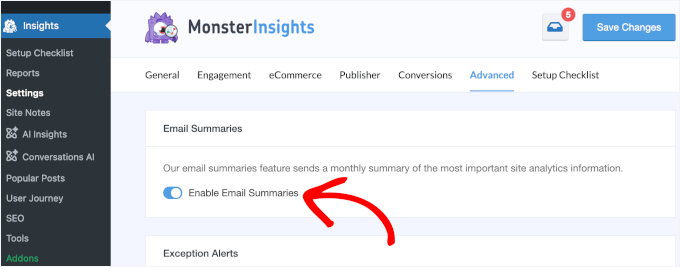
Next, you’ll have to add email addresses to receive notifications and customize the email header for your alerts.
For step-by-step instructions, you can check out this guide on how to get automated Google Analytics email reports on the MonsterInsights blog.
Method 2. Get Custom Email Alerts in Google Analytics
With this method, we’ll show you how to set up email alerts directly in the Google Analytics dashboard.
This works for any website, so it’s a good option if you don’t use WordPress or prefer to manage everything inside GA4. But keep in mind that it requires more manual setup and takes a bit more time.
Before we start, let’s look at the 2 types of GA4 insights you can use for tracking important changes:
- Automated Insights – Google’s machine learning helps identify trends and unexpected changes for you.
- Custom Insights – You define the conditions to track exactly what matters most to your business.
Now, let’s walk through how to set each one up.
Step 1. Create Google Analytics Insights
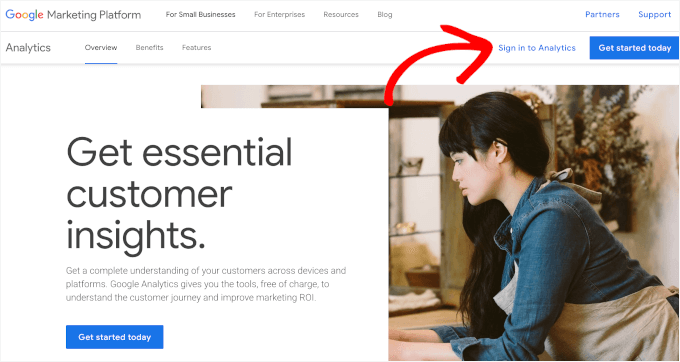
First, you’ll want to sign in to your Google Analytics account.
Simply click on the ‘Sign in to Analytics’ button and enter your credentials.
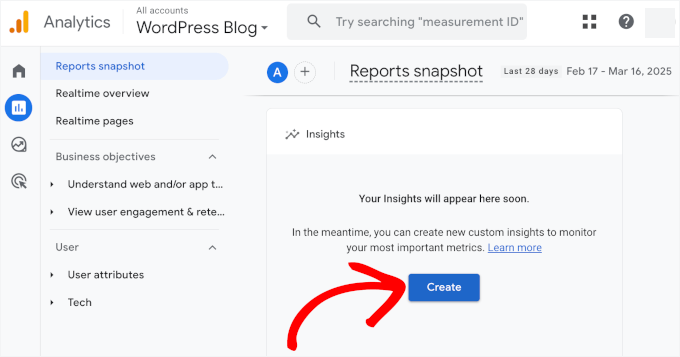
From here, let’s go to the ‘Reports’ tab.
Scroll down to the ‘Insights’ section and click on the ‘Create’ button.
On the next screen, you’ll see Google’s suggested alerts. These include unusual activity related to daily events, users, views, and revenue.
Here, you can check the ones you want. For example, we checked all the boxes like this:
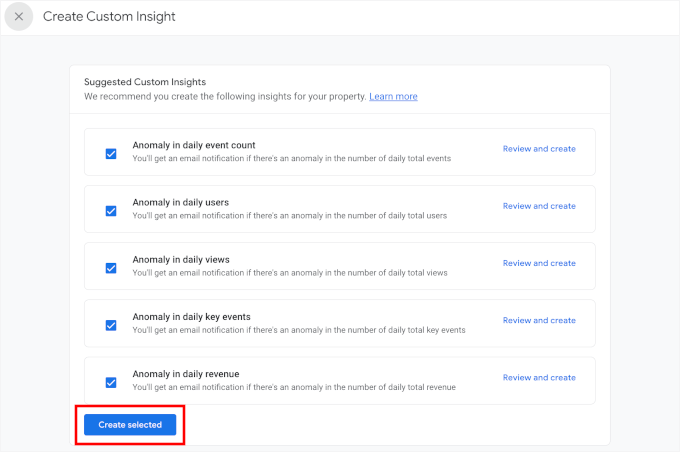
With that done, go ahead and click ‘Create selected’ to activate your suggested insights.
Step 2. Set Up Custom Google Analytics Insights
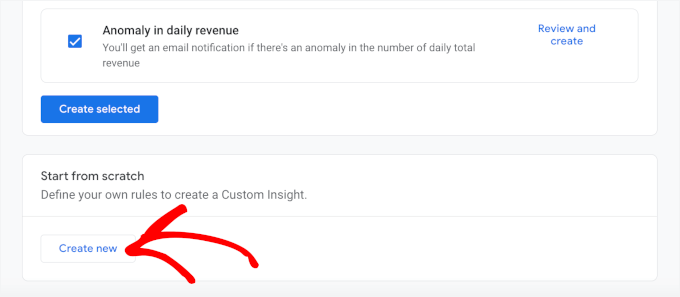
If you scroll down this page, you’ll see that Google Analytics lets you create custom alerts from scratch or use suggested insights.
If you want full control over what triggers an alert, then click ‘Create new’ under the ‘Start from scratch’ section. This lets you set your own conditions based on the metrics that matter most to you.
💡 Expert Tip: You don’t have to choose between custom and suggested insights. You can use both to stay on top of key changes in your data.
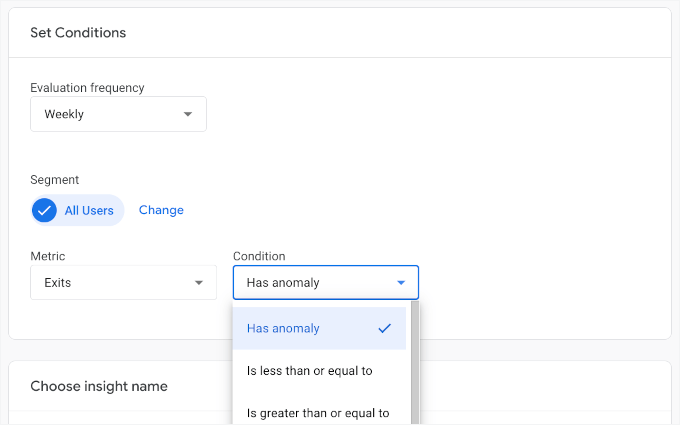
Next up, you’ll need to set your conditions:
- The ‘Evaluation frequency’ can be hourly, daily, weekly, or monthly. This means how often Google Analytics will look at the data to see if it matches the conditions you set up.
- ‘Segment’ lets you focus on a specific group of visitors. For example, you could set this to ‘Organic Traffic’ to get an alert only when traffic from search engines like Google changes, or ‘Mobile Traffic’ to watch for shifts in visitors using their phones.
- ‘Metric’ allows you to set factors to track. For example, you might focus on conversions, page views, and revenue.
- The ‘Condition’ dropdown is where you set a trigger for your alert. This might be an anomaly (something that is higher or lower than usual) or a specific percentage for the metric you choose.
For example, you can create an alert if daily views drop by more than 20% compared to the same day last week. This helps you spot SEO issues or site problems quickly.
After defining your rules, you can name your alert.
This is the name that will appear in your email notifications, so make sure it’s obvious and easy to refer to.
Then, go ahead and enter your email addresses for notifications.
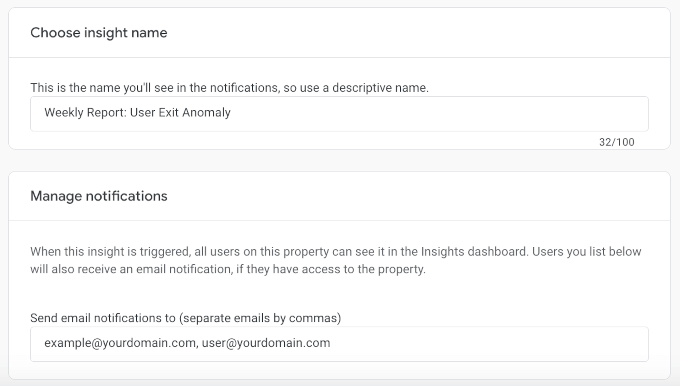
Once everything looks good, don’t forget to click the ‘Create’ button in the top right corner to save your custom alert.
And that’s it – you’ve set up custom email alerts in Google Analytics!
Step 3. Manage Google Analytics Insights Alert
In this step, we’ll show you how to manage your custom Google Analytics insights alerts. This will enable you to turn alerts on and off, edit them, and delete them.
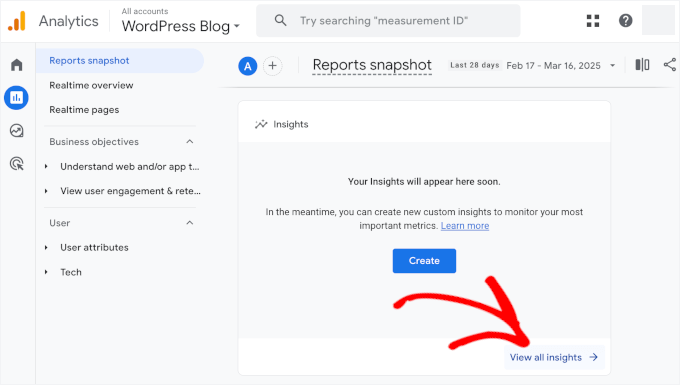
To do this, let’s navigate to Insights » View all insights from your ‘Reports snapshot’ screen.
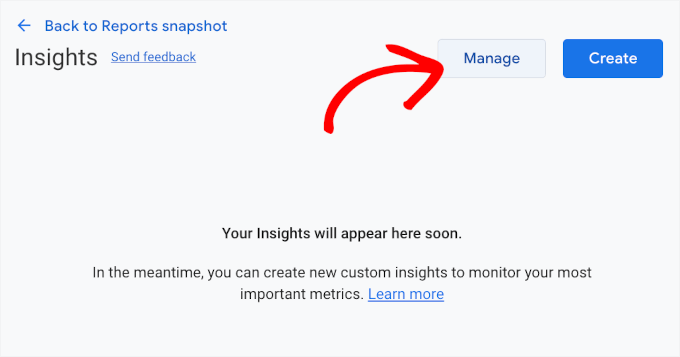
Once inside, you can click the ‘Manage’ button.
This will open a slide-in menu to see all your custom alerts.
Here, you can toggle email notifications on or off as needed.
You can also click the three dots to edit or delete an alert.
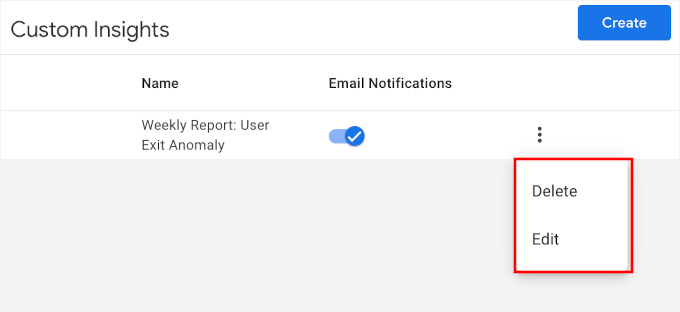
And if you want to create more alerts, simply use the ‘Create’ button and repeat the process.
Go Beyond Analytics: Find Out WHY Your Visitors Act

An alert from Google Analytics can tell you WHAT happened (like if your conversion rate suddenly dropped), but it can’t tell you WHY. That’s where UserFeedback comes in.
You can use this powerful user feedback plugin to ask visitors targeted questions to uncover the real reasons behind the data and fix any issues fast.
FAQs: Custom Email Alerts in Google Analytics 4
How many custom alerts can I create in Google Analytics?
Google Analytics (GA4) lets you create up to 50 custom insights, or alerts, per property. This gives you plenty of flexibility to track the key metrics that matter most to your business.
Can I get Google Analytics alerts sent to multiple people?
Yes. Both the MonsterInsights plugin and manual GA4 setup let you enter multiple email addresses for notifications. This way, your whole team can stay informed about important changes.
Why am I not receiving my email alerts?
First, check your spam or junk mail folder to make sure the email addresses you entered are correct and free of typos. If you use WordPress, email deliverability could be an issue. A plugin like WP Mail SMTP can help ensure your website emails reach the inbox reliably.
Are Google Analytics custom alerts real-time?
It depends on your settings. In GA4, you can choose an Hourly evaluation frequency for near-real-time notifications. Most users, however, use the Daily setting.
Further Reading: More Analytics and Tracking Guides
That’s it! We hope this article has helped you learn how to set up custom email alerts in Google Analytics.
Want to dive deeper into analytics and tracking? Here are more helpful guides to level up your insights and help you make data-driven decisions:
- How to Set Up Google Analytics Goals
- WordPress Post Analytics – How to Easily See Your Blog Stats
- How to See Search Analytics in WordPress
- How to Add Scroll Depth Tracking in WordPress with Google Analytics
- How to Set Up Email Newsletter Tracking in Google Analytics
- How to Block Referrer Spam in Google Analytics
If you liked this article, then please subscribe to our YouTube Channel for WordPress video tutorials. You can also find us on Twitter and Facebook.





Lorie Ann Alferez
What’s particularly useful is the breakdown of MonsterInsights’ capabilities, simplifying website tracking for WordPress users. Many businesses, including digital agencies like Infinity Web Solutions, recognize the importance of staying ahead of analytics trends to optimize decision-making. Your guide helps streamline that process with practical steps and tools.
This resource is a valuable aid for those seeking to automate their website monitoring efficiently. Looking forward to reading more of this content!
WPBeginner Support
Glad you found our content helpful
Admin