


More than 10,000 new websites integrate with Facebook every day by using one of their social plugins. However most sites that we see are not taking full advantage of what facebook has to offer. Were you aware of the fact that you can get facebook insights for your WordPress site? These insights include data such as your most popular pages for the like button, send button, organic shares, comment box etc. It also includes information like who is your demographic audience on facebook, their age, gender, country etc. If you were not, then don’t be surprised because you are not alone. We checked some of the industry leaders’ websites including Chris Brogan, Brian Clark, Darren Rowse, John Chow, and Jeremy Schoemaker (aka Shoemoney) and none of their sites were taking advantage of Facebook insights either. In this article, we will show you how to get facebook insights for your WordPress site, so you can take full advantage of what facebook has to offer.
First you need to install and activate the WordPress SEO plugin. It is one of the most downloaded WordPress plugins. Chances are that you already have it installed, but if you don’t then we have detailed instructions on how to install and setup WordPress SEO plugin.
After you have setup the plugin correctly, your site is now ready for Facebook. You need to simply visit SEO » Social page and click on the Facebook tab.
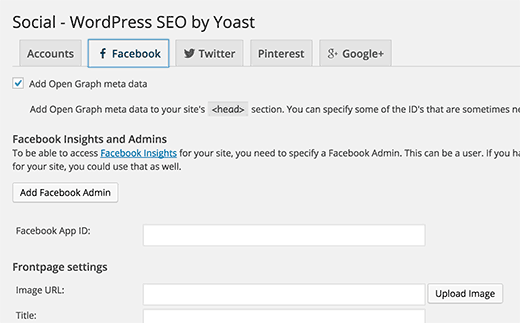
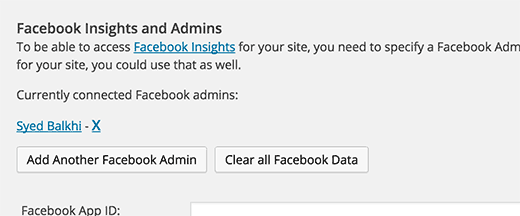
Now you need to click on ‘Add Facebook Admin’ button. This will take you to the Facebook website. If you are not signed in, then you need to sign in with the Facebook account that you want to add as admin. After that you will be redirected back to your WordPress site, where you will see the username added as the admin.
Next thing you need to do is make sure that you are using the CORRECT version of the facebook like button. Many sites just utilize the iframe version of the facebook like button. While that works, it will not let you get facebook insights. You need to use the XFBML method shown in this post.
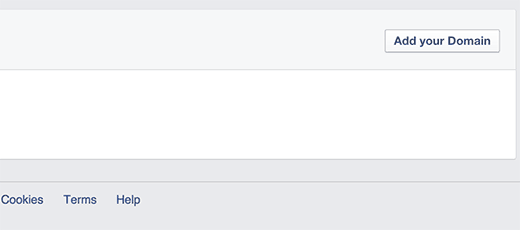
Last step that you need to do is claim your site on Facebook. You need to visit the Facebook Insights Page. Under your pages, look for the Add Domain button.
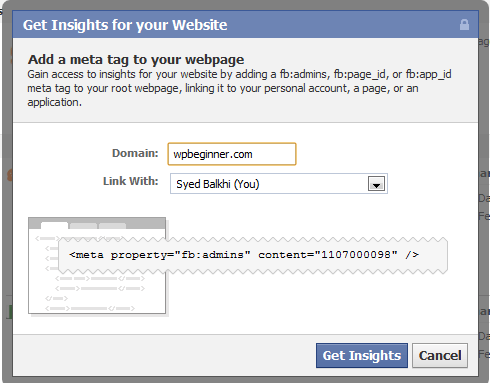
When you click on that green button, a lightbox will appear like the image below. Enter your domain name and make sure you link it with “YOU”.
Now when you visit the facebook insights page, you will see your website listed under Websites.
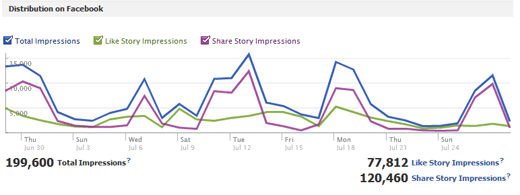
Once you click on your site, you will be able to access all sort of insights. An example image is below:
There you have it. Now you can easily get Facebook insights for your WordPress site. For more detailed instructions, you may also want to check our tutorial on how to add Facebook open graph meta data in WordPress.
If you liked this article, then please subscribe to our YouTube Channel for WordPress video tutorials. You can also find us on Twitter and Facebook.




suankit
how can i post my wordpress blog article in facebook
Yazeed Zghoul
So where on the All in One SEO Pack Plugin can I use Facebook insight the same way explained here with Yoast plugin?
Yazeed Zghoul
Hi, this is great but the question is can I use All in one SEO plugin and WordPress SEO plugin at the same time without having some overlapping and potential errors? please advice.
WPBeginner Support
No, you cannot. They would overlap and this may result in unexpected behavior that could adversely affect your site’s SEO.
Admin
Mary Jo Doig
I so hopeful you might be able to help me with a huge problem I created two days ago. I posted my blog story on FB, then noticed I’d omitted the photo, deleted it so I could redo the post. In deleting, every one of my 75 word press blog posts are now gone, resulting also in the loss of all those statistics on wordpress. Is there any way you know of that I could restore that vital info
I would be profoundly grateful for your assistance. Thank you for your attention to this.
Mary Jo Doig
WPBeginner Support
When you delete posts from WordPress, they remain in Trash for next 30 days before they are permanently deleted. Look for your deleted posts in the trash by clicking on Posts and then clicking on Trash link.
Admin
Tari
Well, poo. The plugin has a big banner that says it hasn’t been updated in the last two versions of Wordpress. That’s a non-starter for me. Sure sounds cool though. I’d look forward to trying an updated version.
Godwin
Thanks for the detailed step-by-step guide, however, I having some issues installing Facebook Insights for my site. I followed everything detailed in the posts as well as the extra explanations in the comments, and when I click on the “Get Insights” link; this is what I get:
“Bad Request
No admin data found at root webpage http://mysite/. Insights requires admin data at this root webpage for the specified URL transtudentworld.com”
However the I have correctly paste the meta tag in my header.php file just two line below the tag, so I don’t know why Facebook can’t find it. I also did the XFMBL Method and have also installed the Facebook Open Graph plugin.
Please help me out! I don’t know what else to do. Thanks in anticipation
Emmeline Jane
Hi!
I’ve followed all of your steps correctly but when I try to link the website through the green ‘insights for your website’ link it comes up with this:
Bad Request
No admin data found at root webpage Insights requires admin data at this root webpage for the specified URL
I don’t know how to fix it! I’ve put in my own personal FB id and followed the step correctly, I don’t know what I’m doing wrong. Any ideas/tips???
WPBeginner Support
Facebook is unable to find fb:admin meta tag on your site. Generate a meta tag for your website by clicking on the green button insights for your website. Enter your domain name and your user profile. Facebook will generate a meta tag for you which you can paste in your theme’s header.php file
Admin
Imad Daou
Dear Syed,
What would be the difference between this insight and the insight that comes with Facebook Recommendation Bar? I have followed the facebook recommendation bar post and I got already an insight through this plugin which points to the app that I have created in Facebook. Is this another insight for the home page specifically or can I skip it if I already have it through Facebook recommendation bar?
By the way, I tried to add my website to the insight through the insight link you provided and after I have installed the Facebook Open Graph Meta Data plugin; I got this error from facebook insight:
No admin data found at root webpage http://ccnahub.com/. Insights requires admin data at this root webpage for the specified URL ccnahub.com
Please let me know what should I do.
Thank You!
Frank
In IOS the black bar that lives on the bottom of your web page is in the middle of the text and obscures your content. Thought you should know.
Carl Lyons
Thanks I needed that!
Sarrah
Hi Syed, i have some interesting posts from my FB page that I’d like to repost on my WP site. Is there a way to do that other than doing screen capture?
Editorial Staff
I think the screen capture is the only way that I know of.
Admin
Sarrah
Ok. So I did screen captures but have to break up the post into a few parts. But when I insert the few images, there is a line break gap between the images. How do I get rid of that gap to make the images look like one big continuous piece? Sorry to hijack this thread. Thanks!
Editorial Staff
Instead of inserting the images in a separate line. Remove all line spaces so that there is not a single space between the image codes. That should help. For future please use the contact form for “off-topic” questions.
Tomas
Hi guys I realise a mistake in my last comment. I initially used the UID for http://graph.facebook.com/relensi which is 302475996501071. But when I got the invalid message, I tried to use the UID for my personal fb account which is 100000147197456.
I just set up the page for a project I just started and I hope anyone here can help me out.
Thanks in advance.
Tomas
Hi Syed, I read this post earlier. However, After creating the facebook page for my business, I read a notification on facebook that I could view insights once the page gets 30 likes. So I’d like to ask if it was still necessary to install the Facebook Open Graph Meta Data plugin. Are there any other benefits from installing the plugin?
Thanks in advance.
Editorial Staff
The facebook insights you get for that page is for your FB page only. The insights we are talking about here is for the facebook activity on your website. i.e like button etc.
Admin
Tomas
Thanks a lot. Keep up with the good works.
Best regards.
bizzyLabs
@wpbeginner 99% chance that his themes function.php file does not include the line add_theme_support( ‘post-thumbnails’ );
I’ve ran into that error in the past and its been fixed by adding post-thumbnail support.
josephvb10
Hey thanks for the info
goteq
This is a great plugin, I suppose its time someone writes a plugin to get open graph type technology for the Google+ shenanigans?
wpbeginner
@EricMcKenzie Your account ID is the admin ID. Does your theme have built-in support for post-thumbnails also known as featured image?
EricMcKenzie
@wpbeginner I am using WP ver 3.0. The WP Settings panel only asks for 3 things. My Facebook account ID, My Site Name and default Image URL. Where am I supposed to enter my admin ID?
wpbeginner
@EricMcKenzie That’s weird. Line 37 is simply calling for the post thumbnail feature which was added in WordPress 2.9. This is why the plugin requires you to use at least WordPress 3.0 assuming that your theme would be utilizing that feature.
You need to specify your admin ID in the WP Settings Panel for this plugin.
EricMcKenzie
This looks great, but when I tried it I got this message popping up where my blog should be “CloseOpenFatal error: Call to undefined function get_post_thumbnail_id() in /home/ericmckenzie/canadianaidforchernobyl.com/home/wp-content/plugins/fbogmeta.php on line 37”. Also in Facebook Insights I get the message “Bad Request. No admin data found.” What am I missing?
Thanks,
Eric