


Recently one of our users reported a very odd issue with their install. When writing a post, they could not see anything they were writing. Because the text of the post editor was white. More importantly, all of the visual editor buttons were missing, and the ability to switch from Visual to HTML was not working. In this article, we will show you how to fix the white text and missing buttons issue in WordPress visual editor.
Note for Beginners: If you are looking for hidden buttons that you might see in screenshots of other sites, then you are probably looking for the Kitchen sink. You would have to click on the Kitchen sink icon to see these other options such as Underline, copy from word etc.
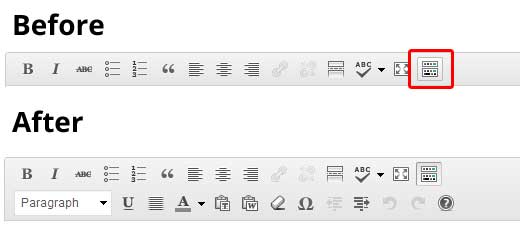
Some sites also use TinyMCE Advanced plugin to add various other buttons that are not there by default.
For the rest of you who are actually really having a problem with missing buttons or white text in visual editor, then continue on with this tutorial.
Clear the Browser Cache
Upon our search, we found users suggesting that clearing the browser cache worked for them. The first thing you should try to do is clear the browser cache or use another browser. This could very well be an issue with your computer.
If this does not fix your issue, maybe the issue is with your install?
Replacing TinyMCE Scripts
Maybe this issue happened after you updated? Well, its not likely, but maybe something went wrong in the update process. Try replacing /wp-includes/js/tinymce/ folder with a fresh copy.
Fix with wp-config
If none of the above tricks worked for you, then open your wp-config.php file and add the following line at the very top after the php opening tag.
define('CONCATENATE_SCRIPTS', false);
This trick fixed the issue for our user who reported this issue. We hope that one of the solutions listed in this article will fix your white text and missing buttons in WordPress visual editor problem. If you found another fix that worked for you, then please share it in the comments.




Syed Balkhi says
Hey WPBeginner readers,
Did you know you can win exciting prizes by commenting on WPBeginner?
Every month, our top blog commenters will win HUGE rewards, including premium WordPress plugin licenses and cash prizes.
You can get more details about the contest from here.
Start sharing your thoughts below to stand a chance to win!
Olusunmade Adedamola says
I found out that if you delete, autoptimize plugin (permanently) , your website will be back to normal
WPBeginner Support says
Thanks for sharing the solution that worked for you
Admin
Suresh Pancholi says
define(‘CONCATENATE_SCRIPTS’, false);
it’s working done.
WPBeginner Support says
Glad our recommendation could help
Admin
John B says
I’ve been struggling with white text / no buttons in edit box and tried ALL the solutions. Finally, went into the profile settings: “Disable the visual editor when writing” was UNCHECKED but I CHECKED it and hey presto everything now works (ie visual editor appears)!
WPBeginner Support says
Thanks for sharing the solution that worked for you
Admin
Mark E says
Thanks, still works in 2019, post WP5 with classic editor installed.
I had to do the define(‘CONCATENATE_SCRIPTS’, false); thing.
WPBeginner Support says
Thanks for sharing, glad the code still works
Admin
ragulan says
i was searching for a solution and simply clearing the browser cache worked for me…
WPBeginner Support says
Thanks for sharing this solution in case it helps another user
Admin
darshan says
Sir, My Visual Editor not working! Please help me. Only TEX code feature are working but visual not work.!
I have Deleted my Browser Cache, And i try to fixed wp-config.php with
“define(‘CONCATENATE_SCRIPTS’, false);” And Also TinyMCE Advanced plugin, And also deactivate all of the installs plugin and change my theme but still not work any of these. Can you please tell me how can it fixed?
WPBeginner Support says
You may be missing a file or a file may have an error, you would want to reinstall the WordPress files under Dashboard > Updates or manually using: https://www.wpbeginner.com/wp-tutorials/how-to-manually-update-wordpress-using-ftp/
Admin
Serkan says
SOLUTION in my case:
An editor for a client was working properly. They wanted to get their website faster, so I tried out different speed optimization plugins. One of these plugins added into the functions.php file this line:
add_filter( ‘tiny_mce_plugins’, ‘disable_emojis_tinymce’ );
This somehow broke the visual and text editor, and also some buttons in the bar were missing. When I saved a content it was not stored. So I deleted this line saved the file and then the editor toolbar was working again properly.
Hope this helps you guys.
WPBeginner Support says
Thanks for sharing this possible solution
Admin
Paul says
I did all of the above and nothing is working. Then it hit me as I checked my posts. The editor is working fine for posts. My issue is with woocommerce products only. Same issue no response from the visual/text tabs and the text displayed within the editor is white and can’t be seen.
Any suggestions?
WPBeginner Support says
Sadly, if the error is with WooCommerce only then you would want to reach out to WooCommerce’s support and let them know for them to take a look.
Admin
Zakria Rahimi says
1 go to dashboard
2 up corner left or right where your profile picture appears place the mouse there and it will open menu of your name on site, my profile and log out.
3 click on your profile
4 uncheck ” Disable the visual editor when writing ”
5 save settings
6 if it worked let me know in a comment
Zakria Rahimi says
Between post body and title of post the bar for me is also disappeared. I Cleared all the Browser Caches, I installed tinymce and is still not appeared. The problem occurred when wordpress was updated and block changed classic to new one (Guthenberg one) and all turned to a miss. I don’t know what to do with it !
Stef says
A god send! Thank you!
Garv says
Sir, My Visual Editor not working! Please help me. Only TEX code feature are working but visual not work.!
I have Deleted my Browser Cache, And i try to fixed wp-config.php with
“define(‘CONCATENATE_SCRIPTS’, false);” And Also TinyMCE Advanced plugin, And also deactivate all of the installs plugin and change my theme but still not work any of these. Can you please tell me how can it fixed?
WPBeginner Support says
Hi Garv,
Try testing with a different browser. If you have browser addons installed, try disabling them.
Admin
garv says
i am trying all of these but it was not work i am thinking there was the problem in godaddy hosting am i right
WPBeginner Support says
Hi Garv,
It could be, please contact your hosting support.
Md Badiruddin says
Sir, My Visual Editor not working! Please help me. Only TEX code feature are working but visual not work.!
I have Deleted my Browser Cache, And i try to fixed wp-config.php with
“define(‘CONCATENATE_SCRIPTS’, false);” And Also TinyMCE Advanced plugin, And also deactivate all of the installs plugin and change my theme but still not work any of these. Can you please tell me how can it fixed?
Siddanth says
I tried everything mentioned above it didn’t work but when I deactivated all the plugins and started to activate one by one, the editor came, i found out that Yoast SEO ver 8.3 was breaking WordPress 4.9.8, When i deactivated yoast the editor and text came. so that was the culprit. Hope it helps!
Patti says
I am having this issue. I have tried all the items in the article and none have worked. I have noticed that the problem only happens for users *other than* SuperAdmin (ie – as a superadmin I don’t have the problem but my editors & contributors do)
Holly says
Adding the line still didn’t work for me:(
Jana Brech says
define(‘CONCATENATE_SCRIPTS’, false);
worked for me.
Thank you!
Michael says
Hello, I published a post and I viewed it I was surprised to see that the content is not complete. But in my dashboard it’s complete
Mariella says
Nothing works …
I need post some new contents but my visual and text editor is not working
I tried clear my cache, install and replace Tinymce Advanced and insert these line code in my wp-config: define(‘CONCATENATE_SCRIPTS’, false);
I do not know what I can do
Can someone help me?
Thanks a lot.
Nilesh says
It got fixed just by clicking on toggle key. I didn’t know this.
Laritza says
Toggle key where? Thanks!
Marco says
Another win for the third method here. Thanks!
Vandana says
Hello,
I am newbie in bloging
I am have facing same problem and I have added Code in wp-config file but still getting same problem anyone Plz help me for solve it.
Thanks in advance
B.DHARMALINGAM says
Yes I fixed my problem. by clicking on toggle key
Jocelyn says
define(‘CONCATENATE_SCRIPTS’, false);
Magic — thank you!
wiwin winarno says
thank you
define(‘CONCATENATE_SCRIPTS’, false);
worked for me
Ambu says
For me, turning off js optimization in autooptimize plugin was the solution
Prosper says
Aadding the code to wp-config worked really fast for me!
Al Wer says
Hello! Did it work ok? I have this problems and also a lot of plugins not working….
Eric says
This worked for me but not my add tablepress icon is missing and my add giphy icon is missing and something else. So strange. I’ll keep reading and try to find a fix. They all were working. I have even noticed other icons on plugins are missing too now. This did fix my main problem though. Thanks
Kathy says
Thank you, “define(‘CONCATENATE_SCRIPTS’, false);” worked for us!
Marvin says
I updated my WordPress to version 4.8.2, since then my my text button changed from the normal one to buttons like; img, ins, b-quote, code, more, close Tag.
Please I need solutions to this problem because I have used the strategy listed above, but did not work out
Kyle says
for me, it is all because of cloudflare wouldnt cache the tinymce, add a page rule in cloudflare and it solved the problem…
Lady G says
How do I even get to wp-config.php file to fix it???
WPBeginner Support says
Hello,
You can access the wp-config.php file using File Manager in your hosting account’s cPanel dashboard. You can also access it using an FTP client.
Admin
Mavi says
For any reasons check the visual editor in the users admin page, find your user and DISABLE the optiom “Disable the visual editting when writing” let it empty!
Do the contrary:
saiem Khan says
You are great bro !! … really saved my life
remco says
define(‘CONCATENATE_SCRIPTS’, false);
–> did it for me. Thanks!
Saurabh Dubey says
thank very very much.
Raj says
define(‘CONCATENATE_SCRIPTS’, false);
not working for me
When i am trying to update any post it is showing this error
This page isn’t working
example.com didn’t send any data.
ERR_EMPTY_RESPONSE
Please help me i am waiting for your response.
Vishal says
Hi I Need Some Urgent Help Regarding My WordPress Post Editing . When I published Post and after that i come again in editor. the post heading and photo not show in post editor menu but photo and heading show in published post .Please Tell Me How I Can Solve This Problem.I want To Edit Photo But I can’t Remove Because In Post Editor Photo Not Show. Photo & Heading Show Only Published Post.
Kevlin Brown says
Nothing worked since I upgraded to the latest WordPress! Visual Editor Button shows but not responding when clicked.
Disabling all plugins, Not change;
Including the define ( ‘CONCATENATE_SCrIPTS’, false ); No change
Change themes to WordPress default, nothing
I am tired.
WPBeginner Support says
Hey Kevlin,
Try disabling browser extensions. You can also use inspect tool to see if there are some errors or warnings displayed in browser console.
Admin
Haran says
Hi
I used the plain HTML option in GetResponse to create a simple form containing email field and signup command button. GetResponse preview form is good. Next I pasted the code in my WordPress.org V4.8 text editor. Noticed there is are a 4-5 lines gap between the fields and the command button in the visual editor. Tried deleting the spaces in WordPress page using the visual editor but somehow the HTML code got deleted too. Would appreciate if anyone could inform me how to delete the spaces between the email field and form command button
Elviera says
Thank you – it worked for me!
define(‘CONCATENATE_SCRIPTS’, false);
jack glendening says
fixed by removing a .htaccess file I’d put into wp-includes following a wpbeginner recommendation = #4 in https://www.wpbeginner.com/wp-tutorials/9-most-useful-htaccess-tricks-for-wordpress/
Tripti says
Hey
I am not able to access the HTML Text Editor. I can see the button but if I press it, nothing happens. The Visual Editor is visible but is completely blank and in some pages has just some random text in it.
I tried all of the solutions listed here but nothing has helped. If anybody could help me? Please?
Frank says
Worked like a charm – thank you so much!
Should I expect any side effects though?
Matt Clark says
SOLVED! This solution worked for me.
Adding… define(‘CONCATENATE_SCRIPTS’, false); to your wp-config.php file just below the…. define(‘DB_HOST’ line.
You have to do so by accessing your FTP (or a file manager in your hosting account’s control panel). You can edit the file with a plain text editor or TextWrangler!
All the best,
-M@tt
Bo says
Can’t thank you enough. Adding config line brought it all back.
Had NO IDEA how to fix it.
GEORGE says
Solved the issue by adding the code line!!
Sushmita says
I have tried everything listed up there and I am still getting tinymce error on console and editor not working.
Can anyone help??
Nitin says
define(‘CONCATENATE_SCRIPTS’, false);
Saved my day
Marek says
I’m facing similar issue. After the latest update (Version 58.0.3029.81 (64-bit), it appears that WordPress image edit button is missing when editing a post in chrome. I know that it’s NOT a WP issue because it works fine in Firefox. See attached screenshot. Does anyone know how to fix it?
Todd says
I did #2 and #3…I don’t know which one worked, but one of them did indeed fix it!! Thanks.