


Learning how to display today’s date in WordPress is a small touch that can make your website look more professional and current.
Just look at major news sites – they all display the current date prominently because it helps establish content freshness and relevance.
The good news is that you don’t need any advanced coding skills or expensive plugins to add today’s date to your site. In fact, there are two reliable methods that work perfectly for beginners and experienced users alike.
In this guide, we’ll share these two easy ways to add today’s date to your WordPress site. These methods are tested, reliable, and can be implemented in just a few minutes.
💡Quick Answer: How to Display Today’s Date in WordPress
There are two easy ways to display the current date on your WordPress site:
- Add Code to a Theme File: You can add a simple PHP snippet directly into one of your theme’s template files (like
header.php). This method is straightforward but requires using a child theme to avoid losing your changes during theme updates. - Use a Shortcode via WPCode (Recommended): The safest and most flexible method is to use the WPCode plugin to create a simple shortcode. This allows you to place the current date anywhere—in posts, pages, or sidebar widgets—without directly editing theme files.
Why Display Today’s Date in WordPress?
Displaying today’s date in WordPress can help visitors see that your website is active, updated, and relevant. It can also provide useful real-time information for your audience.
Here are some common reasons to show the current date or time on your WordPress site:
- Show Content Freshness: Displaying the current date can reassure visitors that your website is regularly updated.
- Build Trust and Credibility: Many news websites, magazines, and professional blogs display dates to make content feel more timely and reliable.
- Improve User Experience: Showing the current time or date can help visitors with event schedules, promotions, business hours, or live support availability.
- Create Urgency for Campaigns: Some store owners display the current date alongside countdown timers or limited-time offers to strengthen FOMO marketing campaigns.
- Display Local Time Information: This can be useful if your support team, webinars, or services operate in a specific timezone.
With that in mind, let’s look at how to easily display today’s date, day, or current time in WordPress. We’ll cover two beginner-friendly methods, and you can use the quick links below to
Pro Tip: Check Your WordPress Timezone First
Before you begin, it’s important to know that WordPress displays the date based on its timezone setting, not your computer’s clock.
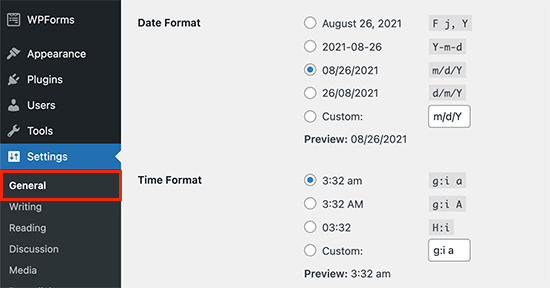
You should double-check that your site’s timezone is set correctly by going to Settings » General. This ensures the correct date is always shown to your visitors.
Method 1: Displaying Today’s Date Anywhere Using Shortcode (Recommended)
For this method, you will create a shortcode to display the date and time anywhere on your WordPress website.
The great thing about a shortcode is its flexibility—you can place it inside your posts, pages, sidebar widgets, and even your site’s footer.
While it’s possible to add code directly to your theme’s functions.php file, we strongly advise against it. A small mistake in that file can break your entire website and lock you out of your admin area.
That’s why we recommend using a custom code snippets plugin such as WPCode. It’s the safest and easiest way to add custom code to your website without risking site errors.
WPCode plugin is highly rated with 4.9/5 stars from over 2,000 reviews on WordPress.org and is trusted by more than 3 million WordPress websites.
After thorough testing, we’ve found WPCode to be incredibly beginner-friendly, thanks to its intuitive interface and built-in error prevention features that guide you. For more details, see our WPCode review.
Step 1: Install the WPCode Plugin
The first thing you need to do is install the free WPCode plugin. For detailed instructions, you can follow our step-by-step guide on how to install a WordPress plugin.
Step 2: Add a New Custom Snippet
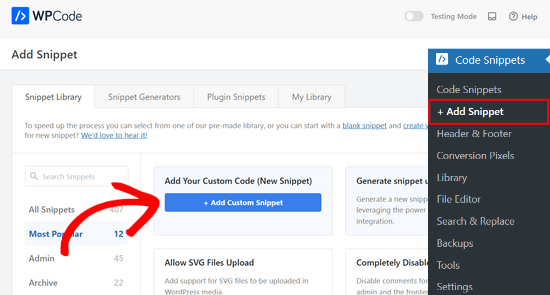
Upon activation, you should navigate to Code Snippets » + Add Snippet in your WordPress dashboard. This will let you add a new code snippet to your website.
Once there, you need to hover your mouse over the ‘Add Your Custom Code (New Snippet)’ option and then click the ‘+ Add Custom Snippet’ button.
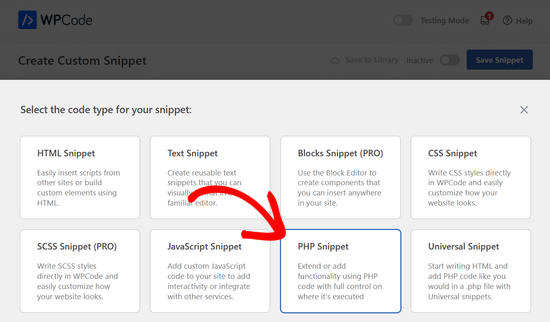
Next, you need to select ‘PHP Snippet’ as the code type from the list of options that appear on the screen.
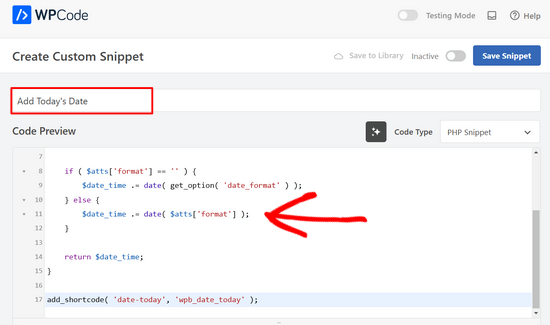
Then, add a title to the snippet, such as ‘Add Today’s Date’.
Step 3: Add the PHP Code
Next, you need to copy and paste the following code snippet into the Code Preview field.
function wpb_date_today( $atts, $content = null ) {
    $atts = shortcode_atts( array(
        'format' => '',
    ), $atts );

    $date_time = '';

    if ( $atts['format'] == '' ) {
        $date_time .= wp_date( get_option( 'date_format' ) );
    } else {
        $date_time .= wp_date( $atts['format'] );
    }

    return $date_time;
}

add_shortcode( 'date-today', 'wpb_date_today' );
Step 4: Activate and Save the Snippet
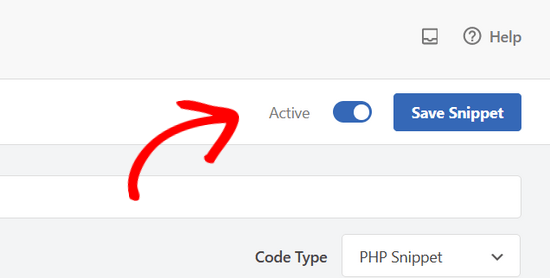
Finally, you need to toggle the Active toggle to the ‘On’ position.
Now you can click the ‘Save Snippet’ button to store the code snippet on your website.
Step 5: Use the Shortcode on Your Site
This code simply creates a shortcode that displays the current date. You can use it by adding this shortcode anywhere on your site:
[date-today]
By default, the shortcode will display the date in the default date format in your WordPress settings.
You can also use your own date format by modifying the shortcode like this:
[date-today format='F j, Y']
Your date will now look like this on your site:

And that’s it! You have displayed the current date successfully.
Customize Your Date and Time Display with PHP Format Characters
To give you full control over how your date and time appear, here are some common PHP format characters you can use in the `format` attribute of your shortcode or directly in the PHP code:
| Character | Description | Example Output |
|---|---|---|
d | Day of the month, 2 digits with leading zeros | 01 to 31 |
D | A textual representation of a day (three letters) | Mon through Sun |
j | Day of the month without leading zeros | 1 to 31 |
l (lowercase ‘L’) | A full textual representation of the day of the week | Sunday through Saturday |
m | Numeric representation of a month, with leading zeros | 01 to 12 |
M | A short textual representation of a month (three letters) | Jan through Dec |
F | A full textual representation of a month | January through December |
Y | A full numeric representation of a year, 4 digits | 1999 or 2003 |
y | A two-digit representation of a year | 99 or 03 |
H | 24-hour format of an hour with leading zeros | 00 to 23 |
h | 12-hour format of an hour with leading zeros | 01 to 12 |
i | Minutes with leading zeros | 00 to 59 |
s | Seconds with leading zeros | 00 to 59 |
a | Lowercase Ante meridiem and Post meridiem | am or pm |
A | Uppercase Ante meridiem and Post meridiem | AM or PM |
U | Seconds since the Unix Epoch (January 1 1970 00:00:00 GMT) | 1123456789 |
For example, to display the full date and time like “Monday, January 1, 2024 at 03:30 PM”, you would use[date-today format='l, F j, Y at h:i A'].
Method 2: Displaying Today’s Date by Adding Code to a Template File
WordPress doesn’t come with a default widget or block to display the current date or time.
However, you can still display the current date or time using some very simple code.
You can add this simple code to your WordPress theme’s template files. These files, like header.php or footer.php, control your site’s layout.
Important: We strongly recommend using a child theme before adding code directly to theme files. Otherwise, your custom code will be erased the next time you update your theme.
If you don’t have one, please follow our guide on how to create a WordPress child theme first.
Once you have a child theme set up, you can add the following code to the template file where you want the current date to appear.
For example, you could paste it into your child theme’s header.php file just before the closing </header> tag to display the date near the top of your website.
You could also add it to your footer.php file right after the opening <footer> tag if you want the date to appear in the footer area instead.
After adding the code, make sure to save the file and visit your website to confirm that the current date is displaying correctly.
<?php echo wp_date(get_option('date_format')); ?>
This code prints the current date using the date format set in your WordPress settings. You can change the date format by visiting the Settings » General page.
You can also use your own formatting tags to output the date in any other format. For instance, using the following code, you can print the date in month, day, and year format.
<?php echo wp_date('F j, Y'); ?>
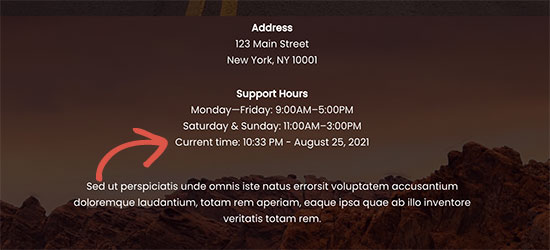
Here is what the date looked like on our demo website:
While editing theme files is direct, a more flexible approach for placing the date in posts or widgets is to use a shortcode.
That’s it! You now have two easy methods on how to display today’s date in WordPress.
Whether you choose to add code directly to a theme file or use the flexible shortcode method, you can add a professional touch that keeps your site looking fresh and relevant for visitors.
Frequently Asked Questions About Displaying Today’s Date in WordPress
Here are some questions that our readers have frequently asked about displaying today’s date in WordPress:
How do I show the current date in WordPress?
To display the current date anywhere in WordPress, the easiest and most flexible method is to use a shortcode. By implementing a simple PHP snippet via a plugin like WPCode, you can place a [date-today] shortcode in posts, pages, or widgets.
It will dynamically show today’s date based on your site’s timezone settings.
What is the best plugin to show date in WordPress?
While there are dedicated date display plugins available, for simply showing the current date, using a code snippets plugin like WPCode is often the most efficient and recommended.
It allows you to add custom PHP for the date shortcode without needing a fully-featured plugin solely for date display, keeping your site lightweight.
If you need advanced calendar functionalities, then a dedicated calendar plugin like Sugar Calendar might be more suitable.
Why is the date on my website showing incorrectly?
The most common reason for an incorrect date is the timezone setting. WordPress uses the timezone set in your dashboard, not your local time.
To fix this, go to Settings » General in your WordPress admin area and make sure you have selected the correct city or UTC offset.
How do I show the date on a WordPress post?
WordPress automatically shows the publication or last updated date on your posts by default. You can change the date’s appearance by going to Settings » General and choosing a new ‘Date Format’. If you want to display today’s live date instead, you can use one of the methods in this guide.
Will displaying a dynamic date affect my website’s performance?
No, it will not. The PHP function used to get the date is extremely lightweight and has a negligible impact on your site’s speed. It is a very common and efficient function that will not slow down your website.
Expert Guides on Displaying Dates in WordPress
We hope this article helped you learn how to easily display today’s date in WordPress. You may also want to see some other guides related to displaying dates in WordPress:
- How to Change Date and Time Format in WordPress
- How to Display Blog Post Meta Data in Your WordPress Themes
- How to Display Relative Dates in WordPress
- How to Display the Last Updated Date of Your Posts in WordPress
- How to Add a Dynamic Copyright Date in WordPress Footer
- How to Remove Date and Time From WordPress Comments
- How to Remove the Date From WordPress URLs
- How to Add a Google Calendar in WordPress (Step by Step)
If you liked this article, then please subscribe to our YouTube Channel for WordPress video tutorials. You can also find us on Twitter and Facebook.




da_hammer nath
Thank you simple and useful one. Really appreciate!
WPBeginner Support
You’re welcome!
Admin
Dennis Muthomi
hi, I got a question for the time display:- what if my website has visitors from different time zones? will the date and time displayed be adjusted to their local time, or will it always show the time based on the website’s settings?
WPBeginner Comments
These method in this guide will show the date and time for the timezone from the website.
Jiří Vaněk
It’s a PHP function, and it’s unfortunately set to use the server time. PHP checks the time set on the server where your shared hosting is running and displays that time. Therefore, this method is not suitable for the purposes you want. What you need would have to be handled by a plugin that first determines the user’s location based on their IP address and then displays the user’s local time. This is a much more complex issue that can’t be solved with a single script. You need a plugin that can also access a GEO IP database to determine which country the user is coming from.
Mrteesurez
Thanks for sharing.
The time is not showing, only the date is showed. I want to show both date and time beside each other on the top for all visitorsb to see including the admins.
WPBeginner Support
For that you would need to change the format in the shortcode to: format=’F j, Y h:i’
Admin
WPBeginner Comments
The easiest option would likely be to use this plugin: https://www.wpbeginner.com/plugins/display-time-according-wordpress-blog-admin-bar/
Be sure to check out the second section for a guide on how to add the time to the site and not just the admin bar.
Please note that this is the time using the timezone for the blog, not for the site visitor.
ducmu
how to display include time?
your code is only date
Bert Hennephof
Code doesn’t work anymore after upgrade from PHP 7.4 to PHP 8.2
WPCode indicates error in line:
if ($atts[‘format’] == ”) {
WPBeginner Support
From testing the snippet on our end it currently is working in php 8.2, it would depend on the specific error message you are seeing on the line.
Admin
Ihtisham Z
Thank you for the great article.
Just wanted to note here that, if the format attribute is not provided by the user then the shortcode will fail resulting in a critical error (parsing the attribute as string) and breaking the page. So, we need to convert the string to an array.
function wpb_date_today($atts, $content = null) {
if ( ! is_array( $atts ) ) {
$atts = [];
}
// rest of the code…
}
Chris Colotti
Thanks for the code update!!! Snippet had been working for some time then broke as you indicated..
Generosus
Useful Tip:
Method 2 (listed above) yields a date output in UTC format. To change the output to Local Time format, replace “date” with “wp_date” (2 places).
It would be great to make a notation in your above instructions.
You’re welcome
WPBeginner Support
Thank you for sharing that and for your feedback
Admin
Kathy
I really wanted to use this, however, after adding it to my functions file, I get this:
Warning: Illegal string offset ‘format’ in /XXXXXXXXXX/functions.php
It showed the date, however, the warning showed up too.
WPBeginner Support
Thank you for letting us know, we will look into this and for the time being the second shortcode with the format specified will avoid that warning.
Admin
Sunday Samuel
Thanks for this
Saved me from installing another plugin
I am grateful
WPBeginner Support
Glad our guide was helpful!
Admin
hugo
Hi, thank you for the code.
It’s possible to show the month in spanish and/or in number?
greetings,
WPBeginner Support
For adding the date as numbers if you are using the echo date method, you would change F j, Y to m/d/Y
Admin
Rebekah
Is it possible to display a moving date? For instance, today’s date plus 7 days? I’d like to have something on my site that always displays the date one week from today.
Henry
Adding this php code in the header file is OK but how can I control where I want to appear my date on the page?
Mark
Use the shortcode
shiva
very nice
anees
thanks a lot !!
Jon
Or with Javascript:
var dateToday = new Date(); var yearToday = dateToday.getFullYear(); document.write(yearToday);
Abiodun
Hello
how do I change the color of this code?
it is in an arch colour and i want it in white
sameh
How can i change the language of date format to arabic???? thanks advanced
morteza ahamadi
i am realy beginner,
where should these codes be added?
123project
Hi
how can I change the font and the color of this code?
WPBeginner Support
Using CSS you can change the colors. To use css add the date template tag like this:
<span class="date"><?php echo date('l jS F Y'); ?></span>1-click Use in WordPress
Now in your theme’s style sheet you can add CSS, like this:
.date { color: blue; border: 1px solid #CCC; }1-click Use in WordPress
Admin
Clare
I’m beginning to discover that you can do anything with WP if you just take the time out to learn how – and most of it is so simple. 2011 is the year to ditch plugins and take the weight off my site!
Editorial Staff
Good call
Admin
Petit Nuage
Your suggestion is incorrect, since you’ve forgotten to take the local timezone into account as defined in the Dashboard.
Editorial Staff
We mentioned two solutions. One where you can use the server’s setting, or two where you can use WordPress setting. If you have a third solution, then please share it with us rather than saying that we are wrong because both solutions above work.
Admin
andreeib
I used to make this using a short code function in Wordpress.
Chase Adams
Why not just use Isn’t it a lot easier as a built in function where you can change the display type in Settings > General ?
Cheap Sites
Yeah, that was really simple! Thank you for sharing =D