


Do you want to style your WordPress navigation menus to change their colors or appearance?
While your WordPress theme handles the appearance of your navigation menus, you can easily customize it using CSS to meet your requirements.
In this article, we will show you how to style the WordPress navigation menus on your site.

We’ll show you two different methods. The first method is best for beginners, because it uses a plugin and does not require any coding knowledge. The second method is for intermediate DIY users who prefer to use CSS code instead of a plugin.
After that, we’ll share several examples of ways you can customize your navigation menu design.
You can use the links below to quickly navigate through the article:
- Method 1: Styling WordPress Navigation Menus Using a Plugin
- Method 2: Manually Styling WordPress Navigation Menus
- Change Font Color in WordPress Navigation Menus
- Change Background Color of Navigation Menu Bar
- Change Background Color of a Single Menu Item
- Add Hover Effects to WordPress Navigation Menus
- Create Sticky Floating Navigation Menus in WordPress
- Create Transparent Navigation Menus in WordPress
- Style the First and Last Menu Items
Method 1: Styling WordPress Navigation Menus Using a Plugin
Your WordPress theme uses CSS to style navigation menus. Many beginners are not comfortable with editing theme files or writing CSS code on their own.
That’s when a WordPress styling plugin comes in handy. It saves you from editing theme files or writing any code.
First, you need to install and activate the CSS Hero plugin. For more details, see our step by step guide on how to install a WordPress plugin.
CSS Hero is a premium WordPress plugin that allows you to design your own WordPress theme without writing a single line of code, no HTML or CSS required. See our CSS Hero review to learn more.
WPBeginner users can use this CSS Hero Coupon to get a 34% discount on their purchase.
Upon activation, you will be redirected to obtain your CSS Hero License key. Simply follow the on-screen instructions, and you will be redirected back to your site in a few clicks.
Next, you need to click the ‘Customize with CSS Hero’ button in the WordPress admin toolbar.

CSS Hero offers a WYSIWYG (what you see is what you get) editor. Clicking on the button will take you to your website with the CSS Hero pane visible on the left of the screen.
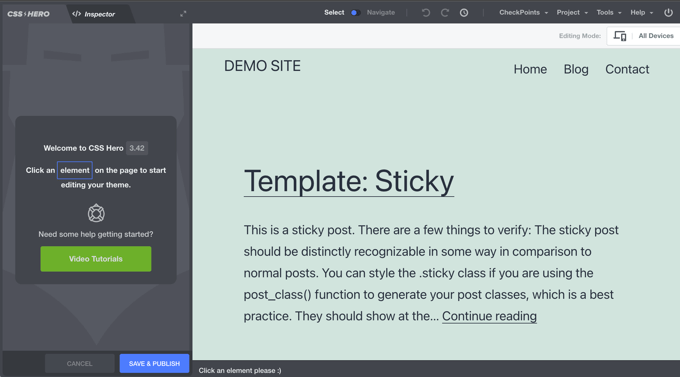
To start editing, you simply click on the element you wish to change.
You’ll need to move your mouse over your navigation menu, and CSS Hero will highlight it by showing the borders around it. When you click on the highlighted navigation menu, it will show you the items that you can edit.
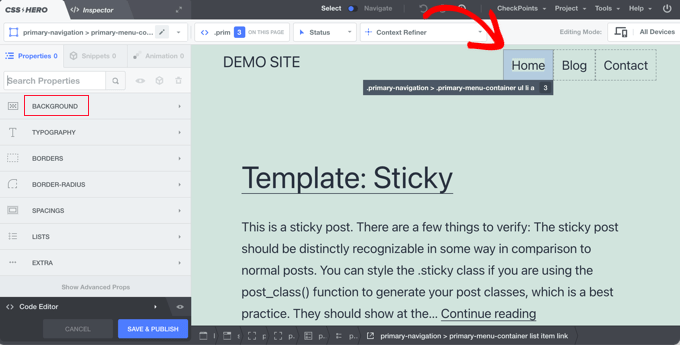
In the screenshot above, you’ll see the primary navigation menu container. CSS Hero lets you edit the background, typography, borders, spacings, lists, and extras.
You can click on any property that you want to change. Let’s assume we want to change the background color of our navigation menu. Once you click on the ‘Background’ property, CSS Hero will show you a simple interface where you can make your changes.
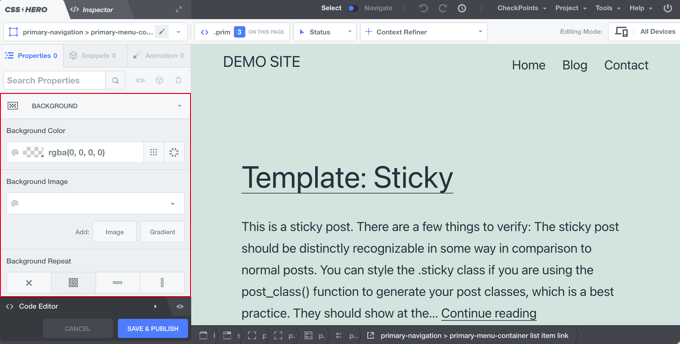
Here you can select the background color, gradient, image, and more. As you make changes, you will be able to see them live in the theme preview.
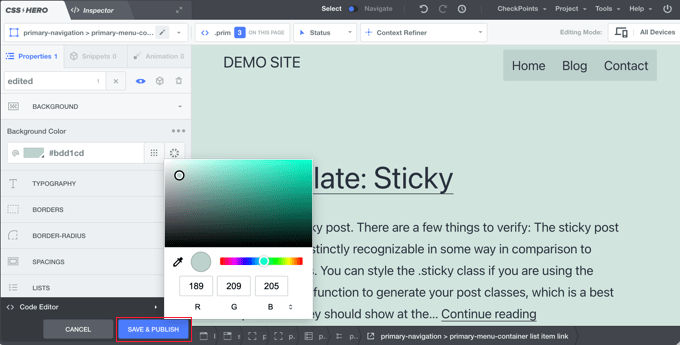
Once you are satisfied with the changes, don’t forget to click on the ‘Save & Publish’ button to store your changes.
The best thing about using this method is that you can easily undo any changes that you make. CSS Hero keeps a complete history of all your changes, and you can go back and forth between those changes.
Method 2: Manually Styling WordPress Navigation Menus
This method requires you to manually add custom CSS and is meant for intermediate users. To learn more, see our guide on how to easily add custom CSS to your WordPress site.
WordPress navigation menus are displayed in an unordered (bulleted) list. If you use the default WordPress menu tag, then it will display a list with no CSS classes associated with it.
<?php wp_nav_menu(); ?>
The unordered list will have the class name menu with each list item having its own CSS class.
This might work if you only have one menu location. However, most themes have multiple locations where you can display navigation menus. Using only the default CSS class may cause a conflict with menus in other locations.
This is why you need to define a CSS class and menu location as well. Chances are that your WordPress theme is already doing that by adding the navigation menus using a code like this:
<?php
    wp_nav_menu( array(
        'theme_location' => 'primary',
        'menu_class'     => 'primary-menu',
         ) );
?>
This code tells WordPress that this is where the theme displays the primary menu. It also adds a CSS class primary-menu to the navigation menu.
Now you can style your navigation menu using this CSS structure.
// container class
#header .primary-menu{}

// container class first unordered list
#header .primary-menu ul {}

//unordered list within an unordered list
#header .primary-menu ul ul {}

 // each navigation item
#header .primary-menu li {}

// each navigation item anchor
#header .primary-menu li a {}

// unordered list if there is drop down items
#header .primary-menu li ul {}

// each drop down navigation item
#header .primary-menu li li {}

// each drap down navigation item anchor
#header .primary-menu li li a {}
You will need to replace #header with the container CSS class used by your navigation menu.
This structure will help you completely change the appearance of your navigation menu.
However, there are other WordPress generated CSS classes automatically added to each menu and menu item. These classes allow you to further customize your navigation menu.
// Class for Current Page
.current_page_item{}

// Class for Current Category
.current-cat{}

// Class for any other current Menu Item
.current-menu-item{}

// Class for a Category
.menu-item-type-taxonomy{}

// Class for Post types
.menu-item-type-post_type{}

// Class for any custom links
.menu-item-type-custom{}

// Class for the home Link
.menu-item-home{}
WordPress also allows you to add your own custom CSS classes to individual menu items. You can use this feature to style menu items, like adding image icons with your menus or by just changing colors to highlight a menu item.
Head over to Appearance » Menus page in your WordPress admin and click on the Screen Options button.
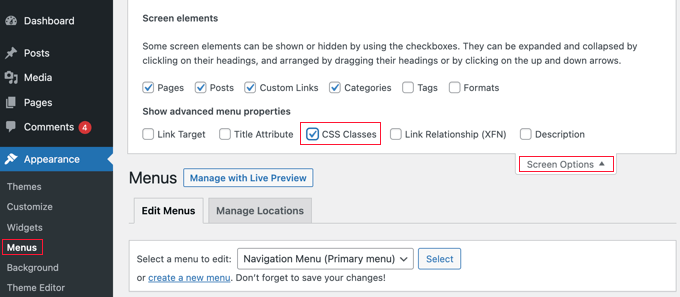
Once you have checked that box, you will see that an additional field is added when you go to edit each individual menu item.
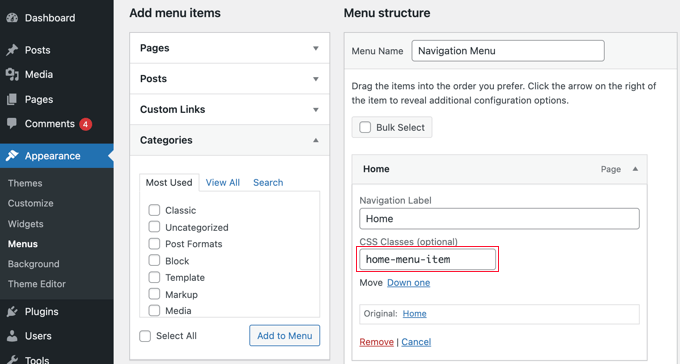
Now you can use this CSS class in your stylesheet to add your custom CSS. It will only affect the menu item with the CSS class you added.
Examples of Styling Navigation Menus in WordPress
Different WordPress themes may use different styling options, CSS classes, and even JavaScript to create navigation menus. This gives you a lot of options to change those styles and customize your navigation menus to meet your own requirements.
The inspect tool in your web browser will be your best friend when it comes to figuring out which CSS classes to change. If you haven’t used it before, then take a look at our guide on how to use the inspect tool to customize WordPress themes.
You simply need to point the cursor to the element you want to modify, right click and then select ‘Inspect’ from the browser’s menu.
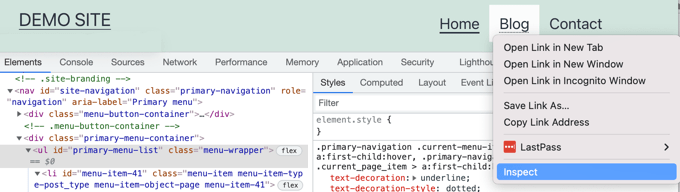
Note that with this theme, ‘primary-menu-list’ is the navigation menu’s CSS ID, and ‘menu-wrapper’ is its CSS class.
That being said, let’s take a look at some real life examples of styling navigation menus in WordPress.
1. Change Font Color in WordPress Navigation Menus
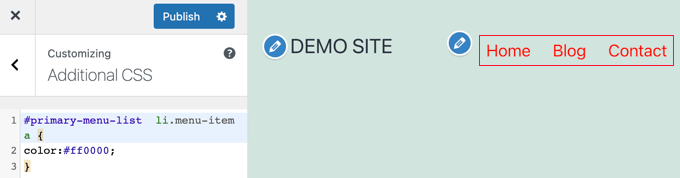
Here is the sample custom CSS that you can add to your theme to change the font color of navigation menus.
#primary-menu-list  li.menu-item a {
color:#ff0000;
}
In this example, the #primary-menu-list is the ID assigned to the unordered list that displays our navigation menu. You will need to use the inspect tool to find out the ID used by your theme.
2. Change Background Color of Navigation Menu Bar
First, you’ll need to find out the CSS ID or class used by your theme for the container surrounding the navigation menu.
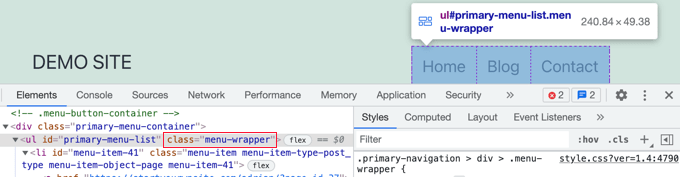
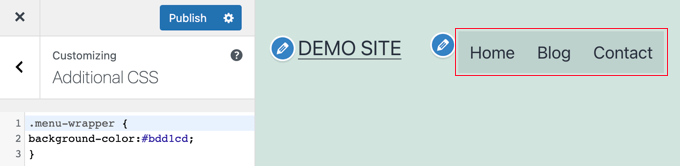
After that, you can use the following custom CSS to change the background color of the navigation menu bar.
.menu-wrapper {
background-color:#bdd1cd;
}
Here is how it looks on our demo website.
3. Change Background Color of a Single Menu Item
You may have noticed that many websites use a different background color for the most important links in their navigation menu. This link could be a login, sign up, contact, or buy button. By giving it a different color, the link is more noticeable.
To achieve this, we will add a custom CSS class to the menu item that we want to highlight with a different background color.
Head over to Appearance » Menus and click on the Screen Options button at the top right corner of the screen. This will bring up a fly down menu where you need to check the box next to ‘CSS Classes’ option.
After that, you need to scroll down to the menu item that you want to modify and click to expand it. You will notice a new option to add your custom CSS class.
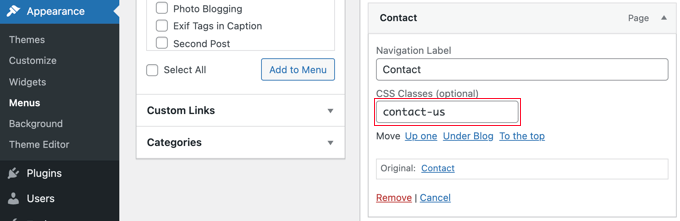
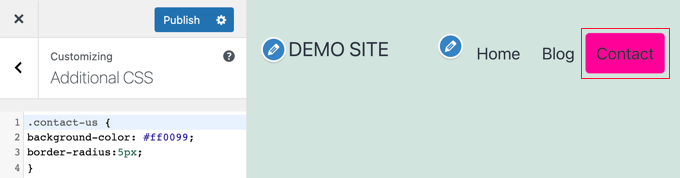
Once you save the menu, you can use this CSS class to style that particular menu item differently.
.contact-us {
background-color: #ff0099;
border-radius:5px;
}
Here is how it looks on our test site.
4. Add Hover Effects to WordPress Navigation Menus
Do you want your menu items to change colors on mouseover? This particular CSS trick makes your navigation menus look more interactive.
Simply add the following custom CSS to your theme.
#primary-menu-list  li.menu-item a:hover {
background-color:#a6e4a5;
color:#666;
border-radius:5px;
}
In this example, #primary-menu-list is the CSS ID used by your theme for the unordered navigation menu list.
Here is how this looks on our test site.

5. Create Sticky Floating Navigation Menus in WordPress
Normally navigation menus appear on top and disappear as a user scrolls down. Sticky floating navigation menus stay on top as a user scrolls down.
You can add the following CSS code to your theme to make your navigation menus sticky.
#primary-menu-list {
    background:#2194af;
    height:60px;
    z-index:170;
    margin:0 auto;
    border-bottom:1px solid #dadada;
    width:100%;
    position:fixed;
    top:0;
    left:0;
    right:0;
    text-align: right;
    padding-left:10px
}
Simply replace #primary-menu-list with the CSS ID of your navigation menu.
Here is how it looks in our demo.
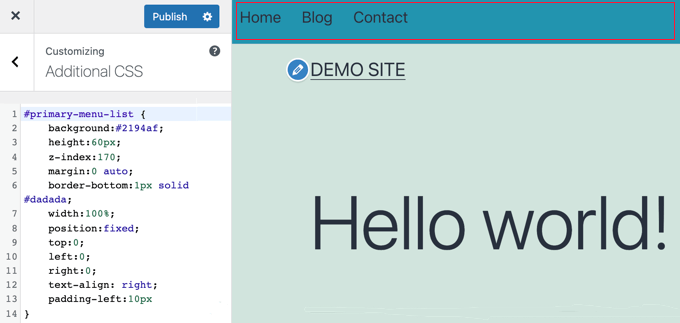
For more detailed instructions and an alternate method, see our guide on how to create a sticky floating navigation menu in WordPress.
6. Create Transparent Navigation Menus in WordPress
Many websites use large or fullscreen background images with their call to action buttons. Using transparent menus makes your navigation blend in with the image. This makes users more likely to focus on your call to action.
Simply add the following sample CSS to your theme to make your navigation menus transparent.
#site-navigation {
background-color:transparent;
}
This is how it looks on our demo site.
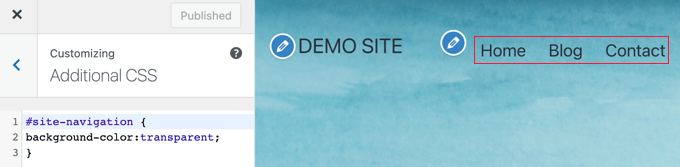
Depending on your theme, you may need to adjust the position of the header image so that it covers the area behind your transparent menus.
7. Style the First and Last Menu Items
You can add custom styling to the first and last items of your WordPress navigation menu by adding a .first and .last class. This will make sure that the correct items will be styled even if the items in your menu are rearranged.
You need to add the following code snippet to your theme’s functions.php file:
function wpb_first_and_last_menu_class($items) {
    $items[1]->classes[] = 'first';
    $items[count($items)]->classes[] = 'last';
    return $items;
}
add_filter('wp_nav_menu_objects', 'wpb_first_and_last_menu_class');
This creates .first and .last CSS classes for your first and last navigation menu items respectively. You can use those classes to style the menu items.
For example, you can add this CSS formatting to your theme’s style.css stylesheet to bold the first and last menu items.
.first a {font-weight: bold;}
.last a {font-weight: bold;}
Here’s how it looks on our demo site.
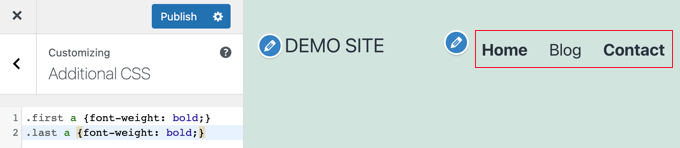
For more information and to learn how to achieve the same effect using CSS selectors, refer to our guide on how to add the first and last CSS class to WordPress menu items.
We hope this article helped you learn how to style WordPress navigation menus. You may also want to learn how to add a mobile-ready responsive WordPress menu, or see our list of tips to speed up WordPress performance.
If you liked this article, then please subscribe to our YouTube Channel for WordPress video tutorials. You can also find us on Twitter and Facebook.



Syed Balkhi says
Hey WPBeginner readers,
Did you know you can win exciting prizes by commenting on WPBeginner?
Every month, our top blog commenters will win HUGE rewards, including premium WordPress plugin licenses and cash prizes.
You can get more details about the contest from here.
Start sharing your thoughts below to stand a chance to win!
Sydney Peason says
The “Menu” option has disappeared under my “Appearance” menu option > is there another way to see the container CSS of my menu and options?
Thanks!
WPBeginner Support says
IF you’re using a block theme that does not have the appearance menu then you can use Inspect element to see the CSS container information. You can see our guide below on using Inspect Element:
https://www.wpbeginner.com/wp-tutorials/basics-of-inspect-element-with-your-wordpress-site/
Admin
Kristyna says
Hello, I need advice, please:
I have successfully added CSS to make one of my menu items different in color. However, when I scroll down, my fixed navigation primary menu comes down with me, and the changed color of that one item changes back to its original – How do I keep the new color of that one item even when scrolling down?
Thanks!
WPBeginner Support says
Your theme may modify the menu when you are scrolling down. If you use inspect element you should be able to select the menu item while scrolled down to add your CSS. We have a guide on using inspect element you can take a look at below:
https://www.wpbeginner.com/wp-tutorials/basics-of-inspect-element-with-your-wordpress-site/
Admin
Venkat Vavilala says
Hi,
I want to increase menu font size. How can I do this?
If it is default, then how can I customize?
Please show me easy method to increase the menu font size
WPBeginner Support says
It would depend on which method from this article you plan on using. As an example, if you use the CSS method then you would use inspect element the same as under method 2’s examples and modify the font-size
Admin
Budi Santoso says
Hello Admin.
How the Orange ribbon navigation menu in this site was made?
Thanks
WPBeginner Support says
To understand that you would want to take a look at our guide on using inspect element here: https://www.wpbeginner.com/wp-tutorials/basics-of-inspect-element-with-your-wordpress-site/
Admin
maria says
how did you make the menu for this site
did you have to edit the theme files ?
thanks
WPBeginner Support says
Our theme was one we custom created
Admin
Trish says
I am wanting to create a menu on the shop page of my woo commerce site, horizontally, that has all the categories of product that is sold. How can I do that, please? Thank you all for your help in advance.
WPBeginner Support says
If your theme has a menu in that location you could set up a normal menu using:
https://www.wpbeginner.com/beginners-guide/how-to-add-navigation-menu-in-wordpress-beginners-guide/
Then, you can use conditional logic to only have it appear on your shop page using our article here: https://www.wpbeginner.com/plugins/how-to-add-conditional-logic-to-menus-in-wordpress/
Admin
Kushal Sonwane says
Though it was a great task to do, but after reading this article, it is very simple to customise navigation menus.
Thanks.
WPBeginner Support says
You’re welcome
Admin
Lisa says
I am very new to doing this and I am creating a site in WP using the theme Oceanwp. I have done as you have suggested by clicking on CCS from the menu. I am trying to remove the arrow on my drop down menu and nothing I try works at removing it.
Thanking you in advance for any help.
WPBeginner Support says
Hi Lisa,
You may want to reach out to theme authors, they would be able to help you with that.
Admin
Anirudhya says
sir which theme you are using. iam starting a wordpress blog,i want a simple layout blog for my educational purpose.
WPBeginner Support says
Hi Anirudhya,
We are using a custom theme made specifically for WPBeginner.
Admin
Bobby says
Hi, how about with HTML code?
I want to add a header to the neseted menus. But I don’t kow where or how to put it.
Daniela says
Hi,
I Would like to change the appearance of only the menu I have added for my salespage. I would like to change the height and add a logo.
I am not a pro and I have tried some things to see if anything changes in the menu, but it doesn’t. This is what I have tried:
#Salespage-menu {
background:#2194af;
height:40px;
}
Can you please help me on my way?
Thank you so much for your effort!
Eugene says
Hi Guys,
I have an issue with my nav menu that I really would be glad of some help with pleas… The primary menu itself is perfect looking, the problem is with the submenu which drops down with a large gap approx 100px or so in size between it and the parent above.
When I try to navigate onto the submenu it simply disappears from view.
I have tried everything I can think of so far to move it directly up under the parent menu so that it will remain open and clickable but I have failed so far.
This is the Custom CSS being used for the Point Theme:
#logo {
margin: 0;
}
.site-branding {
padding: 0;
}
.post-info {
display: none;
}
#navigation ul li a {
min-height: 22px;
padding: 5px 10px 5px 10px;
}
.post-date {
display: none;
}
Thanks and Regards.
WPBeginner Support says
Hi Eugene,
We are not sure what may be causing this issue. It depends on your theme’s CSS and layout and which classes they have used. You can try this custom CSS:
.primary-navigation li ul { margin:0px; padding:0px; }1-click Use in WordPress
Admin
Eugene says
I’m sorry to say, that didn’t work either…
Thanks for trying, it seems there’s a new theme called for.
Regards.
Amirul Farhan says
Hello.
Is the plugin works even though with the theme purchased have its own menu design?
Thanks
Rida says
if you want to use bootstrap you simply add the css classes of your own with simple one line code on your header.php
‘primary’, ‘container’ => ‘div’, ‘container_class’ => ‘collapse navbar-collapse’, ‘menu_class’ => ‘nav navbar-nav pull-right’, ‘menu_id’ => ‘primary-menu’ ) ); ?>
Dhany says
Yeay..another PLUGIN you guys share how to use PLUGIN sooo much, not exactly use wordpress…great job
WPBeginner Support says
Hi Dhany,
Thanks for the feedback. At WPBeginner, our target audience is mostly beginner level users. Most of them are not familiar with CSS, HTML, PHP, etc. Plugins make it easier for them to get things done without breaking their websites.
Admin
Andrew says
Dude…it says ‘beginner’ in the URL.
Plus…they laid out a manual option halfway through.
Malin says
Hi! I desperately need help with my menu on the site using Baskerville theme. With the latest update the menu has gone completely bananas! Please HELP!
Malin
Raymond says
This helped me a lot when I was trying to figure out how to get my styles from a bootstrap theme to work in WordPress. Thank you
Samseen says
Nice Post here,
However, how can one target a particular item in the list. I actually did a work-around at this time, but I will want to target that particular menu item.
Say for example, I want to have a different background color for the menu of that particular item. How can this be done?
Marko says
Inspect element tool in Chrome, Firefox.
benjamin says
Hello guys am new in coding, please I need real help here I have a WordPress site and my site theme is Baskerville , this theme support only one menu am trying to create navigational menus to my curious pages, please if there is code for doing that please where can I place it ,please I’ll so much appreciate a reply thank you.
Arsh Dznr says
i m ussing my css menu in wordpress but menus dropdown not showing pls help me
thanxxxxxxxx
umanga says
did you add your scripts into function.php properly ?
Andika Amri says
Hello wpbeginner, nice tuts!
I am using vantage theme, already put custom class in one of my menu = “.menu-about”, but when i’m styling it stylesheet.css, its not applicable at all, do you have any suggestion at all?
thanks!
shaon says
I am using twenty Twelve theme. Already made changes to my menu with different colors. But i cant move the navigation menu position on the header, it got too much space at bottom from the baseline of the header . I want it touching the bottom of the header.
Niveditha says
Hi,
I have created a main menu in header and a footer menu using the wordpress codex. Now my two menus sit vertically on my page. How to code them for horizontal menus?
Please help out, this is real urgent!
TIA
WPBeginner Support says
For that you need to use CSS. Study the code in the default themes, the best example would be twenty thirteen or twenty twelve themes.
Admin
Judy says
I would kill for an infographic for what all those classes actually modify. Like:
.current-page-ancestor
.current-menu-parent
.current_menu_parent
.current-page-parent
.current_page_parent
.current-menu-ancestor
and what the difference is between the dashes/underscores like in .current-menu-parent vs .current_menu_parent
i will make one for you if you explain it to me!
thank you…
Tarmizi Achmad says
thx about information…
Yogesh Kumar says
hey i want to ask a very important thing
Like the bar shown on your website’s nav bar above for the link Blog shows 8 links as we move our cursor on that …now my site’s are also showing in the same style but i want them to be displayed in such a manner that when i will move my cursor over it will show the 8 links side by side means 4-4……Please sir i am in a great need of this …please reply to this asap…
Editorial Staff says
Usually menus are organized in unordered lists ul. When you have sub navigation or dropdowns, then are its own unordered list inside a list element. So an example CSS class that you would be modifying would be like:
ul.menu li ul{width: 220px;}
ul.menu li li{float: left; width: 100px;}
Now this would set each second level list item to have an exact width and float left.
Admin
Jim says
Great article, thanks.
I never new about that CSS class feature, at least I know now.
Its really going to benefit me.
Thanks.
Nilamkumar Patel says
This is very helpful. Prior to this, I had understanding that we can’t add custom classes in wordpress from admin and I always used to do it in functions.php, but this is awsome. These people are rockers. And many thanks to Sayed for this helpful post
wiseroner says
great tutorial!! but how do i do something as simple as change the font size? what do i enter in to change the font size? thank you!
wpbeginner says
@wiseroner You cant just add the font-size in the main menu class in your css file.
wpbeginner says
@mriulian Look in the tutorial above… the classes for current pages are already defined…
In the header code, you need to define the menu container ID and container class… follow the article as it says, and it will work.
mriulian says
Just trying to be more clear, this is my code:
// in the function page
if (function_exists(‘register_nav_menus’)) { register_nav_menus( array( ‘mainNav’ ) ); }
// in the header page
‘main_nav_menu’)); ?>
// in the css file
.current{ background-color: #0188AA; color: #fff; text-decoration: none; }
How do I apply this class to my navigation? ( very easy in a static html page but apparently pretty complicated in wordpress).
Thanks in advance
mriulian says
This is what I did but it doesn t work. I registered my menu in the
functions page and then I called it from the header page as my main
navigation. Now, I have a . current class in my stylesheet to be applied
to the current page but it is not obvious how to do that.
Can you help with a suggestion?
wpbeginner says
The way WordPress navigation menus work, it will automatically know which page is the current one..
iirimina says
Thank you for mentioning about the css classes in the screen options panel. The problem that I have with my navigation is how to style the nav menu so that each menu item gets a specific background color when you arrive at a certain page. You mention creating a class such as .current_page_item{} in your style sheet. But how to apply this class in the header.php?
Rick says
Where can I get further more detailed info on how to add the icons to the menu names. Whats a real good css guide for doing alot of these things you outlined here?
Thanks
Editorial Staff says
CSS-Tricks is a good forum, but you should probably look at CSS for Beginner books to learn CSS. Because all you are doing is adding a background image.
Admin
Francisco says
Hello. I absolutely loved this post and found it very useful, particularly the option to set individual CSS classes, so many thanks for this information.
What I was wondering is if it would be possible to dynamically assign CSS classes from the php wp_nav_menu function call to certain types of elements, for instance, to parent menu items only. That way, you wouldn’t have to manually add that class in the Menu Screen every time a new type element (in the example, a new parent item) is created.
Any thoughts on that would be greatly appreciated,
Editorial Staff says
Yes, you would utilize Menu Class parameter for that.
Admin
Francisco says
That’s what I was thinking. Thanks for confirming, and for getting back to me.
Cheers!
Jayesh says
nice article.
I want to change out put of wp_nav_menu().
I do not like HTML generated by wp_nav_menu().
I have my own nice HTML for Menu I want.
so I wanted to modify HTML structure generated by wp_nav_menu().
is this possible ?
Kindly advise asap.
Editorial Staff says
You can add your own divs etc, but it will always be the list output. You can style it to be however you want.
Admin
chunky says
Thank you! Now I can stop pulling my hair out! Bookmarked this and will tell others!
Kalid says
hi, thank for the tutorial. it would be nice if you guide me to have the nav menu used in your theme. Id like to have a drop-down menu like yours. tnks!
Editorial Staff says
The WordPress default navigation menu lets you have drop down menus. Just drag them a little to the right of the main item, and it is possible. If you use a framework like Genesis, it already has Fancy Drop down option available, so you can simply select that. Or you can utilize jQuery techniques like SuperFish to do this. We may add a tutorial in the future.
Admin
tuba says
very nice article, helped me for my wordpress project, thanks!
GrimCris says
Great article. I didn’t know about the CSS classes in WordPress Menus. Thank you so much!
Keith Davis says
You guys know your WordPress.
This is not an easy tutorial but well explained and certainly adds to my understanding.
Appreciate you educating the rest of us.
Rick says
Dude! Awesome! I had no idea about CSS option for menus! Rad-a-tad
Adam W. Warner says
Great write up, super informative! I didn’t realize the screen options for menus either.
Eli says
I’m not sure in what you should place the first php wp_nav_menu code. Would it be in the functions file or header or…?
Tony says
Didn’t know about the CSS Classes menu item! Thanks for pointing that out.
Editorial Staff says
You are welcome
Admin
Steve Meisner says
Me neither! That was exactly what I needed. God bless you all and the WordPress dev team!
Pieter says
Respect for pointing out the css styles! I always used the css attribute to style a list item, but these styles are definitely more handy. You just earned yourself another feed subscriber!
Regards from Belgium.
Editorial Staff says
Glad we were able to help Pieter.
Admin