


Do you want to use GTmetrix to test your WordPress site’s speed?
Many WordPress sites are slow due to factors such as slow web hosting, large image files, and poorly coded plugins. This can result in a poor user experience.
In this article, we will show you how to use the GTmetrix plugin to test and improve your WordPress site’s performance.

What Is GTmetrix?
GTmetrix is a website speed check tool that lets you see how fast your website loads. Website loading speed is more important than ever because users have a short attention span.
According to a StrangeLoop case study that involved Amazon, Google, and other larger sites, a one-second delay in page load time can lead to a 7% loss in conversions, 11% fewer page views, and a 16% decrease in customer satisfaction.

GTmetrix gives you a glimpse of what’s slowing down your WordPress website with suggestions on what to do to improve your WordPress performance and speed.
That being said, let’s look at how to use the GTmetrix plugin to improve the speed of your WordPress website.
Setting Up the GTmetrix Plugin in WordPress
First, you need to install and activate the GTmetrix for WordPress plugin. If you are not sure how to do this, then be sure to check out our complete guide on how to install a WordPress plugin.
Upon activation, the plugin will add a new menu item labeled ‘GTmetrix’ in your WordPress admin sidebar. You need to click it to visit the plugin’s settings page.

On this page, you will be asked to provide your GTmetrix account email and API keys.
You can create a free account to get the API keys. This free account will come with a limited number of requests per day. However, if you are using this on one website, then you will likely never run out of credits.
Simply click the ‘Register for a GTmetrix account now’ link to go to the GTmetrix website and sign up for an account.
After creating your account, you need to click the ‘Account’ link at the top of the page.
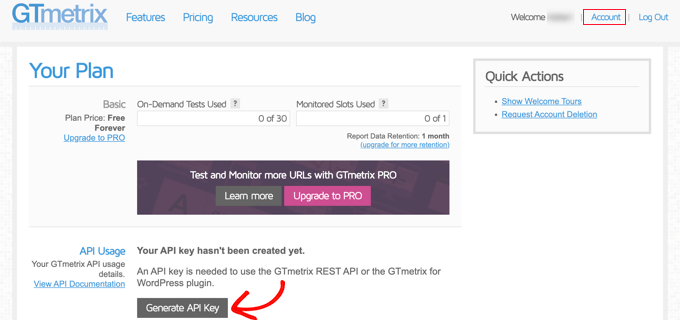
Next, simply click on the ‘Generate API key’ button. GTmetrix will generate an API key for you, which you must copy.
Now, you can switch back to the ‘GTmetrix’ settings page in your WordPress dashboard. Go ahead and enter your account email address and the API Key you copied earlier.
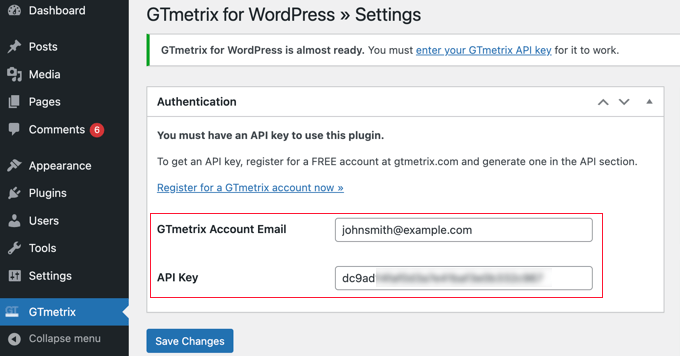
Don’t forget to click on the ‘Save Changes’ button to store your settings.
Running GTmetrix Performance Tests in WordPress
Now that you have set up the plugin, you can run your WordPress performance tests.
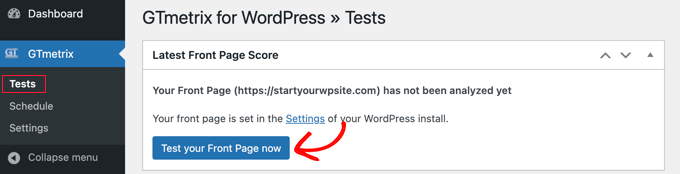
Simply go to the GTmetrix » Tests page. You can quickly test your website’s homepage from here by clicking on the ‘Test your Front Page now’ button.
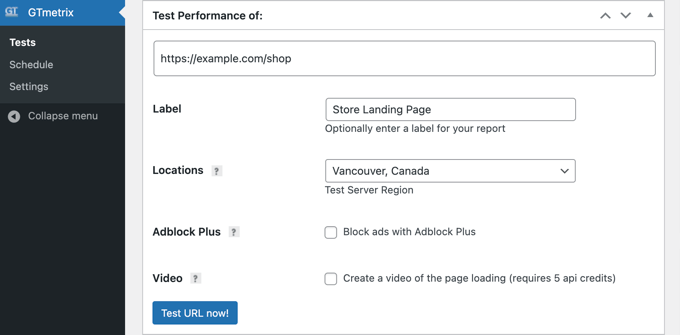
You can also run performance tests for any page on your WordPress website. Simply enter the page URL into the ‘Test performance of’ box.
For these custom tests, you can also provide a label and choose a geographic location. Ideally, you want to focus on locations closest to your target audience.
Understanding GTmetrix Performance Test Results
GTmetrix offers a complete performance breakdown of the web page you are testing. It uses Google Page Speed and YSlow performance tests to score your page load time and will show an overall score as a result summary.
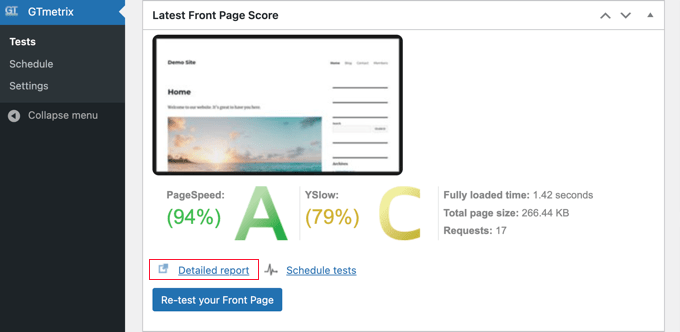
Anything below A means there is room for improvement. However, this does not necessarily mean that your website is really slow.
To understand the score, you need to click on the ‘Detailed Report’ link. It opens up your URL on the GTmetrix site.
This report gives you a detailed breakdown of your PageSpeed score, YSlow score, and a list of recommendations on what you can change to improve your page load time.
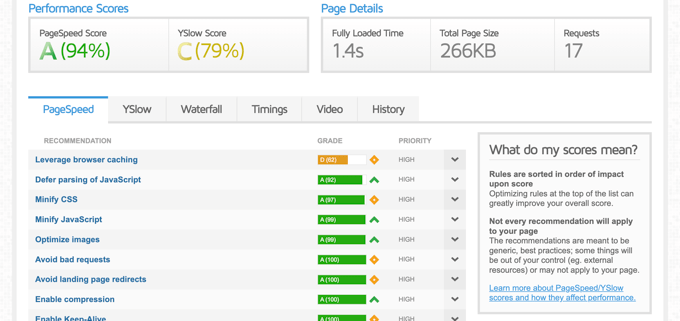
It is divided into different tabs. First, you will see your PageSpeed score with different ranking items listed with their individual score.
Green items are good and don’t need your attention. Red items are slowing down your website and require further investigation.
The best part is that when you click on the item, it tells you exactly what needs to be fixed.
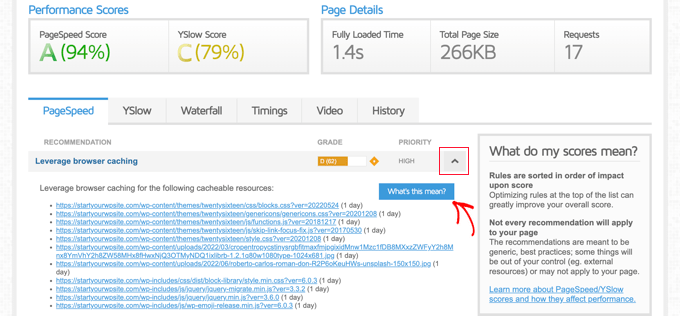
Each tab has a little ‘What’s this mean?’ button. If you click on that, then it will give you the details on what can be improved.
You can find all your past reports on the GTmetrix » Tests page under the Reports section.
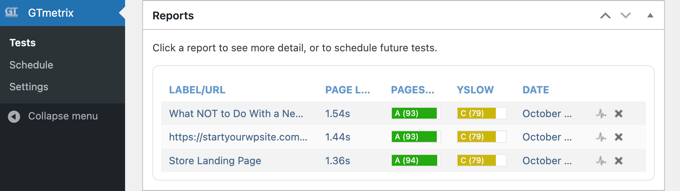
This allows you to manage and run tests as you work on improving your website speed and performance.
Using GTmetrix Without a Plugin
If you want to use GTmetrix without installing the plugin, then you can simply go to their home page and then enter your URL.
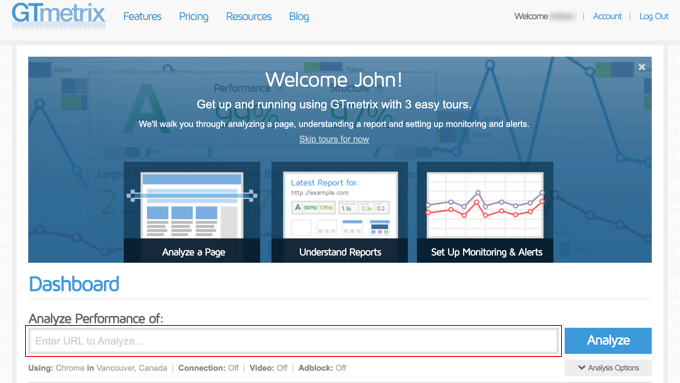
After you test your site, you’ll get a detailed report, just like you did with the plugin.
The disadvantage of this method is that you cannot save different reports and compare them as your website speed gets better.
Bonus Tips to Improve Website Performance
The GTmetrix speed check will show you a lot of information. However, you may want to compare your results using a different website speed check tool, like the IsItWP Website Speed Test Tool or Pingdom.
If your website is still showing low performance scores, then you can go through the details and improve each item one by one. However, this can become too technical for a beginner.
Here are some quick tips to help you instantly improve website speed issues without any special skills.
1. Use the Best WordPress Hosting
If you are using a low-quality WordPress hosting provider, then there is not much you can do to improve the performance of your website.
Here are our recommendations for the top 3 fast web hosting companies you can try:
- Bluehost – great price + comes with built-in caching.
- SiteGround – premium WordPress hosting + built-in caching + uses Google Cloud. We use SiteGround for WPBeginner.
- WP Engine – top-rated managed WordPress hosting provider with performance optimization.
2. Set Up a WordPress Caching Plugin
All top WordPress hosting companies now offer built-in caching solutions that you can turn on to improve website speed. But you can also use a WordPress caching plugin to improve your website performance.
Caching allows your website to load a page from a temporary file instead of running a new request. We recommend using WP Rocket, the best WordPress caching plugin on the market.
3. Optimize Images for Faster Page Load
Images take more time to load than text, and if a page has a lot of images, then they slow down your website. On the other hand, images are important for user engagement, and you cannot avoid them.
The solution is to optimize WordPress images for faster page load. You will still use the same images but with smaller file sizes.
4. Use WPBeginner Pro Services
Are you looking for expert help to get your site running faster? Our team of WordPress experts specializes in optimizing websites and improving performance.
We generate a comprehensive site speed and website performance report and use that information to take proven measures to improve page loading time, server performance, and various technical aspects of WordPress SEO.
Pricing for our site speed optimization service starts at $699.

There is a lot more you can do to make your site load even faster. We have compiled a complete WordPress speed and performance guide for beginners with step-by-step instructions to improve your website speed.
We hope this article helped you learn how to use the GTmetrix plugin to improve your WordPress site performance. You might also want to see our guide on how to get more traffic to your website or our expert picks for the best email marketing services to connect with your visitors after they leave your website.
If you liked this article, then please subscribe to our YouTube Channel for WordPress video tutorials. You can also find us on Twitter and Facebook.




Syed Balkhi says
Hey WPBeginner readers,
Did you know you can win exciting prizes by commenting on WPBeginner?
Every month, our top blog commenters will win HUGE rewards, including premium WordPress plugin licenses and cash prizes.
You can get more details about the contest from here.
Start sharing your thoughts below to stand a chance to win!
Christopher Ohlsen says
Nice post about GTmetrix. I agree with that GTmetrix is awesome (paraphrasing) with one caveat… Though I could probably somehow fix my issue within account settings. Here it is; it doesn’t seem to be recognizing maxcdn. My site is much much faster since I began using maxcdn. I definitely am using cdn but it says that I’m not… Not sure why this is but it even shows the netdna url in the links under the tab that says I’m not using CDN. Also, my Yslow score is slighly higher in the firefox & chrome Yslow addons which do recognize maxcdn… Still, it is an awesome site that I have been able to use to increase my page load speeds significantly.
Editorial Staff says
When using custom CDNs like MaxCDN, these providers do not recognize them by default. You have to edit your browser settings to let them know that the netdna URL is actually a CDN. So in short these tools are a good reference point, but not entirely perfect when it comes to detecting CDN.
Admin
Matthew says
Hey, GTMetrix provides optimized versions of the images on my site that I can save and use to replace my original, unoptimized images. Though, I have a few thousand images on my website and saving each optimized image, in order to replace all of my original images, take a really long time.
What exactly does GTMetrix use to provide me with a list of reoptimized and compressed images?
I tried the smush.it plugin for wordpress, but sadly GTMetrix still tells me that I can compress some of my images by up to 50% or so.
I have even emailed them, but no reply. I am already using a CDN, but it’s just not as fast as I need.
M Copinger says
Thanks for letting us know of this plugin, i have been using it for about a week now not knowing they have a plugin. great article and continue such a good job
Matej Latin says
I don’t see a point using a plugin while you can use the Pingdom tools. It’s not you’re going to test this every day…
leena says
Hello, these are some of the useful tips that i am unaware of mostly. I will try if I can make to do this kind of task. Thanks for shearing.
Ivan Lim says
Loving this tool… good point about YSlow not picking up CDNs helps explains some of the differing speed reports.
Editorial Staff says
Yes, this is an awesome tool. We use it all the time.
Admin