


Do you want to install and set up W3 Total Cache on your WordPress website?
W3 Total Cache is a popular WordPress caching plugin that helps you to improve your website speed and performance. Caching plugins can help retain users and lower bounce rates, which can help SEO and increase conversions.
In this beginner’s guide, we’ll show you how to easily install and set up W3 Total Cache on your WordPress website.
Editor’s Note: We don’t use W3 Total Cache on our website anymore and have switched to WP Rocket which is a premium caching plugin. W3 Total Cache is still a fine solution that works well.
What is W3 Total Cache?
W3 Total Cache is one of the best WordPress caching plugins that allows you to easily improve WordPress performance and speed.
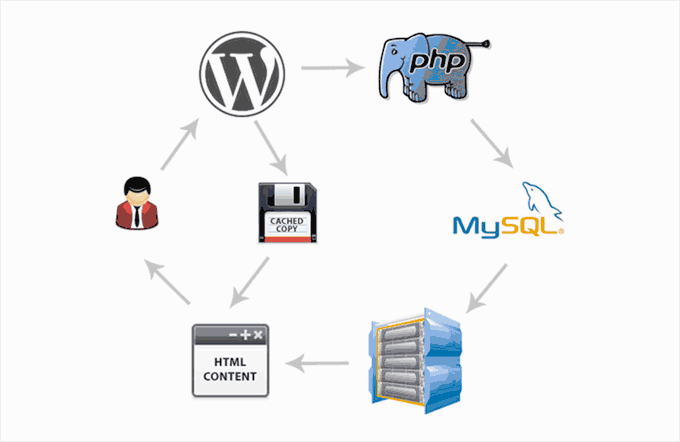
By default, WordPress uses PHP to dynamically generate each page on your website when it is requested by a user.
PHP is a server-side programming language. This means each user request increases the load on your server. This affects your website’s performance, user experience, and SEO.
WordPress caching plugins help you reduce this by skipping PHP and serving a cached copy of your webpage.
It also allows you to easily connect your website to a CDN (content delivery network) to further improve your website performance.
Installing W3 Total Cache in WordPress
Before you install the W3 Total Cache plugin in WordPress, you’ll need to make sure that you deactivate any other caching plugin on your website. This will help you save server resources and prevent any plugin conflicts.
After that, you can go ahead and install and activate the W3 Total Cache plugin. For more details, see our step-by-step guide on how to install a WordPress plugin.
Upon activation, W3 Total Cache will add a new menu item labeled Performance to your WordPress admin sidebar. Clicking on it will launch the plugin’s setup wizard.
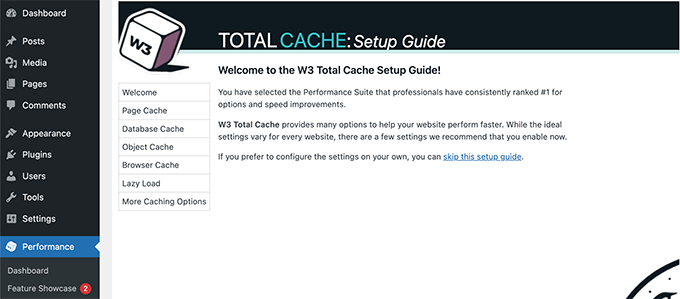
Simply click on the Next button to continue.
First, you will be asked to turn on Page Cache. Click on the Test Page Cache button to continue.
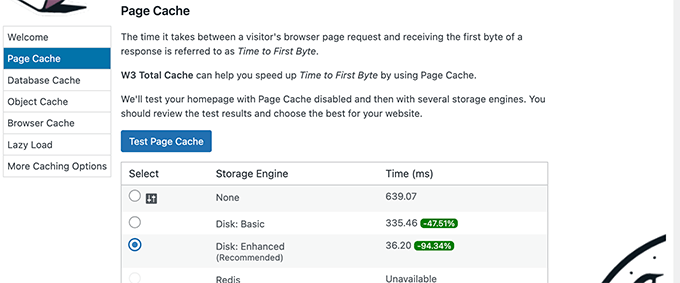
W3 Total Cache will show you different storage engine options. You need to choose one that saves you the most time. Usually, it will be the ‘Disk: Enhanced’ option for most shared hosting platforms.
Click on the Next button to continue.
Now, you will be given the option to Test Database Cache. We recommend choosing None. For most small to medium-sized websites your MySQL server will be able to fetch data more quickly than the Database cache.
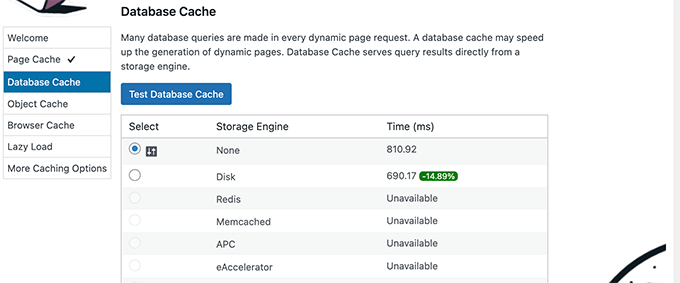
Click on the Next button to move on to the next step.
This will bring you to the Object Cache section. Object Caching allows W3 Total Cache to store database queries for dynamic pages and reuse them to improve performance.
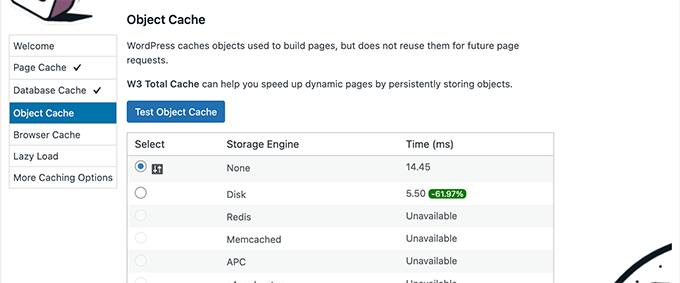
If the test result shows barely a few milliseconds difference then you can choose None.
Click on the next button to continue.
After that, click on the Test Browser Cache button and then select the ‘Enabled’ option under the test results.
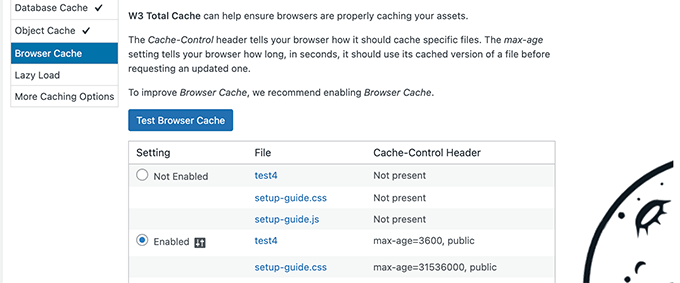
This option requests the user’s browser to store a copy of the web page for a limited time. Loading a page from a browser cache is much faster than loading it from your web server’s cache.
Click on the next button to move on to the next step.
Lastly, the setup wizard will ask you to enable lazy loading for images.
Now, WordPress comes with built-in lazy loading for images. However, some older browsers may not have support for that feature.
W3 Total Cache uses JavaScript to add lazy loading for images, which can be even faster and more efficient.
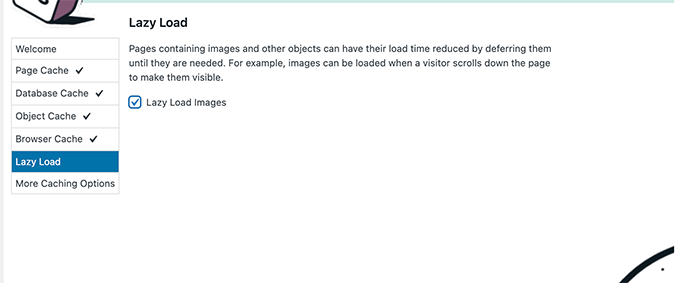
After that, click on the Next button to finish the setup wizard and view W3 Total Cache dashboard.
Advanced Caching Options in W3 Total Cache
The basic settings would work for most websites. However, there are many advanced options that you can configure to further improve performance.
Let’s take a look at the most important ones.
Minifying JavaScript and CSS in W3 Total Cache
The term ‘minify’ is used to describe a method that makes your website file sizes smaller. It does this by removing white spaces, lines, and unnecessary characters from the source code.
Note: Minifying JS and CSS files can potentially break your website. If you turn it on and your website doesn’t look right, then simply disable these options.
W3 Total Cache allows you to easily minify JavaScript, CSS, and HTML source code as well. However, we recommend only minifying JavaScript and CSS files.
Simply head over to Performance » Minify page and scroll down to the JS section.
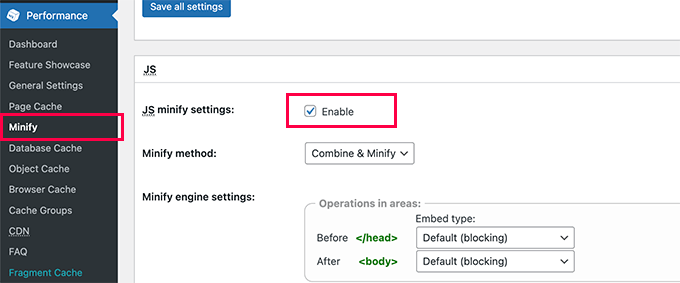
Check the box next to ‘JS minify settings’ to enable it.
Now, scroll down to the CSS section and enable CSS minify settings the same way.
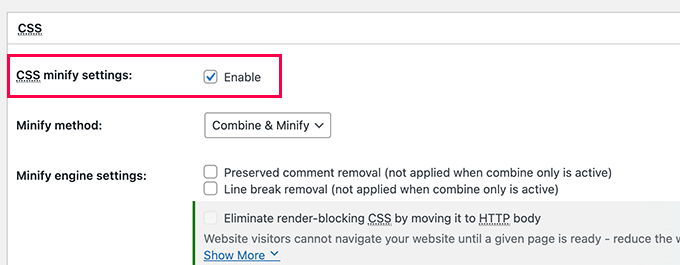
Don’t forget to click on the Save All Settings button to store your settings.
For alternate methods, see our guide on how to minify JavaScript and CSS files in WordPress.
Enable CDN Support in W3 Total Cache
CDNs or content delivery networks help you further improve your website performance by serving static files like images, CSS, and JavaScript from a global network of servers.
This reduces the load on your WordPress hosting server and improves page load speed.
W3 Total Cache comes with built-in support for various CDN platforms.
We recommend using Bunny.net which is the best CDN solution on the market. This is what we use for our OptinMonster website.
First, you need to signup for a Bunny.net account. After signup, you need to create a Pull Zone for your website.
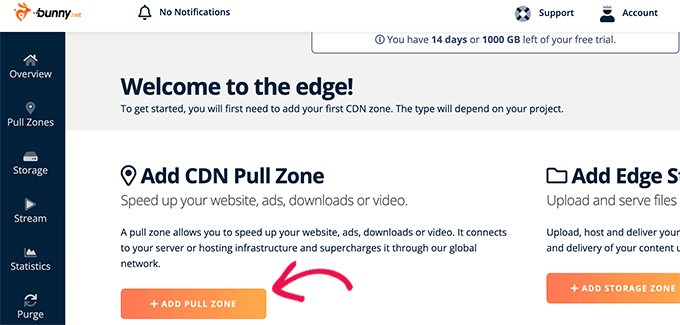
A pull zone adds a hostname to Bunny.net CDN. This hostname is then used to serve static files for your website.
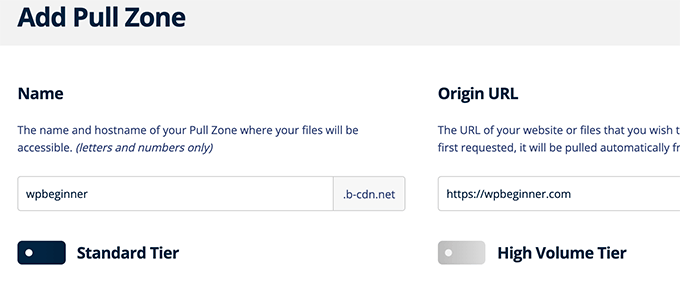
Add a name for your pull zone and then provide your website’s domain name.
After adding the pullzone, you need to visit the Performance » General Settings page.
Then, just scroll down to the CDN section.
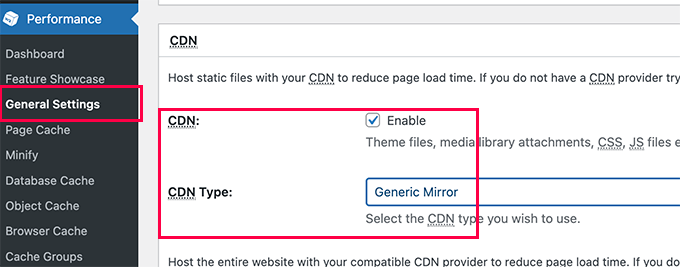
Check the Enable box next to the CDN option and choose Generic Mirror next to the CDN Type option.
Don’t forget to click on the Save All Changes button to store your settings.
Next, you need to visit the Performance » CDN page and scroll down to the Configuration: Objects section.
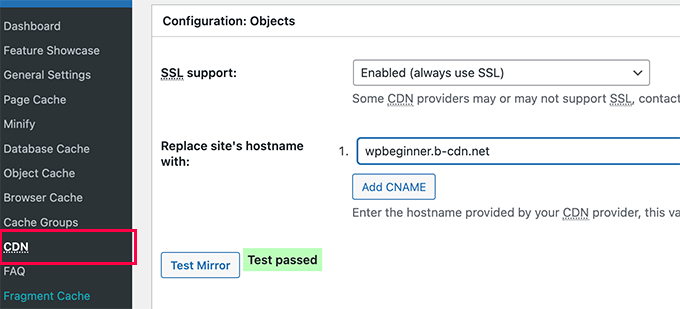
From here, you need to add the hostname you created earlier for your pullzone and click on the test mirror button.
W3 Total Cache will check the availability of your hostname and will show the Test Passed message when it’s successful.
You can now click on the Save All Changes button to store your settings.
W3 Total Cache will now start serving your static resources from CDN server.
W3 Total Cache also works well with Cloudflare free CDN. Alternately, you can also use it with Sucuri which is the best website firewall service with built-in CDN service.
Troubleshooting W3 Total Cache Issues
Once you have configured W3 Total Cache properly, it should work seamlessly in the background to improve WordPress speed and boost performance.
Occasionally, you may come across issues where you don’t see changes you made to your website right away, or a plugin may not be working properly.
The most common reason for those issues is that you are probably seeing an old cached version of your website.
This can be easily fixed by clearing the cache in WordPress.
Simply click on the Performance menu at the top and then select Purge All Caches option. W3 Total Cache will clear all cached content on your website.
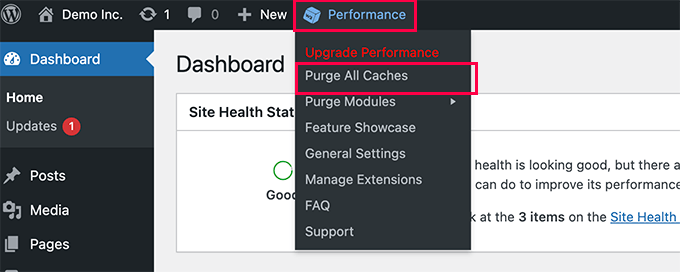
If you are still seeing the old version of your website, then try clearing your browser cache too.
We hope this article helped you install and set up W3 Total Cache in WordPress. You may also want to see our complete WordPress security guide for beginners to strengthen your website security, or our expert picks of the best WordPress hosting services to speed up your website even more.
If you liked this article, then please subscribe to our YouTube Channel for WordPress video tutorials. You can also find us on Twitter and Facebook.





Syed Balkhi says
Hey WPBeginner readers,
Did you know you can win exciting prizes by commenting on WPBeginner?
Every month, our top blog commenters will win HUGE rewards, including premium WordPress plugin licenses and cash prizes.
You can get more details about the contest from here.
Start sharing your thoughts below to stand a chance to win!
Francis says
Good and Quality tutorial
thanks Syed Balkhi.
this really helped me
Raj singh says
I have an issue with this plugin , when I trying to update this plugin it failed and after fails when I Refresh my wordpress site .
It says under maintenance come back after few hours.
So I leave and came back after few hours but after few hours when I try to open my site .
It’s Totally blank , Nothing is show on my Site.
Only white page comes when I Try to open.
So now what should I do ?
Please help me…
Derek C says
Thank you so much! I was about to go pay an extra $15 a month for cloud based hosting because my blog had gotten so slow at times it was unbearable! I had setup W3 Total Cache and just enabled everything.
I didn’t recognize it until going through your guide, but this was the main reason my dashboard and WP console was taking FOREVER to do anything. Sometimes I would wait 20-30 seconds just to create or save a post. Now it is like 2-3 seconds at the max. Also, my site loads even faster with a lot of that junk turned off.
I am on a shared hosting plan, and I guess all of the caching was actually bottlenecking the CPU or something…. Anyhow, thanks for such a useful guide!
Huu says
Thanks Bro! ^^
Pronob says
thanks a lot for this article.i was searching for this.
Amit says
Dear sir,
I use your guide with w3 total cache but facing the issue of rendering CSS file. This is link of my blog How its work
Can I use Cloudfare with subdomain CDN ? Is it speed up loading time?
Rahul Rampal says
Hi, I have a problem with My yoast sitemaps not rendering. A blank screen appears when I click it. My question is should I include or exclude Sitemap.xsl file in custom file settings in CDN?
Kindly advice.
Dinuka says
What is ‘server response time’? And how to reduce it?
Mody Star says
Hello , I’m using w3 Total Cache on multisite wordpress … I want to exclude certain site from being excluded
mysite.com/ms/
mysite.com/ms/2/
mysite.com/ms/3/
mysite.com/ms/4/
mysite.com/ms/5/
mysite.com/ms/6/
I want to exclude the whole mysite.com/ms/4/ site from being cached
and what about exclude caching of certain plugin on mysite.com/ms/5/
Help me Please
Utkarsh says
I did the settings of W3 total cache plugin and the favicon of my website stopped appearing. Can you please check it
Jon says
I downloaded plugin and now its loading slower.
Each time I test in pingdom the % faster than other sites decreases.
Its only a 1 page site at this time.
Ian Smith says
I recently set up W3 Total Cache with the Rackspace Cloud Files CDN. It all works, but I had expected the media files in the wp-content/uploads folder to only be posted in the CDN rather than on the server. Instead, media uploads now go to both the CDN AND the wp-content/uploads folder. Is this what is supposed to happen? It seemed unnecessarily redundant to me.
WPBeginner Support says
Yes, but the images on your server are stored so that you can end using CDN service anytime you want, or move to another service, or to create backup using WordPress backup plugins. However, your visitors will be served images from the closest CDN server instead of your site.
Admin
Himanshu Grewal says
MAXCDN is free ir not??
WPBeginner Support says
No it is a paid service.
Admin
Ian says
Hi,
Are you still using maxcdn on this site? I’m trying to decide between maxcdn and keycdn. I noticed this post was from a few years ago and wondered if your thoughts about maxcdn are still the same?
Thanks
WPBeginner Support says
Yes, we still use and recommend MaxCDN.
Admin
Bart Percy says
Superb site you have here but I was wondering if you knew of any forums that cover the same topics discussed in this article? I’d really like to be a part of group where I can get feedback from other knowledgeable individuals that share the same interest. If you have any suggestions, please let me know. Bless you!
ROSANNA says
Hi ! I installed yesterday Super Cache because it seemed easier to configure than W3 Total Cache but this morning my site was very very very slow… So I decided to follow your tutorial step by step and change plugins.
So, the first step was to deactivate the first plugin, so I clicked deactivate Super Cache and my whole site crashed !!! I get this message : 503 SERVICE UNAVAILABLE no server is available to handle this request.
I don’t know what to do. Can you help ?
Anant says
Minify via disk is currently disabled
I tried to check the box and when I save after the refresh, it’s disable. enabling it 100 times over still results in an unchecked box, and the message “Minify via disk is currently disabled. Anyone know how to fix that ?
Thank you
Reply
TJ says
Thank your this tutorial. I have used it for a couple of my sites.
One thing, which might be a “duh” situation… But, I had my site in “Maintenance Mode” using SeedProd’s Coming Soon Pro. I did not see the CDN in front of the image urls until I turned off maintenance mode. Then, when I turned it back on again, they were gone again.
Just in case someone needs this information
Rahul says
hi there, thanks for making this post for wp beginners. i’m also using wp total cache plugin for . could you help me or check my website what is problem in this becasie i’m not getting hits pls help me a humble request to u
thanks
Jewel says
Hello,
I appreciate so much, your posts. They have helped me learn a bit about setting up my website. However, this particular post led me to check a bunch of boxes under”Performance » Browser Cache” that took me from faster than 91% down to faster than 71% on speed. I had checked them just as you have in your picture above. I unchecked all your suggested boxes and got back to 84%. (on Pingdom) This was the only change I made. I don’t understand why it made things slower, or why I couldn’t get back to my original speed. If you could explain this I would appreciate it. Thanks.
WPBeginner Support says
A lot of reasons can show you conflicting results when you are expecting something different. For example, you may have forgotten to save plugin settings, your server is particularly under heavy traffic at that time. Make sure you enable gzip compression as we have shown above, then test.
Admin
sojib says
I am not using this cace plugin anymore. Using now wpfc two of my site. simple and faster then other plugins.
Tea says
Thanks for the tutorial…really helpful
However my website is slower then before.
I also have these performance issue “Remove query strings from static resources”.
I haven’t enabled database caching and Minify as per your insutrctions as yet…also don’t have CDN service.
before my website was faster.
Any thoughts?
Thanks
Tea
WPBeginner Support says
How are you checking your website speed and performance? We recommend testing with pingdom using different locations. If it is still slow, then try resetting the plugin and follow the setup instructions again.
Admin
Tea says
yes using pingdom to test and speed is 2.55s…I think we can do better
All my performance scores are 100 or 95 the lowest, but the “Remove query strings from static resources” is at 12.
Any suggestions?
Many thanks
Tea
Lifa says
This has to be one of the best if not the best WordPress learning sites ever! Detailed and very easy to understand modules. Thank you for all your hard researched work.
Penelope says
THANK YOU FOR MAKING THIS! I’m EXTREMELY cautions on the plugins I install from horror stories. I’ve also heard horror stories about this very plug in. Therefore, I research as much as I can: tutorials, forums, reviews, troubleshooting etc. I am going to follow your tutorial exactly. My server says my site is too large, 500kb, and needs to be gzipped. [sigh] Another plugin to search.
Helpful note: You may have a downloadable instructions on your site somewhere & I am not see it. But It would be helpful if I could download to print OR this was print friendly. you have have link but I am not seeing it.
–Penny
Keami says
When I check the box for enable for page cache and click save all setting it doesn’t stay checked. Help please?
reza says
Please Inform That if Enable Object Cache is checked may cause very slow or accessible admin panel after some times as happened to me and i have to disable object cache and after that i have no problem with this Great plugin
TnX for your tutorial too
deepa tiwari says
Thanks for sharing . I tried to install W3 total cache showing Error not Available for you. How to fix it. Please help me
Manu says
i always come back for W3 Super Cache settings after messing-up with the plugin and i never back or restore its settings because i know where to look for it.
Thanks Wpbeginner for this awesome tutorial.
tracey sharp says
Many thanks for this really detailed step by step guide. I’ve installed google adsense along with a couple of other plug ins and my load time seems to have almost ground to a halt. I’ve installed Total Cache which has helped a little but I’m not sure what to do next. I’ll keep looking!
Hasnain Abid Khanzada says
I have one question that as we know that when we open any new website then browser cache it so then why we need any plugin for improving cache performance?
Muhammad Imran says
Hello WPB team,
I have connect MAxCDN by following all the guidlines as suggested in the article. But after some days my 99% images de-indexed in Google. Please is there any tutorial to FIX this? Will be very thankful to you for the help.
Thanks
Tristian says
Hi,
I do have one question, when static pages are created for example you have 200 pages and just installed and set up W3 cache. So now when static pages will be created for all those 200 sites.
Do you have to load it manually every site by site in your browser ? I understand that this action takes some time so when exactly those sites are created ( static copies on a disk) ?
Ali Emami says
Hi
When I Click on “Specify it here” link, W3 Total Cache does not take me to the CDN page
I go to this address:
http://example.com/#configuration
What should I do?
Help me please
Thank You
WPBeginner Support says
Please contact W3 Total Cache support
Admin
Nabeel says
This page is at 91 score on pingdom
WPBeginner Support says
Yes it is, thanks for noticing.
Admin
Sacha says
Thank you! I was having a lot of trouble with this plugin and now I have it working perfectly!
Abhishek says
Hi team,
Awaiting the update for this post, I use Cloudflare (free) with wordpress and my GTMetrix results are now anything but good. The blog I need help with is:
Thanks!
Sandy says
I installed the W3 plugin and it works great alone, however when I setup and account with a CDN my whole site slowed down to less than half the speed. From 2 seconds to sometimes 6 seconds on average.
I think the CDN part is of no value if you have a good host server. Digital Ocean has very good performance alone.
Best
Palla Sridhar says
How do I use Cloudflare with W3TC. Is there no support for it.
Morgan Cole says
I also need integration with Cloudflare. Please Help!
Lynne Adams says
I have used this tutorial every time I install the W3 Total Cache plugin with no problem. This time I went a step further in your tutorial and under Performance » Browser Cache page for more settings I checked the ones you recommend. When testing the site on PageSpeedGrader I get an error that reads
DataTables warning: table id=recommendations – Cannot reinitialise DataTable. For mor information about this error, please see .
Is this something to be concerned with?
Debbie Bridge says
Just wondering does it matter if your site is a wordpress.com rather than a wordpress.org for this plugin?
WPBeginner Support says
You cannot install plugins on WordPress.com. Please see our guide on the difference between WordPress.com vs WordPress.org.
Admin
Lyheang IBell says
W3 Total Cache error:It appears Minify URL rewriting is not working. Please verify that the server configuration allows .htaccess
Unfortunately minification will not function without custom rewrite rules. Please ask your server administrator for assistance. Also refer to the install page for the rules for your server.
Technical info ?
Julian says
I think this post needs an update.
D says
I like how people ask questions and the author never replies. Are you guys in the business or helping people or link bait in order to sell/”recommend” paid plugins and such?
Just answer people’s questions a little and the rest of the web won’t think of you as poorly.
WPBeginner Support says
We try our best to provide help and advice. However, sometimes questions fall out of our site’s scope. Please see our guide on how to properly ask for WordPress support and get it.
Admin
Arsalan Mughal says
I am using Godaddy’s wordpress managed hosting on . I want to install W3 Cache plugin because of so many options in it. But the button for W3 Cache “Install Now” is disabled and show “This plugin is not allowed in our system…”. I talked to Godaddy support team but they said you need not to worry about any cache plugin and you can’t install W3 Cache as there is also a tool option “Flush Cache” in wordpress bar.
So, i just want to know from you, is there any possibility that i can be able to install W3 Cache plugin? If not, Is there really no need of Cache plugin in WP managed hosting by godaddy.
Can you guide briefly?
Thanks
WPBeginner Support says
Managed hosting providers sometimes use their own caching systems and optimize their servers for optimal performance. Sometimes they may block plugins that they believe will cause conflicts with their servers. If your host is blocking a plugin then it is best not to use that plugin or move to a host that supports your desired plugin.
Admin
Kate says
Hi there! Hoping you can help. Yesterday I downloaded the plugin & followed your instructions. I haven’t done anything about CDN yet. (FYI The plugin seems to look a bit different to your video screenshots… More fields are prepopulated). Anyway, whilst the site is faster (yay!) I noticed this morning that my new post which published today isn’t appearing on my homepage ( which all new posts usually do). It’s just appearing in it’s nominated page. I wondered if you knew what the issue might be? Is something ticked in the plugin which shouldn’t be?
Thanks, Kate
Adam Thomas says
Wow, followed the video instructions and my website used to be “70% slower than all websites”. It’s now “61% FASTER than all websites tested” on Pingdom.
Thanks a bunch for the video. Everyone says use W3 Total Cache but I never knew how to actually set it up. I was getting really frustrated at my 10+ seconds loading time.
Now down to 2.49 seconds. Not perfect but much better considering this is the only thing I’ve done to try to improve speed.
Thanks again!
WPBeginner Staff says
Please contact MaxCDN support.
Mathieu says
Hi and thanks for another very well written article. This website is definitely becoming a reference for me.
I was about to signup on MaxCDN and follow all the steps when I realise that my hosting provider doesn’t allow me to edit the DNS. It isn’t one of your recommended hosting providers for wordpress and I start to understand now why
Anyway, I talked to my hosting provider and its suggestion was to add a subdomain service to my hosting. This optional subdomain service includes DNS configuration. So assuming my website is http://www.website.com, I could add a subdomain like example.website.com with DNS options.
Now the question is: would it work the same way? Or MaxCDN needs to create the subdomains itself? Also, considering that my website would still run on the main domain and not on the subdomain. So I would activate that subdomain just to be able to edit DNS really.
I hope that I explained myself clear enough, I admit that this is still a little bit complicated for me to understand.
Thanks.
Richelle says
Hi! I’ve been trying to get W3 Total Cache to work forever, but I’m always having issues. I followed all your instructions above, and right now it says:
New Relic is not running correctly. The plugin has detected the following issues:
PHP module is not enabled.
PHP agent is not enabled.
API Key is invalid.
Account ID is not configured.
Application ID is not configured. Enter/Select application name.
License key could not be detected.
A configuration issue prevents CDN from working: The “Authorization key” and “Replace default hostname with” field(s) cannot be empty.You need to select / create a pull zone. Specify it here.
I honestly have no idea what all this stuff is and how to fix it…
stooni says
show where there are linked, check the File Rigts!
—- stooni