


Do you want to display announcements in your WordPress blog or website?
Adding announcements to your site is an effective way to direct user attention and boost conversions. They can be used to convey important messages, redirect users to popular content, promote special offers, and more.
In this article, we will show you how to easily display announcements in WordPress.

Why Add Announcements in WordPress?
Many popular websites display special announcements as a floating bar on the top or at the bottom. These announcement bars are highly effective, which is why you are seeing them on more and more sites.
Announcements are immediately noticeable on any WordPress website due to their placement. Usually, it is a full-width bar on either the top or the bottom of a page.
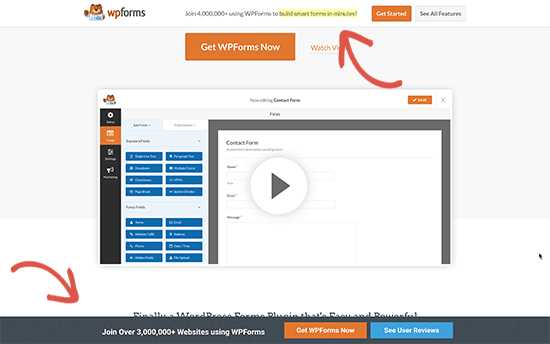
You can use it to offer special discounts, run time-sensitive marketing campaigns, ask users to participate in surveys, read a new blog post, and more.
You can also add visual effects, countdown timers, and email forms to your announcement bar.
Having said that, let’s take a look at how to easily add announcements in WordPress. We will share 2 methods, so you can click the link below to jump ahead to any section:
Method 1: Display Announcements in WordPress Using OptinMonster
For this method, we will be using the OptinMonster. It is the most popular lead generation and conversion optimization software on the market.
OptinMonster helps you convert website visitors into subscribers and paying customers. It comes with many campaign types, including announcement bars that can be displayed on the top or at the bottom of your website.
Most importantly, it comes with powerful display rules that allow you to show different content to different users. You can also choose where and when to show your announcements.
Disclosure: OptinMonster is one of our premium products. WPBeginner users can try the free version by installing our OptinMonster plugin and signing up for a free account through the plugin. The free version is not visible on the main OptinMonster website.
First, you need to install and activate the OptinMonster plugin. For more details, see our step-by-step guide on how to install a WordPress plugin.
This plugin acts as a connector between your WordPress website and your OptinMonster account.
Upon activation, you need to visit the OptinMonster » Settings page and click on the ‘Connect an Existing Account’ or ‘Create a Free Account’ button.
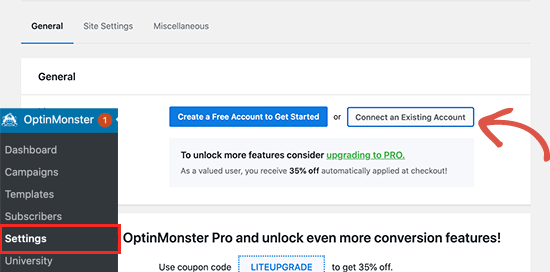
This will bring up a popup where you can log in and connect your WordPress website to your OptinMonster account.
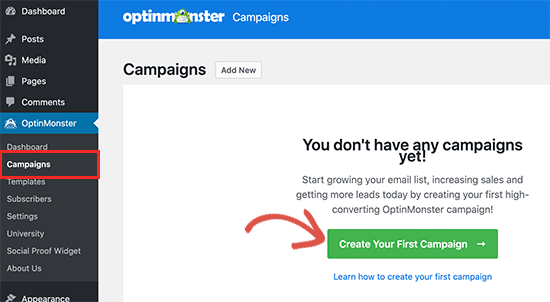
Now that your WordPress site is connected, you are ready to create your first geotargeted campaign. Go to the OptinMonster » Campaigns page and click on the ‘Add New’ button.
First, you’ll need to choose your campaign type. OptinMonster supports lightbox popups, floating bars, inline optins, fullscreen, slide-in, and gamified campaigns.
For the sake of this tutorial, we will choose a Floating bar campaign that allows you to display a floating bar on the top or bottom of your website.
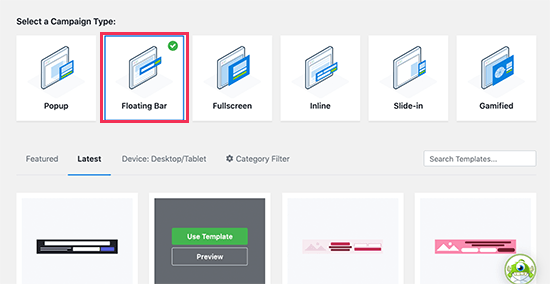
Below that, you can select a campaign template by clicking on it.
Next, you need to enter a name for your campaign. You can enter any name here and then click on the ‘Start Building’ button.
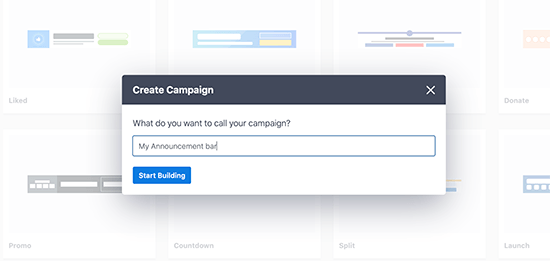
This will launch OptinMonster’s campaign builder interface with a live preview of your campaign in the right panel.
You can simply point and click on any item in the preview to edit, move, or delete it. You can also add new elements by dragging and dropping blocks onto the template.
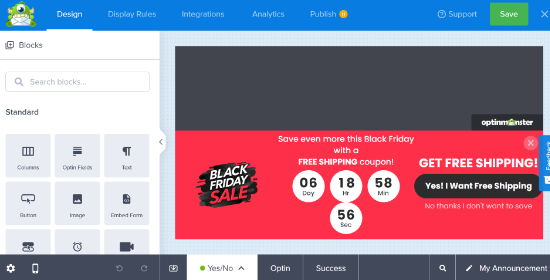
In this example, we are using an announcement bar promoting a special offer with a countdown timer to create a FOMO effect.
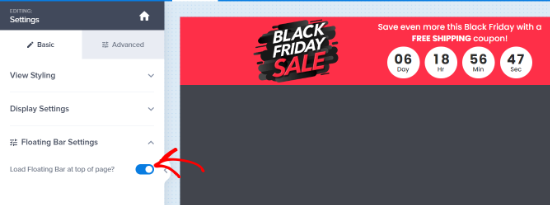
If you want to display the notification bar at the top, simply click on the ‘Floating Bar Settings’ from the left column and then check the toggle to move it to the top.
Once you are finished with the campaign design and content, switch to the ‘Publish’ tab.
From here, you can change the campaign status to ‘Publish’.
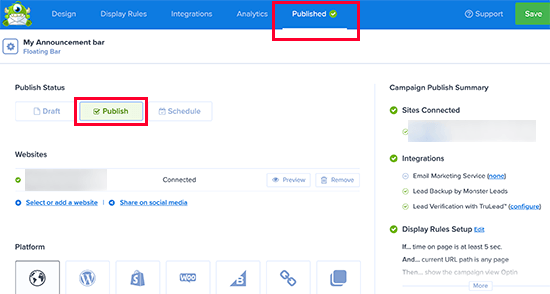
After that, click on the ‘Save’ button to store your settings and close the campaign builder.
OptinMonster will now take you to the Output Settings page. From here, you can choose where you want to display your campaign.
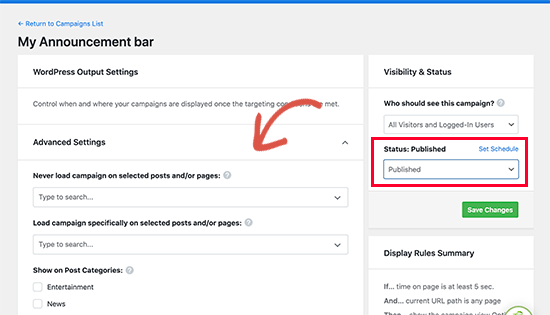
After that, change the Visibility status to ‘Published’ and click on the ‘Save’ button to make your campaign live.
You can now visit your WordPress blog to see your announcement bar in action.

Pro Tip: Looking for an alternative to OptinMonster? Thrive Leads allows you to create announcement bars that collect email addresses from your users to grow your subscriber list. For more details, you can see our guide on how to create an alert bar in WordPress.
Method 2: Display WordPress Announcements Banner Using Notibar
OptinMonster is a powerful tool with tons of options, like email form integration, timers, unlimited colors and designs, and powerful targeting controls.
However, if you just want to quickly show an announcement without using advanced features, then you can use this method.
First, you need to install and activate the Notibar plugin. For more details, see our step-by-step guide on how to install a WordPress plugin.
Upon activation, you need to visit the Settings » Notibar page to configure the plugin settings, which will launch in the Theme Customizer with a live preview.
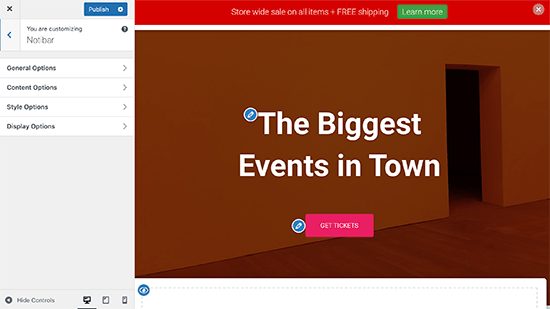
You can start by switching to the ‘General Options’ tab.
Here, you’ll get to select a position, width, and button type for your notification bar.
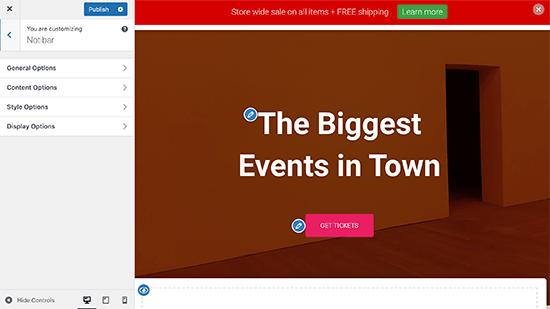
Next, go back and switch to the ‘Content Options’ tab.
From here, you can enter the content you want to show for your announcement.
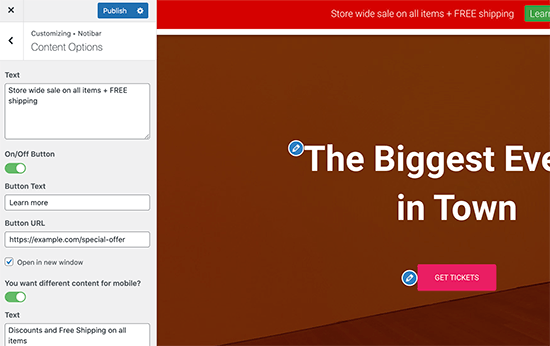
The plugin allows you to add different content for mobile devices.
After that, go back and switch to the ‘Style Options’. Here, you can choose colors and the font size for your announcement bar.
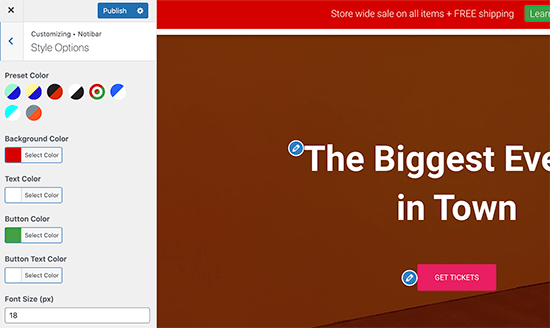
Finally, switch to the ‘Display Options’ tab.
Now, choose where you want to show/hide your announcement bar content.
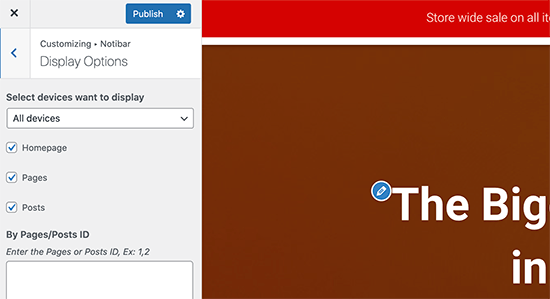
The plugin allows you to hide it for devices, homepages, pages or posts, or enter a specific post/page ID where you don’t want to show the notification bar.
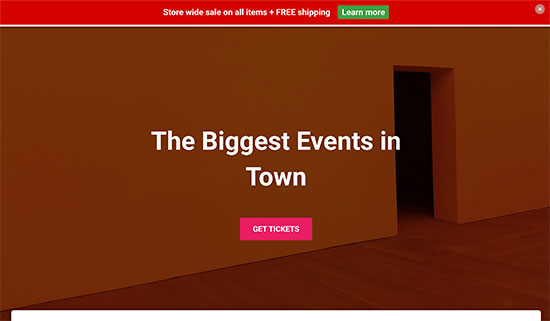
Once you are finished, simply click on the ‘Publish’ button at the top to save your changes and make your announcement bar live.
You can now visit your WordPress blog to see your announcement in action.
We hope this article helped you learn how to easily display announcements in your WordPress blog. You may also want to see our WordPress conversion tracking guide to see exactly how users interact with your announcements and our comparison of the best WordPress landing page plugins to boost your conversions.
If you liked this article, then please subscribe to our YouTube Channel for WordPress video tutorials. You can also find us on Twitter and Facebook.





Syed Balkhi says
Hey WPBeginner readers,
Did you know you can win exciting prizes by commenting on WPBeginner?
Every month, our top blog commenters will win HUGE rewards, including premium WordPress plugin licenses and cash prizes.
You can get more details about the contest from here.
Start sharing your thoughts below to stand a chance to win!
Dennis Muthomi says
I’ve always seen websites having those eye-catching announcement bars especially on black fridays and the holidays,
but I never knew how they implemented them.
I always assumed they had to hire a developer to custom code those bars for them.
I’ll definitely be trying one of these methods the next time SaaS companies I write about offer exclusive deals or promotions. Those limited-time offers are perfect for using an announcement bar to grab visitors’ attention and drive conversions.
Thanks for this
WPBeginner Support says
You’re welcome, glad we could share how to se this up
Admin
michael says
Simple Notices pluggin is not updated since one year……..and got issues
WPBeginner Support says
Hi Michael,
We tested the plugin and didn’t find any issues. Sometimes plugin authors don’t update their free plugins unless they are broken. Please see our article on installing plugins not tested with your version of WordPress.
Admin
Sumit says
I personally use hellobar as it can be used for multiple purpose like tracking Facebook conversion and show special notification. Thanks for this nice information.