


Do you want to remove the visual editor mode in WordPress? The visual editor in WordPress provides a WYSIWYG interface for writing content. However, many users who are comfortable writing basic HTML prefer to use the text editor. In this article, we will show you how to remove the visual editor mode in WordPress.

Why Remove Visual Editor Mode in WordPress?
The visual editor offers a convenient way for beginners to write content in WordPress. It comes with a nice WYSIWYG user interface with handy options to choose colors and format when writing posts.
See our tips on mastering the WordPress visual editor.
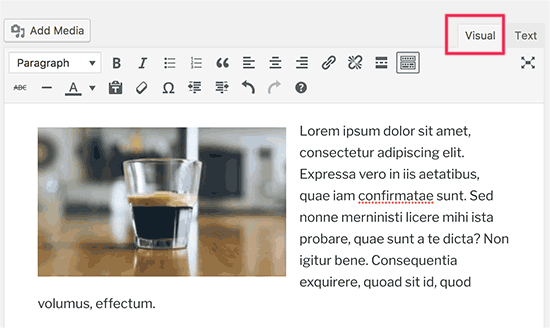
Visual editor can also be programmed to show your posts using the same fonts and colors as your WordPress theme.
However, many advanced users prefer to use the plain text editor. It has some very basic formatting buttons and shows raw HTML / plain text when you create content.
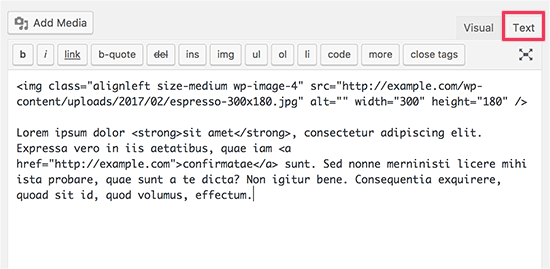
The biggest complaint about visual editor is that when you switch between Visual / Text mode, it could affect the formatting of your post. Sometimes the visual editor also end up adding additional formatting that’s not needed.
These are not big issues, but they can certainly become really annoying.
Having said that, let’s see how to easily remove visual editor mode in WordPress.
Video Tutorial
If you don’t like the video or need more instructions, then continue reading.
Removing Visual Editor Mode in WordPress
First, you need to visit Users » Your Profile page in the WordPress admin area. This is where you can edit your user profile in WordPress.
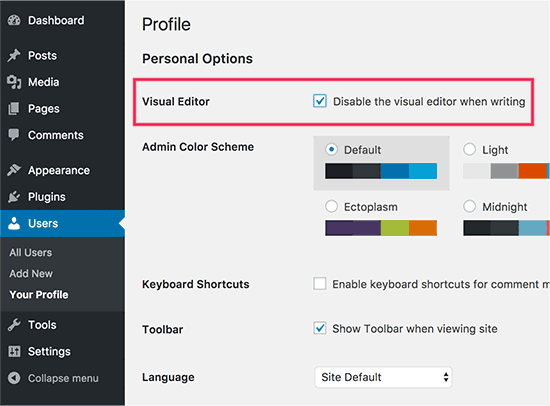
Under the visual editor, you need to check the box next to ‘Disable visual editor when writing’ option.
Don’t forget to click on the ‘Update Profile’ button to save your settings.
You can now edit a post or create a new one. You will notice that visual editor will not be available anymore.
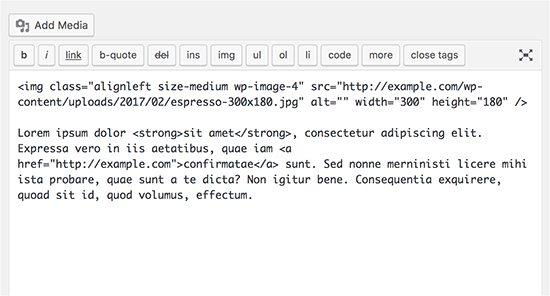
Note: This setting will not affect other users registered on your WordPress site.
We hope this article helped you learn how to remove visual editor mode in WordPress. You may also want to see our guide to boost WordPress speed and performance.
If you liked this article, then please subscribe to our YouTube Channel for WordPress video tutorials. You can also find us on Twitter and Facebook.




Syed Balkhi says
Hey WPBeginner readers,
Did you know you can win exciting prizes by commenting on WPBeginner?
Every month, our top blog commenters will win HUGE rewards, including premium WordPress plugin licenses and cash prizes.
You can get more details about the contest from here.
Start sharing your thoughts below to stand a chance to win!
Joanne Hurlock says
LIFE SAVER!!
For turning the visual editor back on!!!
WPBeginner Support says
Glad our guide was helpful
Admin
Thien says
That’s amzingn acticle. I have practice on my site thanks so much
WPBeginner Support says
You’re welcome, glad you liked our article
Admin
radin says
im realy appreciate for this article
Swapnil Sutar says
Can we disable Visual editor only for pages not posts?
Michael says
Your advice is great but surely the best/additional solution would be to stop some of the idiotic behaviour of the visual editor, ESPECIALLY adding and in stupid places, which can disrupt pages completely. I’ve even seen it add tags in the middle of internal style declarations! It also seems to remove HTML comments at times.
As one of several people maintaining a certain website, I’ve had to waste many hours fixing the mess made by the visual editor because someone else insists on using it.
SURELY it can be made to listen to what the user actually TYPED instead of taking matters into its own hands for no reason. If I type a succession of carriage returns, and didn’t go into text and add , MAYBE because that’s what I actually WANTED.
This behaviour has been *programmed* into it, it can therefore be removed.
Satnam Singh says
Do you use wordpress visual editor on your website ? Or any plugin of shortcodes instead or any thing else ? Mind sharing ?
WPBeginner Support says
Hi Satnam,
We use text editor when writing posts. You can see all the plugins we use on our blueprint page.
Admin
Karen Doll says
Hello,
I’m hoping you can help me with my Visual Editor issue. I know this page addresses how to disable the Visual Editor, but I’m hoping you can help to enable my Visual Editor. I am a freelance writer and a client set up a WordPress account for me on her site. I cannot access the Visual Editor. The disable Visual Editor box in NOT checked. And, when I tried to click on Visual, all of my text disappears. The word counter remains the same as if there are invisible words on the page. Perhaps there is something you can tell me that I can forward onto the site owner.
Thanks so much for your help
Karen
WPBeginner Support says
Take a look at our tutorial on how to fix white text and missing buttons in WordPress visual editor. You will need to ask your client to help you solve this issue.
Admin
sunil says
Does enabling visual editor erase the html code again?
WPBeginner Support says
No, but if you edit a post and switch to visual editor, then it may try to fix unclosed HTML tags, etc. This could affect your post’s formatting a little bit.
Admin
WPBeginner Staff says
You can go to your user profile and check the option disable visual editor when writing.
Stefani says
Hi there! Do you happen to know if it would cause formatting issues if the visual editor is enabled for one user and they were told not to click the text editor button at all (for my client, so they can do things like change text color for a word here and there) and disabled for me (so that I can easily code things if needed)? Thank you!!
Carolee Lawrence says
There is no “visual editor” on Users/my profile
WPBeginner Support says
It should be the first option on your profile page.
Admin
rajkanuri says
for WordPress Visual Editor is acting weird, it is not showing up in Firefox and Chrome but working fine in IE… what should be the error, I have even reinstalled the WordPress using the reinstall option in the dashboard..