


Do you want to install Google Analytics in WordPress?
Knowing how your audience interacts with your website is crucial for your success. The best way to know your audience is through your traffic stats, and this is what Google Analytics provides for FREE.
In this article, we will share why Google Analytics is important and how you can easily install Google Analytics in WordPress (step by step).

First, we will explain why Google Analytics is important and how it can help you grow your website.
After that, we will show you how to sign up for a Google Analytics account and different methods to install it on your WordPress site.
Finally, we will explain how to view your traffic reports in Google Analytics.
Here is a quick overview of what you’ll learn in this article:
- Why Is Google Analytics Important for Bloggers?
- How to Sign Up With Google Analytics
- Method 1: Google Analytics for WordPress by MonsterInsights
- Method 2: Install Google Analytics in WordPress With WPCode
- Method 3: Install Google Analytics in WordPress Theme
- Viewing Reports in Google Analytics
- Making the Most Out Of Google Analytics
Ready? Let’s get started!
Why Is Google Analytics Important for Bloggers?
Once you start a blog, your #1 goal is to get more traffic and subscribers. Google Analytics helps you make data-driven decisions by showing you the stats that matter. You can see:
Who visits your website?
This part of analytics shows the geographical location of your audience, which browser the user used to visit your site, and other important information such as screen resolution, JavaScript support, Flash support, language, and more.
This data is extremely useful, and it can help in numerous ways. When creating a custom website design, you can use the user data to make sure that your site will be compatible with your audience.
If most of your users don’t have Flash support, then you should avoid adding the Flash element to your site. If most of your users are on 1280 screen resolutions, then make sure that your design is compatible with that resolution or smaller.
What do people do when they are on your website?
You can track where the users are going on your website, how long they stay on your website, and the bounce rate (the percentage of users who exit your site on the first visit).
Using this information can decrease the bounce rate and increase your pageviews.
You can also find your most popular articles, articles that are not doing so well, and the kind of content your users are looking for.
When do people visit your website?
By looking at the hottest hours in the day for your site, you can pick the best time to publish your post. If that time zone is not compatible with yours, then you can schedule your post for that hour.
How do people find your website?
This section of the analytics shows you where the users come from. For example, do they use search engines, enter direct links, or click on referral links from another site?
It also shows you what percentage of your visitors came from each of these sources. Google Analytics gives you a breakdown of each of these categories. If it is the search engine category, then it shows you which search engine got you the most traffic, like Google, Yahoo, Bing, and so on.
The breakdown of referral sources shows you which sites you need to work with the most. If your top referral source is Facebook, you need exclusive Facebook content to make your audience feel special.
If your top referral source is an external website, then you might want to consider having a partnership with that website (guest post exchange or something else).
How do people interact with your content?
Google Analytics shows how your users interact with your site’s content. It shows you what percent of the user clicked on which link on your site and much more.
You can run A/B split tests by creating content experiments in Google Analytics to understand what works best to meet your goals.
By seeing user interactivity, you can work your content around your users. By seeing the answers to the questions above, you can focus on the strategies that work for your site and avoid methods that don’t work.
Simply put, eliminate the guesswork and focus on stats that matter, so you can make data-driven decisions.
Video Tutorial
If you’d prefer written instructions, keep reading.
How to Sign Up With Google Analytics
Google Analytics is available for free, and all you need is a Google or Gmail account to sign up. The signup process is quite simple. Just follow the step-by-step instructions below to create your Google Analytics account.
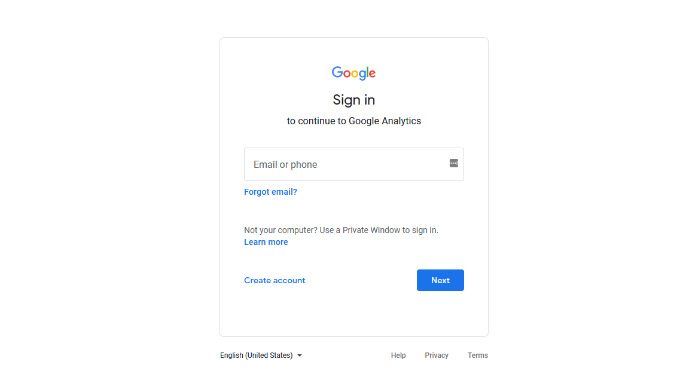
Step 1: First, you need to visit the Google Analytics website to sign up. When you are on the website, simply click the ‘Get started today’ button.

Next, you will be asked to log in with your Google account.
If you already have a Google or Gmail account, then you can use that to sign in. Otherwise, you can go ahead and create a Google account for yourself.
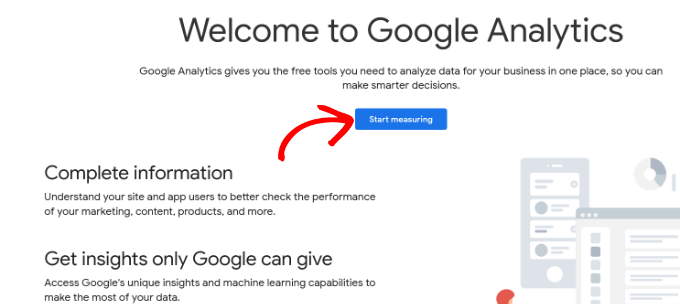
Step 2: Once you have signed in with your Gmail account, you will see a welcome screen like the one below.
This is where you will sign up for Google Analytics with your Gmail account. Go ahead and click the ‘Start measuring’ button.
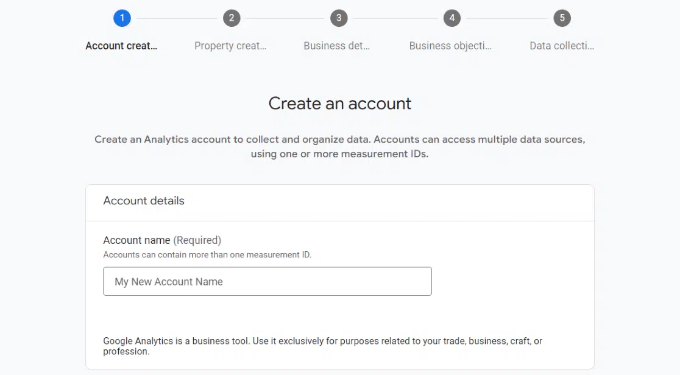
After that, you will be asked to provide an account name.
This name will be used internally, so you can use anything, like your business name.
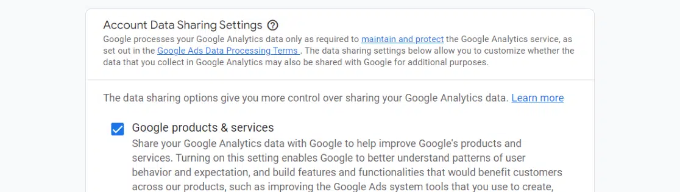
Google Analytics will also show multiple account data-sharing settings.
These settings give you control over sharing your Google Analytics data. You can keep the default settings and move on to the next step.
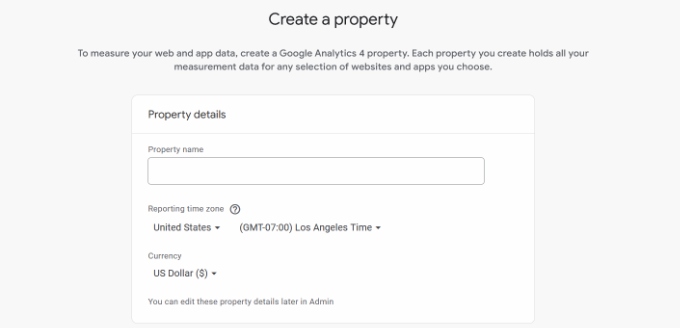
Step 3: On the next screen, you will need to create a Google Analytics property.
Google introduced a new version of Analytics called Google Analytics 4 or GA4. It’s the latest version that tracks your website and mobile apps in the same account. Plus, you get new features, metrics, and a different interface for your reports.
Go ahead and enter a property name, and select your reporting time zone and currency. Then click the ‘Next’ button.
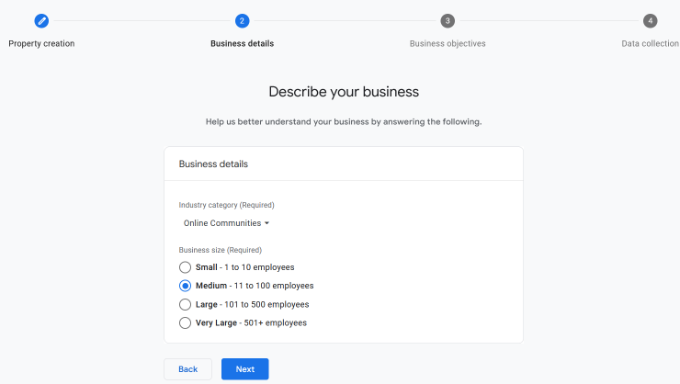
On the next screen, you’ll need to select an ‘Industry category’ from the dropdown menu for your website and choose a ‘Business size’ from the given options.
When you are done, just click the ‘Next’ button.
Next, you’ll need to choose business objectives and select how you intend to use Google Analytics with your business. This will help get personalized reports for your business.
For instance, there are options like generating leads, driving online sales, raising brand awareness, examining user behavior, and more.
You can choose multiple options or all of the given options that meet your needs. We recommend selecting the ‘Get baseline reports’ option so that you get all the Google Analytics reports populated in your account.
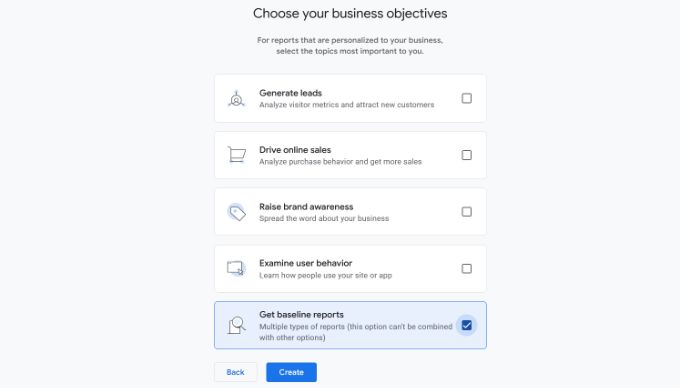
When you are done, simply click the ‘Create’ button.
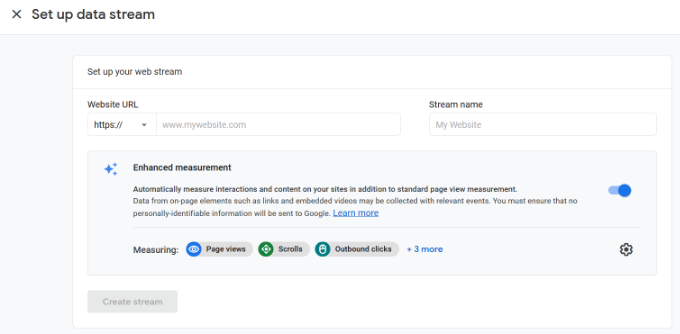
Step 4: Now you will be presented with your Google Analytics Webs stream options.
Since we are setting up Google Analytics for a WordPress site, go ahead and select the ‘Web’ as the platform.
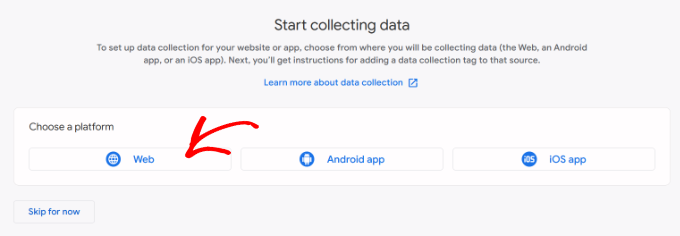
After that, you’ll need to enter your website URL and Stream name.
By default, Google Analytics will have an ‘Enhanced measurement’ option enabled. This allows you to track pageviews, scrolls, outbound clicks, file downloads, and more in Google Analytics.
Note: If you plan to use the MonsterInsights plugin, then you should turn off the ‘Enhanced measurement’ option. Otherwise, the plugin will collect and display double the amount of data.
Next, you can click the ‘Create stream’ button.
You can now see your Stream name, URL, ID, and Measurement ID.
It will also show different enhanced measurements that it will record.
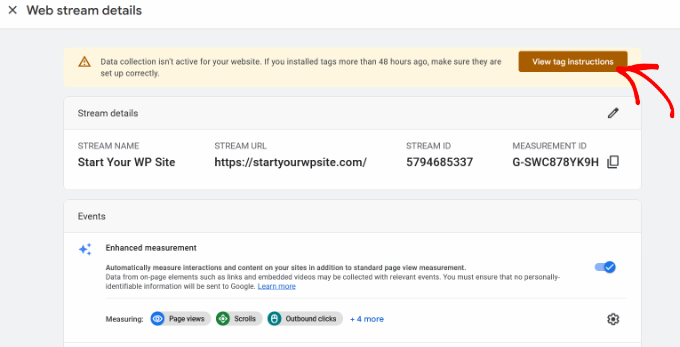
At the top, you will also see an alert bar that will show you how to add Google Analytics to your WordPress site.
Go ahead and click the ‘View tag instructions’ button. You should now see different ways to add the Google Analytics tracking code to your WordPress website.
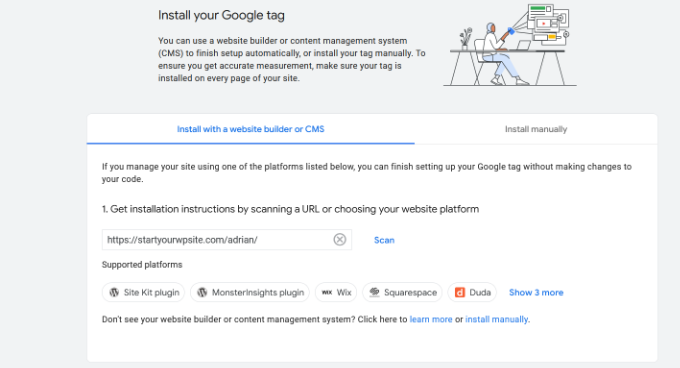
Next, you can switch to the ‘Install manually’ tab.
You’ll then see the Google Analytics tracking code.
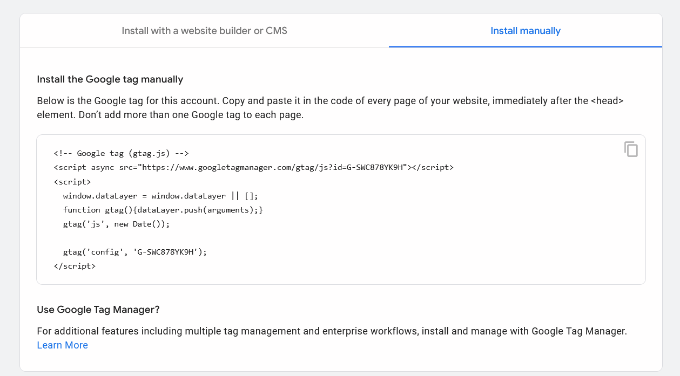
Go ahead and copy this tracking code because you will need to enter it in your WordPress site depending on the method you use below. You can also simply leave this browser tab open and switch back to copy the code when needed.
We suggest leaving the Analytics browser tab open, as you may need to revisit it once you have installed the code on your WordPress site.
Now that you have set up a Google Analytics account, let’s take a look at how to install Google Analytics in WordPress.
How to Install Google Analytics in WordPress
There are a few different ways to set up Google Analytics in WordPress. We will show you three methods where the first option is the easiest and the last is the hardest.
You can choose the one that best suits your needs.
Note: You need to use only one of these methods on your website to avoid double tracking of pageviews in your Google Analytics account.
Method 1: Google Analytics for WordPress by MonsterInsights
MonsterInsights is the most popular Google Analytics plugin for WordPress. Over 3 million websites use it, including the likes of Bloomberg, PlayStation, Zillow, WPBeginner, and more.
It is the easiest and by far the best way to add Google Analytics to WordPress (for all users, beginners, and experts alike). MonsterInsights is available as both a paid premium plugin and a free version. In this tutorial, we will be using the MonsterInsights free version.
You can use the MonsterInsights Pro version if you want more advanced features like eCommerce tracking, ads tracking, author tracking, and so on. The process of setting them up is the same.
For more information, you can see our complete MonsterInsights review.
Let’s get started.
The first thing you need to do is install and activate the MonsterInsights plugin. For more details, see our step-by-step guide on how to install a WordPress plugin.
Upon activation, the plugin will add a new menu item labeled ‘Insights’ to your WordPress admin menu, and you’ll see a welcome screen. Go ahead and click the ‘Launch the Wizard’ button.

Clicking on it will open the MonsterInsights setup wizard.
First, you will be asked to choose a category for your website (a business website, blog, or online store). Select one and then click on the ‘Save and Continue’ button.

Next, you need to connect MonsterInsights with your WordPress website.
Simply click on the ‘Connect MonsterInsights’ button.
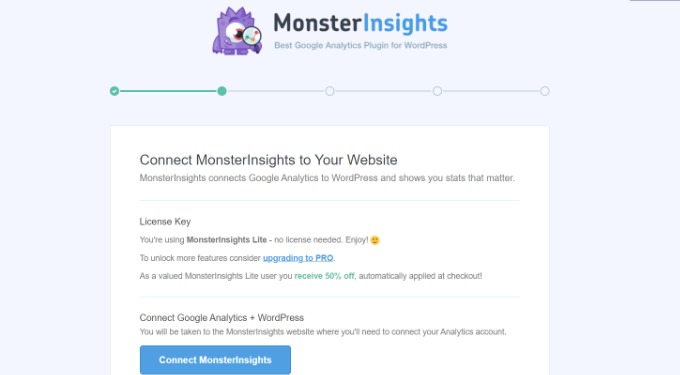
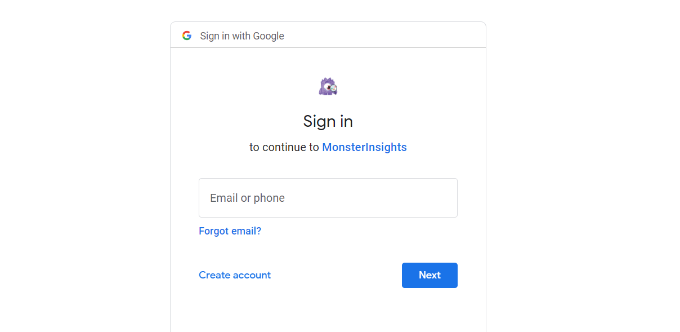
This will take you to Google accounts, where you will be asked to sign in or select a Google account if you are already signed in.
Go ahead and choose your Google account or enter your email to sign in.
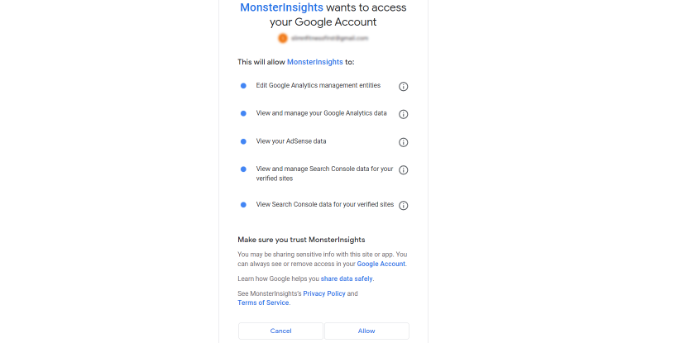
Next, you will be asked to allow MonsterInsights to access your Google Analytics account.
Click on the ‘Allow’ button to continue.
The next step to completing the connection is to select the profile you want to track.
You need to select your website here and then click on the ‘Complete Connection’ button to continue.
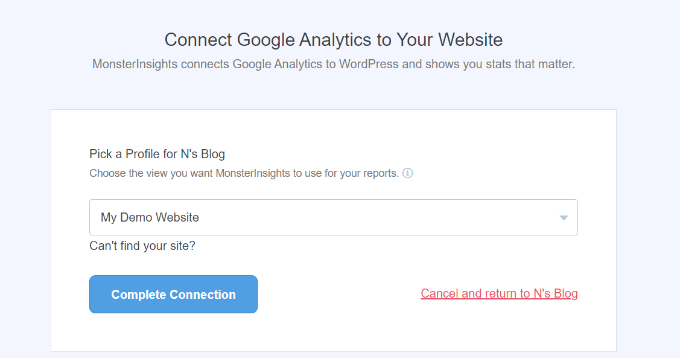
After that, simply click on the ‘Complete Connection’ button to continue. MonsterInsights will now install Google Analytics on your website.
Next, you will be asked to select the recommended settings for your website.
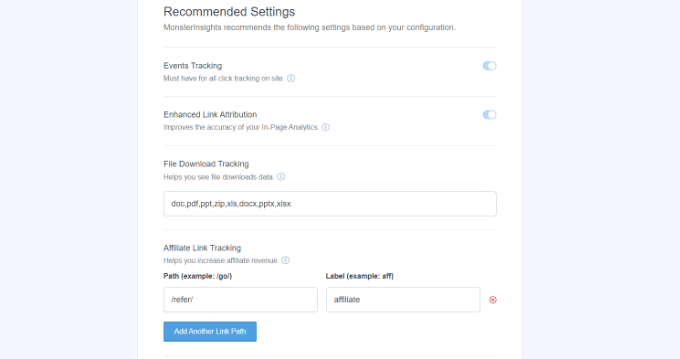
The default settings will work for most websites. If you use an affiliate link plugin, then you need to add the path you use to cloak affiliate links. This will allow you to track your affiliate links in Google Analytics.
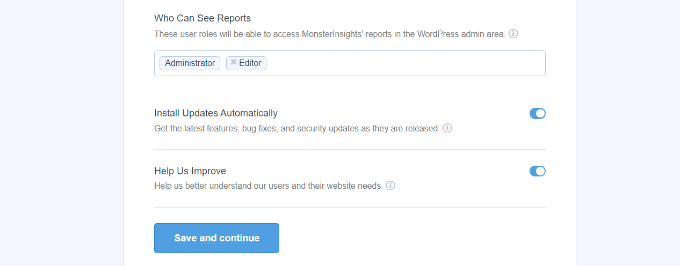
MonsterInsights will also ask who can see the reports. You can choose different WordPress user roles.
Once you are done, just click on the ‘Save and Continue’ button to save your settings.
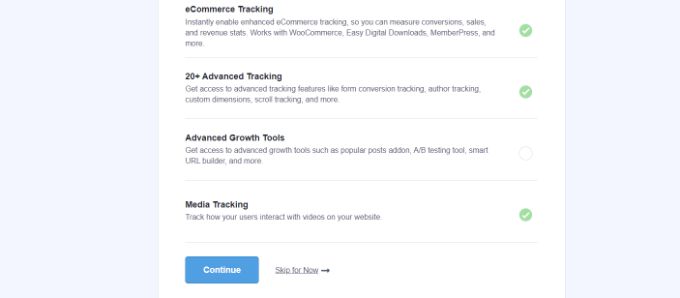
Next, MonsterInsights will show you a list of website tracking features you would like to enable.
You can scroll down and click on the ‘Continue’ button or the ‘Skip for Now’ option.
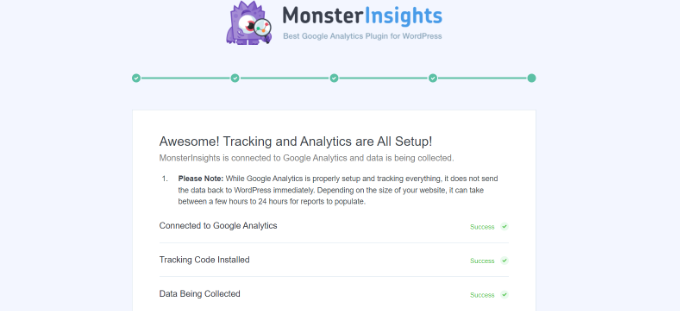
On the next screen, MonsterInsights will show that you’ve successfully set up Google Analytics tracking.
You can see that Google Analytics is connected, the tracking code is installed, and data is now being collected.
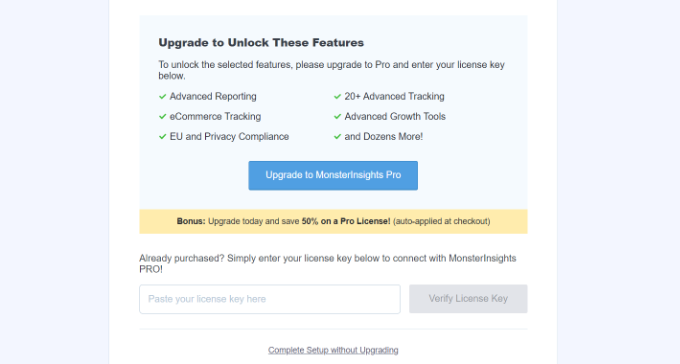
Next, you can scroll down and see a field to enter your license key.
Go ahead and click the ‘Complete Setup without Upgrading’ option for now.
You’ve successfully added Google Analytics to your WordPress website.
Disable Enhanced Measurement in Google Analytics
Now, if you created a Data Stream in GA4 on your own instead of letting MonsterInsights create one, then you’ll need to switch off Enhanced Measurement.
That’s because MonsterInsights adds multiple custom-enhanced tracking features. Leaving the Enhanced Measurement option enabled will skew your data and show incorrect results.
First, you can head to the Google Analytics tab or window in your browser. From here, click on the ‘Admin’ settings option in the bottom left corner.
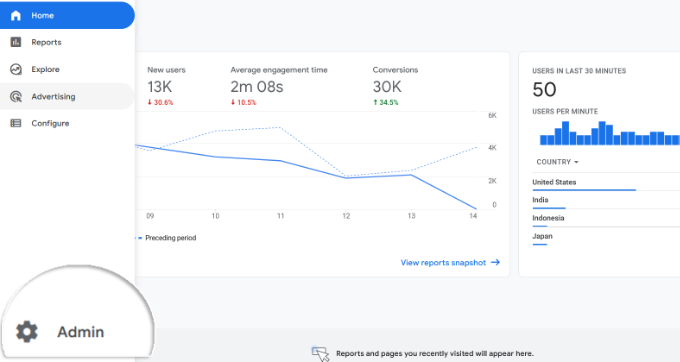
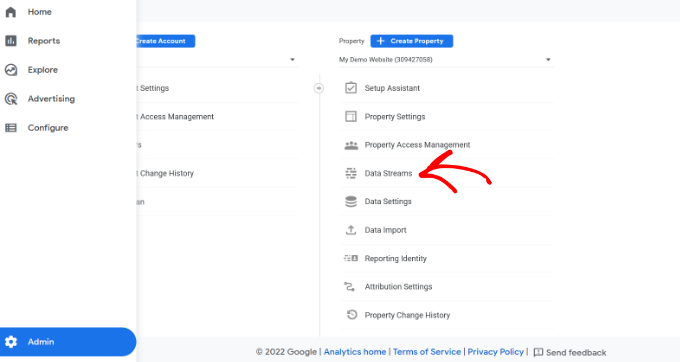
Once you are on the ‘Admin’ page, you’ll see different settings.
Simply click on the ‘Data Streams’ option.
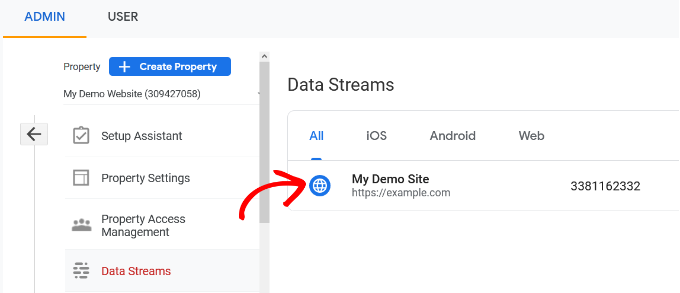
Next, you’ll see your Data Streams.
Simply select the data stream you connected with MonsterInsights.
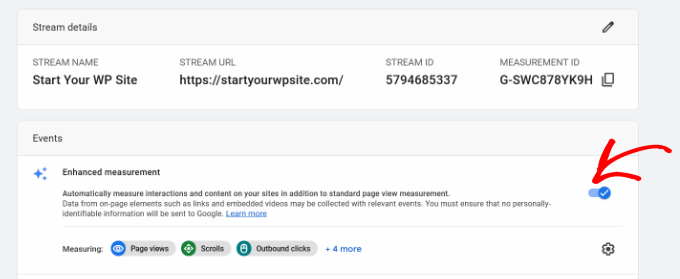
On the next screen, you will need to disable the ‘Enhanced measurement’ option.
To do that, simply click the toggle.
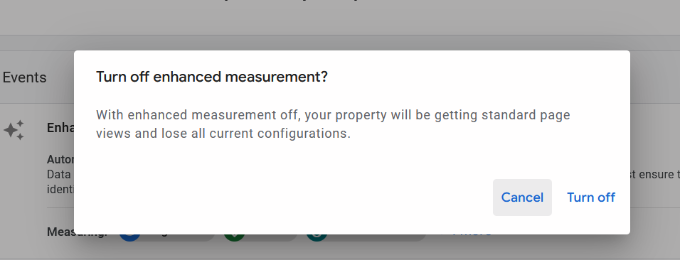
Next, a popup window will open, confirming that you’d like to turn off the enhanced measurement.
Go ahead and click the ‘Turn off’ button.
Change Data Retention Settings in Google Analytics
By default, Google Analytics will set the data retention setting to 2 months. However, you can change this so that you can use your data in custom reports beyond 2 months.
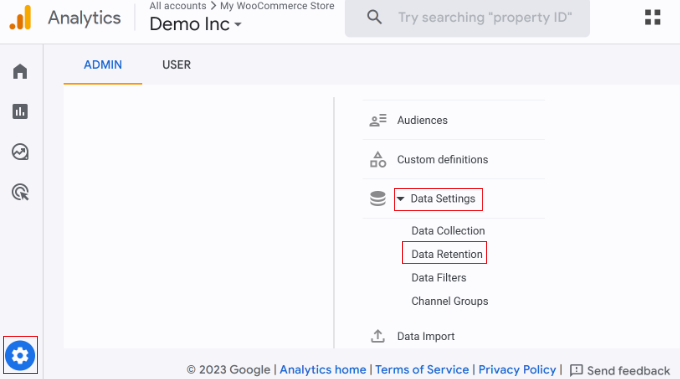
First, you need to head to Admin » Data Settings » Data Retention in Google Analytics.
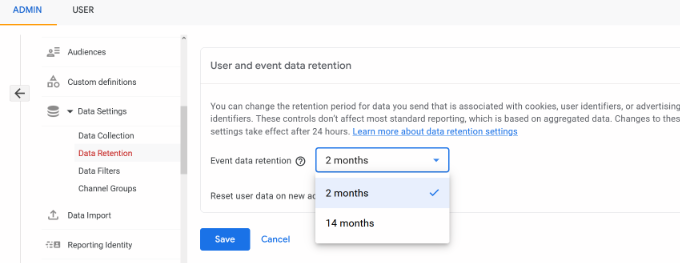
Next, you can click the ‘Event data retention’ dropdown menu.
From here, simply select the ’14 months’ option and click the ‘Save’ button.
Remember, it will take Google Analytics some time before showing your stats.
View Google Analytics Reports Inside WordPress Dashboard
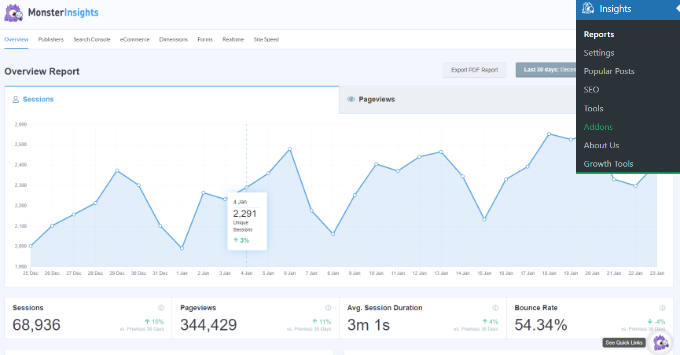
The best thing about MonsterInsights is that you can view your Google Analytics reports inside your WordPress dashboard.
Simply visit the Insights » Reports page to check out a quick overview of your analytics data.
You can also add annotations directly to your MonsterInsights reports to record key changes you make to your website.
For example, you can add a note when you publish a new blog post, add a new landing page, and so on. This makes it easy to track how these events impact your traffic.
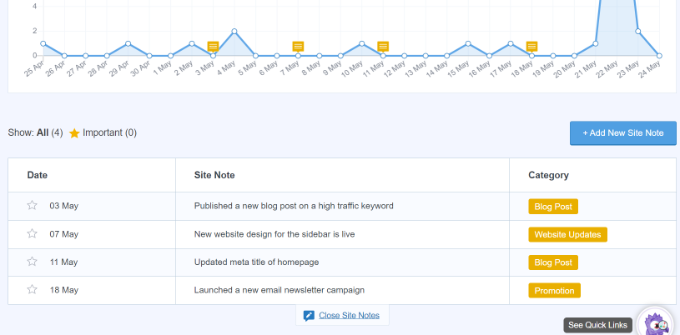
For more details, see this guide on how to get GA4 site annotations in WordPress.
In addition, it comes with a Popular Posts addon that allows you to show your top-performing content to boost your traffic and pageviews.
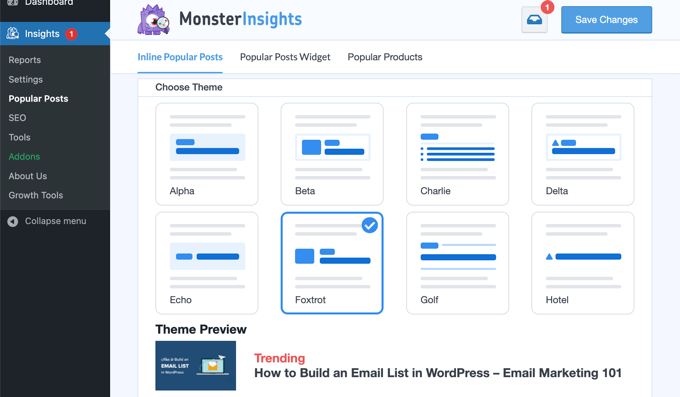
You can use it to automatically add inline popular posts links to boost engagement.
If you are running an online store, then it can also automatically add your top-performing products at the end of each blog post to boost sales:

Note: MonsterInsights was formerly known as Google Analytics for WordPress by Yoast. WPBeginner’s founder, Syed Balkhi, acquired the plugin in 2016 and rebranded it to MonsterInsights. Now it is part of our family of premium WordPress plugins.
Method 2: Install Google Analytics in WordPress With WPCode
This method is not as good as MonsterInsights because you will not be able to do advanced tracking configuration, and you will not be able to view Google Analytics data in your WordPress dashboard.
First, you will need to copy your Google Analytics tracking code (Global site tag) that you copied in Step 4 earlier when creating a Google Analytics account.
Next, you need to install and activate the WPCode plugin. For more details, see our step-by-step guide on how to install a WordPress plugin.
Upon activation, you need to visit the Code Snippets » Header & Footer page. Here you must paste the Google Analytics tracking code that you copied earlier into the ‘Header’ section.
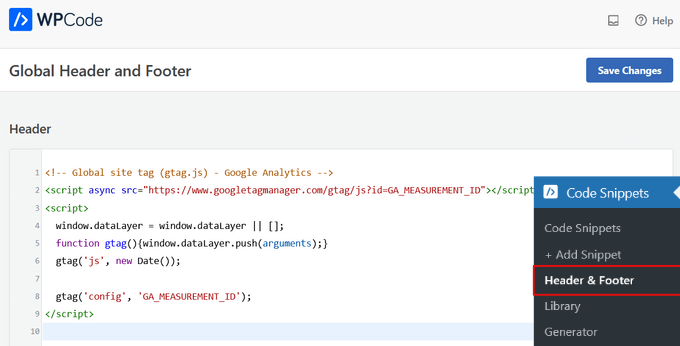
Don’t forget to click the ‘Save Changes’ button to store your settings.
That’s all, you have successfully installed Google Analytics on your site.
Method 3: Install Google Analytics in WordPress Theme
This method is for advanced users who are familiar with the code. It is somewhat unreliable because your code will disappear if you switch or update the theme.
We almost never recommend using this method.
If this is your first time adding code to your WordPress files, then you should check out our guide on how to copy and paste code snippets in WordPress.
First, you will need to copy the Google Analytics tracking code that you copied in Step 4 earlier. You can view it in the Web Stream Installation section under the ‘Install manually’ tab.
Now there are two common ways to add this code to your WordPress theme files. You can choose either one of them (not both).
1. Add Code in header.php File
Simply edit the header.php file in your WordPress theme and paste the Google Analytics tracking code that you copied earlier right after the <body> tag.
Don’t forget to save your changes and upload the file back to your server.
2. Add via Functions File
You can also add Google Analytics tracking code to the WordPress functions file. It will then automatically add the tracking code to every page on your WordPress site.
You will need to add this code to your theme’s functions.php file.
<?php
add_action('wp_head', 'wpb_add_googleanalytics');
function wpb_add_googleanalytics() { ?>

// Paste your Google Analytics tracking code from Step 4 here

<?php } ?>
Don’t forget to replace the ‘Paste your Google Analytics tracking code from Step 4 here’ section in the above snippet with your Google Analytics code.
Viewing Reports in Google Analytics
Google Analytics is capable of showing you a treasure trove of data collected from your stats. You can view this data by visiting your Google Analytics dashboard.
You will see the built-in Google Analytics reports in the left column. Each section is divided into different tabs, and clicking on a tab will expand it to show more options.
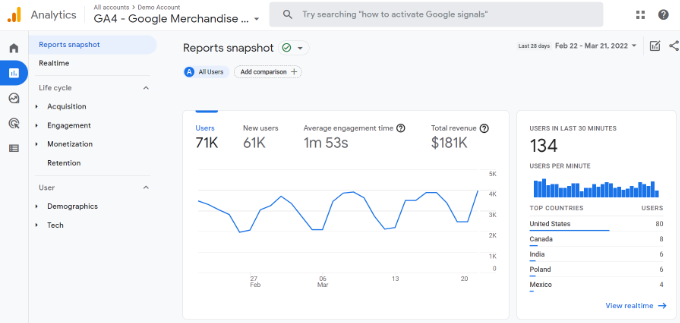
Google Analytics 4 reports are a bit different from previous Universal Analytics reports. In the left column, you’ll see a dedicated Reports option. The reports are grouped together under 2 broad categories, including Life Cycle and User.
One of the most noticeable differences you’ll find in GA4 reports is that there’s no bounce rate metric. Other than that, you’ll find a new reporting interface, new metrics like engagement time, no goals in GA4, and more.
Here’s a breakdown of different reports in Google Analytics 4:
- Realtime report is similar to Universal Analytics and shows active users on your site in real time.
- Acquisition report shows which medium users use to find your websites, like organic, referral, email, and affiliate.
- Engagement report shows conversions and events that take place on your site.
- Monetization report shows all your eCommerce data in one place, along with new reports like in-app purchases and publisher ads.
- Retention report basically shows new vs. returning visitors and helps you get insights about user retention.
- Demographics report helps you see website traffic from top countries, cities, and more. It also shows gender breakdown and interest reports.
- Tech report shows which device, browser, operating system, app version, and screen size people use the most to view your website.
Making the Most Out Of Google Analytics
Google Analytics is an incredibly powerful tool with tons of awesome features. Some of them are quite obvious and easy to use, while others require some additional setup.
Here are some of the resources that will help you make the most out of Google Analytics reports.
- Track user engagement in WordPress with Google Analytics
- Track WooCommerce customers in Google Analytics
- Track outbound links in WordPress
- WordPress conversion tracking made simple – A step-by-step guide
Google Analytics works best with Google Search Console (formerly Google Webmaster Tools). It allows you to see how your website is doing in search results. See our complete Google Search Console guide to learn how to use it to grow your website.
If you want to improve your WordPress SEO rankings and get more traffic, then we recommend using the AIOSEO plugin for WordPress, which is an all-in-one SEO toolkit.
There’s also a free version of AIOSEO that you can use too.
This plugin will help you fully optimize your WordPress site with proper schema markup, sitemaps, and everything you need to improve your SEO rankings.
We hope this article helped you learn how to install Google Analytics in WordPress. You may also want to see our ultimate guide to increasing your blog traffic and our comparison of the best email marketing services.
If you liked this article, then please subscribe to our YouTube Channel for WordPress video tutorials. You can also find us on Twitter and Facebook.





Syed Balkhi says
Hey WPBeginner readers,
Did you know you can win exciting prizes by commenting on WPBeginner?
Every month, our top blog commenters will win HUGE rewards, including premium WordPress plugin licenses and cash prizes.
You can get more details about the contest from here.
Start sharing your thoughts below to stand a chance to win!
jinson says
Hai.. I edited header.php file for Verifing Google Analitycs for my WordPress blog http://lastly.org. But after that it shows “The Google Analytics tracking code has not been detected on your website’s home page.” I tried after half an hour still the same result.
Finally I used “Insert Header footer plugin and get the result.
Thanks Syed.
Akhil says
Actually I am using one WordPress plugin Google Analytics as I don’t want display the results on my website but I want them on WordPress itself. I have installed and configured the plugin successfully, one day it showed some visits on my websites but today it is showing same status as if no one has visited the website. But my friends have visited the website, that I have confirmed. What could be the issue?
As someone said that google may take 3 to 4 hours to update the status, I waited. But the whole day has passed, still it is not showing any update.
Thanks
Aarish Maluja says
I have done everything right.It is showing everything ok but the data is not increasing from last month.my website is http://www.tecq.in.please help.
WPBeginner Support says
Aarish, Google Analytics code can not be found on your site. Please refer to second section of the article and choose another method to insert code into your WordPress site.
Admin
aarish says
i installed the tracking info correctly but the data is not increasing .It is not showing any visits.still on zero
WPBeginner Support says
Check your Analytics dashboard, does it detect code on your site? Generally, when Google Analytics is added to a site for the first time it may take a while before you can see any data.
Admin
Misty Young says
Thank you so much for your simple instructions! I was able to generate the Google Analytics code quickly and found the right spot in my theme to insert it within a couple minutes. Very helpful, thank you again!
Vince says
Hi…I installed the ‘insert headers and footers’ plug-in to my wp and copied my Google Analytics code to the footers box under settings, clicked save but GA is telling me the tracking is not installed. I did this 24 hrs ago. Did I do something wrong? Can you help?
WPBeginner Support says
can you see the analytics code in your site’s source code? You can view source by visiting your site, right clicking on any empty space and selecting view source from the menu. On the view source scroll down the document and see if you can find Google Analytics code there. Alternatively, you can try the second method described in the article.
Admin
Mary says
I liked this post because anything to do with google seems to be quite complicated
But I tried the plugin you recommended but GA wasn’t tracking.
SO I just put the code on the page and it still isn’t tracking.
Any advice? Thanks Mary
Mary says
Thank you for this post, but google analytics isn’t showing up on my site
I pasted the code into the footer of the “header and footer plugin”.
It was blank.
I saved the changes.
But where will I find the analytics page? There is nothing labled google analytics.
Thanks Mary
Mehul says
Let me know if you need help. I will be happy to help you in installing the Google Aanalytics Code on your website.
Alo Knows says
You’ll find all the Analytics data on your GA Account. Not on wordpress.
Latreasa says
Can I add it to WordPress.com blog if my domain is hosted by godaddy.com? I would like to do this without having to change my blog to WordPress.org
Regards
WPBeginner Support says
Yes you can. Compare Self hosted WordPress sites vs WordPress.com
Admin
Alin says
If you install Google Analytics Dashboard for WP you will be able to display Google Analytics data and statistics, in a chart, inside your WordPress Blog.
Eddy says
Very useful post. I have a problem I install the GA wordpress plugin and when I go to the Settings > Google Analytics don’t show me anything only the title “Google Analytics for WordPress Configuration” what’s wrong with this? please I need help
Zoe says
Thank you for this tutorial.
Lula says
Someone should really mention at some point that if you’re using wordpress.com (not wordpress.org) and you don’t have a separate software purchased for your sites hosting you CANNOT add google analytics there is no ability to add your own plugins. I think they think it’s better for wordpress to handle everything but I would have liked to have known this before starting.
:X
Editorial Staff says
Sorry Lula, we have written numerous posts about the differences, but we simply cannot add on every article that this tip is only for WordPress.org users. All articles written on this site is intended for self-hosted WordPress users.
Admin
Ann says
Thanks for the helpful tutorial. I installed GA using your plugin about a week ago and the page views that GA is showing are significantly less than what Jetpack is telling me. Page views according to GA are roughly half of page views per Jetpack. Is this typical?
Editorial Staff says
Google Analytics is going to be more accurate.
Admin
Anna says
Hi
Thanks for the great simple instructions for beginners like me.
I have installed this plugin successfully and activated it but I am unable to add the Google Analytics code as there is no Settings option!
Under the Plugin name I only get two options: Deactivate or Edit
I am probably being stupid but where can I find the plugin Settings option?
Many thanks for your help
Noumaan Yaqoob says
@Anna the plugin settings are located under Settings > Insert Headers and Footers.
Fran says
Status: Tracking Not Installed
Last checked: Jun 16, 2013 7:44:16 PM PDT
The Google Analytics tracking code has not been detected on your website’s home page. For Analytics to function, you or your web administrator must add the code to each page of your website.
I used the header/footer plug in, followed instructions, and received this code.
What should I do now? I’m hosted WP btw.
Editorial Staff says
Depending on the theme you are using, it may not have the default wp_head(); or wp_footer(); functions in place. Also if you have a caching plugin installed such as WP Super Cache or W3 Total Cache, then you need to empty the cache.
Admin
Jesse says
If the theme is not compatible with header / footer plug-in for analytics, is best to then copy the script manually into every page or is there a way to add the format required to the theme? Thanks!
WPBeginner Support says
No, you can still add the code in your theme’s footer.php file just before the /body tag.
Kristina Larse says
Hi
I added the tracking code to the header useing the plugin – i went in to my webshell and found the function.php file (in the them folder)- pastede
// Placede my code here and removede the //
But no matter where i try to paste it in the begingne, the end, efter the first break – the site just breaks down.
Any idea whaat im doeing wrong?
Kristina Larsen says
//The code i pastede was like this
// Placede my code here and removede the //
//
Waheed says
Thanks For This Great Tutorial
I have One Question… i installed The Header and Footers Plugin, So Now I have To paste the Google analytic script In Header of the Plugin setting or Both Header and Footer?
Thanks in advance?
Editorial Staff says
Just the header would work.
Admin
Waheed says
Thanks a lot For The Quick Response
Chaotic Kristy says
Thanks this helped me out a lot
Adam Moustafa says
I tried the plugin and the direct method but it still says tracking not installed.
From the google analytics plugin on WP i do get information, though. Any help would be greatly appreciated.
Mahmudul says
Thanks for this helpful post
Matthew P. Schneider, LC says
What are the advantages of this over Site stats using JetPack. I have a self-hosted blog but use WordPress.com statistics that are available in the JetPack plugin.
Editorial Staff says
Google Analytics is far more advanced and give you much more data. However for some beginners it can get a little complicated. Jetpack Stats give simple data, but its easy to use.
Admin
Tiffany says
I can’t find my footer or available plugins. Is there a real step-by-step once you are in your wordpress blog ‘for dummies’? Help!
Editorial Staff says
If you can’t add plugins, then you are probably using WordPress.com. This will only work for self-hosted sites.
Admin
TJ Ellis says
Amazing blog post it worked nicely! Thanks again
Lanaya Green says
That is what it is about getting useful information thanks for the details it makes it so simple to have something you can follow step by step… Thank you rock on brother
leo wolf says
Thank you for the clear stepwise description. I had already an account with Google Analytics showing the results on the website. Now I copied the script code in the functions.php, so far so good. Where and when can I expect the GA output now? Is it displayed in the footer?
BTW: I don’t use a standard theme, but one built from scratch so maybe I miss something?
Thnx in advance, Leo
Editorial Staff says
The output is not visible unless you view the source code of the page. You should see it towards the bottom in the source code.
Admin
leo wolf says
The title of this post suggests that you can have GA data at your site. But if is not visible, what’s the use then?
Editorial Staff says
Most tracking software will NOT make your data visible to the general public. Google analytics is a tracking software. You install it on your WordPress site, so you can get better insights about your audience. Google analytics works silently behind the scenes to capture data about your audience such as (what time they visited your site, who referred them, which pages they viewed etc).
Louise Bibby says
Thanks so much for this info. It helped me overcome my paralysis with anything related to code. It was really useful!! Cheers Louise
Alan says
Where do you get the code from step 6 if you do not get it the first time? I do not see it again when I log in.
Editorial Staff says
Login to Google Analytics. Look in the orange bar where it says Admin. Click on that. Under the accounts, click on the account that you want the code of. Under that account, you will see the property. Click on that property. There you will see a tab for Tracking info.
Admin
Webbis says
This helped me a lot! But how do I do to measure my subdomains in the same account?
Editorial Staff says
When getting your code, it has an option for subdomains there.
Admin
Carly says
I wanted to do the paste. I made it to the footer.php page but there is no tag on that page so I can’t paste before it. What am I missing? Plus, I closed the Google page before reading your instructions not to do so. (I did copy the code.) Do I need to start over with Google? Thanks.
Editorial Staff says
No you do not. Just use the plugin we are recommending in the article above, and it will take care of it.
Admin
Luis says
Thanks! The header and footer plugin helped me a lot!
Naeem says
Thank you for this post.
I am totally new in blogging and has recently set up a blog using wordpress platform.
I have set up analytics account and paste the code using my theme’s option.
Now my account is showing that tracking code installed.
But the problem is in the audience section it is showing 0 visits while in the real time section it is showing 2 visitors.
I am totally confused.
( My blog is under construction. Me and one of my friend is the only visitor. And I was unable to find single domain option. there are subdomain, mutiple top level domain options but no single domain option.)
Can you please help me.
Editorial Staff says
The stats does take some time to be updated.
Admin
Michael Hickey says
I’m not at all sure what I am doing so perhaps you can help. Someone else that is not available now laid out my site. I was told to cut and paste the Google Analytics code one line below this last line of each page of my simple WP site. However, I cannot see where to do that for the Home Page. There is not a tab for the Home Page from the Dashboard. Any help is appreciated.
Editorial Staff says
Use our plugin that we mentioned, and it will add it on all pages of your site.
Bob says
Does this plugin work retrospectively: that is to say, does it enter the the code into existing headers for pages that I’ve already developed on my WordPress site? I’ve put the script code in the header section and pressed save settings, but I’m not sure that that’s all I need to do.
Any assistance would be gratefully received.
Editorial Staff says
Yes it does.
Admin
Ameh says
Hi, great tutorial. Just one question. I have a desktop site and a mobile site. They both use different themes but have the same domain (www.dapopeyoh.com), so do i enter the google code in the footer.php file of one theme or both themes? Thanks.
Editorial Staff says
Both themes.
Admin
Saad says
Thank you so much for guiding me. I’ve completed and now waiting for 12-24 hours
Omar says
I used the “Insert Header and Footer” plugin and pasted the google analytics code into the header in the settings of the plugin. I saved the settings and when I log into google analytics, the status is still “tracking is not installed.” Did I do something wrong and do I simply have to wait a while?
Editorial Staff says
If it is not working, then it means that your theme does not have wp_head(); in the header.php which is a standard for all WP themes.
Admin
Ryan says
So how would we be able to include the wp_head(); to the site?
I have the same issue (I think) – tried different ways but tracking still stating not installed.
Editorial Staff says
It is supposed to be included in your theme’s header.php file in the head markup.
David says
We have just started a WP blog as a sub-directory to our main site. We used the main site analytics code in the WP blog but I am not seeing any information about the pages visited in the blog. Should we create a separate analytics account for the blog sub-directory? If so, will that show us information about where visitors move from the blog to the main site?
Editorial Staff says
Yes, there is an option in Google Analytics to get subdomain analytics code.
Admin
Monetsky says
Hi. Thanks for this tutorial. It simplified my life using the plugin to insert the code. I was wondering thoughif theres a way to get previous months data into google analytics? I only installed the code now and opened an account. Just wondering.. Thanks in advance. Great work!
Editorial Staff says
It cannot show you the data of things it didn’t track. The only way google can give you the data is if their script is on your page. Otherwise, they can’t.
Admin
Bob Furber says
I followed the instructions to pate in footer.php, and the Tracking status shows “Receiving Data”.
However, when I go to the bottom of the Word Press Dashboard, to the Google Analytics Dashboard Widget, there is a note:
“You need to log in and select an account in the options panel.”
On clicking the options panel or Settings -> Google Analytics Dashboard, I get the following error:
“Error gathering analytics data from Google: GDatainsufficientPermissionsUser does not have any Google Analytics account. Please try again later.”
The problem is later does not arrive and I can find no way out.
Editorial Staff says
The issue you are describing is with a specific plugin that you are using “Google Analytics Dashboard Widget”. You should ask that question in their support forum.
Admin
Lisa - Une Belle Vie says
Hey, amazing that this is possible, but is google analytics replacing the normal wpstats ? Do you lose your views and information from that ?
Thankyou!
Editorial Staff says
WP Stats is not a built-in WordPress plugin in self-hosted WordPress. Google Analytics is definitely a more robust platform.
Admin
Lynette Chiang says
When you open Settings>Insert Header and Footer, there are two fields. You don’t specify above whether the code is to go in one field or both.
Editorial Staff says
It needs to be inserted in the header. So the first field
Admin
Kate Dewfall says
Hi there,
I added the code into the footer – is this incorrect or will it still work?
WPBeginner Support says
It will still work.
marie says
My Google Analytical has stopped tracking and is showing all 0’s for the past week. Can you advise why?
Editorial Staff says
Is the code still added in your site? Did you change your theme? The only reason for it to be zero is if the code from your site got removed.
Admin
Savita says
My Google Analytical has stopped tracking and is showing all 0′s for the past week. Can you advise why?
I looked in the footer if the code is still there, but I don’t remember what the code was or looks like (did not make a note of it so it seems…). It does not look good. So what can I do now?
Above the in the footer.php it says:
Thank you.
Editorial Staff says
Login to your Google Analytics to get the code again.
vida says
hello
my wordpress site is a free one and i don’t see any option for plugins. The site is http://www.lavidavidzi.wordpress.com i’m wondering if this url has the ability to add plugins. I can’t even find the footer option you’re referring to …am i even able to get google analytics ?
Editorial Staff says
Unfortunately, you can’t get those features. Refer to this chart for why:
https://www.wpbeginner.com/beginners-guide/self-hosted-wordpress-org-vs-free-wordpress-com-infograph/?display=wide
Admin
Lauren says
How do I add a plugin? WordPress doesn’t let me edit my coding. I downloaded one of the plugins but how do I get it on my site?
Editorial Staff says
Please refer to our Videos that will show you how to add plugins in WordPress.
Admin
figz91 says
I tried to do this and lost everything, I think its because I put in the function.php coding in wrong but did it in the section where it said I was able to add in extra coding anyway.
My site isn’t opening, neither my admin page to correct the problem it just says theres an http 500 error, I’m clueless and scared, is there anyway I can fix this problem? Please help.
wpbeginner says
@figz91 Yes, you would need to go through the FTP. Send us an email, and we can help you fix it.
Heidi says
The same thing just happened to me, please help me fix this asap!
Editorial Staff says
Heidi, you would have to use FTP to fix it. You are probably getting a syntax error because you pasted the code improperly.
AdamCollins says
Aloha, so I signed up for analytics and placed the code in my theme options where there was a spot for my analytics built into the wp theme. I also have a squeeze page on the blog. part of the domain and wondering do I upload the same code, or do I get another code? Thanks so much.
wpbeginner says
@AdamCollins You can use the same code. Because that is on a separate page. You can see traffic by pages in Google Analytics.
buckingham87 says
Yeh hi… i tried to follow all this and now i have lost everything! i cant even login to my admin page!!
HELP
wpbeginner says
@buckingham87 That probably happened because you pasted the code improperly in your functions.php file. https://www.wpbeginner.com/beginners-guide/beginners-guide-to-pasting-snippets-from-the-web-into-wordpress/
figz91 says
@wpbeginner I’m having the same problem Buckingham is and I’m about to breakdown. Regardless of why it’s happening I need to get back my 4 years worth of content and I can’t even get to my admin page let alone the actual site.
Is there anyway to fix this. I’m clueless and have no idea what to do. Please help.
Pauline23 says
Thanks it worked great!
Tommy Stuart says
What exactly does the following mean? I have a website that I put together compliments of Wealthy Affiliate University. Does that mean it’s a self-hosted or is it a free word press site?
“Note: This is only for Self-Hosted WordPress.org blogs. Free WordPress.com sites cannot use Google Analytics. Maybe it’s time to upgrade from free WordPress.com to Self-Hosted WordPress? Consider using our Free WordPress Blog Setup program.”
WHICH?
wpbeginner says
Go in your WordPress admin panel and click on Appearence > Editor … If you can edit all of your theme files, then you are on self-hosted.
pradeepnairjc says
Very useful post. How should I add tracking in case I am using WordPress as a Subdirectory? For example- http://www.domain.com/blog.
Do I copy -paste the same tracking code in the footer file or do I need to generate a new tracker code for this? I installed the analytics plug-in and configured it but somehow it never recorded visits although the data was being received successfully.