


Do you want to install Google Analytics in WordPress?
Knowing how your audience interacts with your website is crucial for your success. The best way to know your audience is through your traffic stats, and this is what Google Analytics provides for FREE.
In this article, we will share why Google Analytics is important and how you can easily install Google Analytics in WordPress (step by step).

First, we will explain why Google Analytics is important and how it can help you grow your website.
After that, we will show you how to sign up for a Google Analytics account and different methods to install it on your WordPress site.
Finally, we will explain how to view your traffic reports in Google Analytics.
Here is a quick overview of what you’ll learn in this article:
- Why Is Google Analytics Important for Bloggers?
- How to Sign Up With Google Analytics
- Method 1: Google Analytics for WordPress by MonsterInsights
- Method 2: Install Google Analytics in WordPress With WPCode
- Method 3: Install Google Analytics in WordPress Theme
- Viewing Reports in Google Analytics
- Making the Most Out Of Google Analytics
Ready? Let’s get started!
Why Is Google Analytics Important for Bloggers?
Once you start a blog, your #1 goal is to get more traffic and subscribers. Google Analytics helps you make data-driven decisions by showing you the stats that matter. You can see:
Who visits your website?
This part of analytics shows the geographical location of your audience, which browser the user used to visit your site, and other important information such as screen resolution, JavaScript support, Flash support, language, and more.
This data is extremely useful, and it can help in numerous ways. When creating a custom website design, you can use the user data to make sure that your site will be compatible with your audience.
If most of your users don’t have Flash support, then you should avoid adding the Flash element to your site. If most of your users are on 1280 screen resolutions, then make sure that your design is compatible with that resolution or smaller.
What do people do when they are on your website?
You can track where the users are going on your website, how long they stay on your website, and the bounce rate (the percentage of users who exit your site on the first visit).
Using this information can decrease the bounce rate and increase your pageviews.
You can also find your most popular articles, articles that are not doing so well, and the kind of content your users are looking for.
When do people visit your website?
By looking at the hottest hours in the day for your site, you can pick the best time to publish your post. If that time zone is not compatible with yours, then you can schedule your post for that hour.
How do people find your website?
This section of the analytics shows you where the users come from. For example, do they use search engines, enter direct links, or click on referral links from another site?
It also shows you what percentage of your visitors came from each of these sources. Google Analytics gives you a breakdown of each of these categories. If it is the search engine category, then it shows you which search engine got you the most traffic, like Google, Yahoo, Bing, and so on.
The breakdown of referral sources shows you which sites you need to work with the most. If your top referral source is Facebook, you need exclusive Facebook content to make your audience feel special.
If your top referral source is an external website, then you might want to consider having a partnership with that website (guest post exchange or something else).
How do people interact with your content?
Google Analytics shows how your users interact with your site’s content. It shows you what percent of the user clicked on which link on your site and much more.
You can run A/B split tests by creating content experiments in Google Analytics to understand what works best to meet your goals.
By seeing user interactivity, you can work your content around your users. By seeing the answers to the questions above, you can focus on the strategies that work for your site and avoid methods that don’t work.
Simply put, eliminate the guesswork and focus on stats that matter, so you can make data-driven decisions.
Video Tutorial
If you’d prefer written instructions, keep reading.
How to Sign Up With Google Analytics
Google Analytics is available for free, and all you need is a Google or Gmail account to sign up. The signup process is quite simple. Just follow the step-by-step instructions below to create your Google Analytics account.
Step 1: First, you need to visit the Google Analytics website to sign up. When you are on the website, simply click the ‘Get started today’ button.

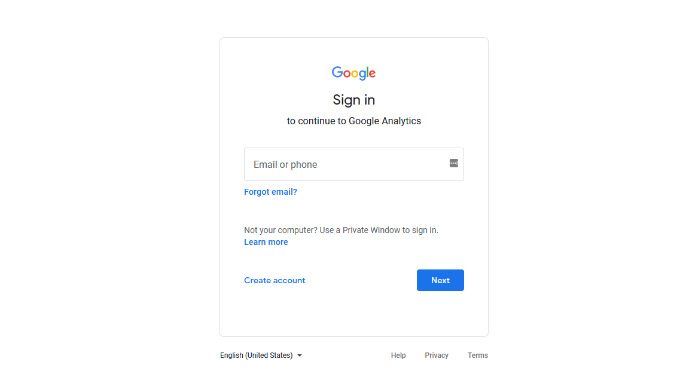
Next, you will be asked to log in with your Google account.
If you already have a Google or Gmail account, then you can use that to sign in. Otherwise, you can go ahead and create a Google account for yourself.
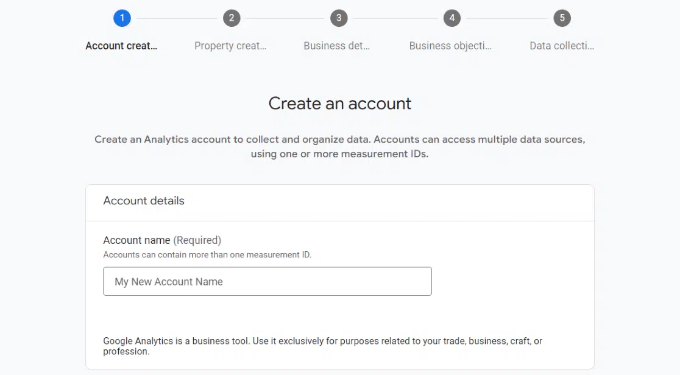
Step 2: Once you have signed in with your Gmail account, you will see a welcome screen like the one below.
This is where you will sign up for Google Analytics with your Gmail account. Go ahead and click the ‘Start measuring’ button.

After that, you will be asked to provide an account name.
This name will be used internally, so you can use anything, like your business name.
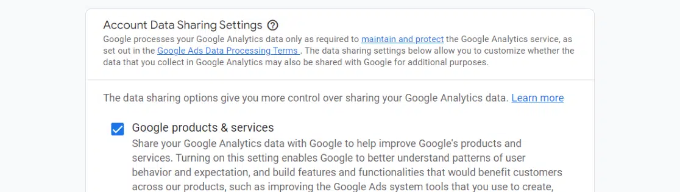
Google Analytics will also show multiple account data-sharing settings.
These settings give you control over sharing your Google Analytics data. You can keep the default settings and move on to the next step.
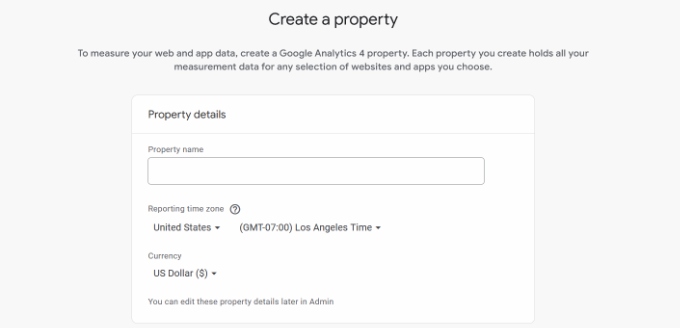
Step 3: On the next screen, you will need to create a Google Analytics property.
Google introduced a new version of Analytics called Google Analytics 4 or GA4. It’s the latest version that tracks your website and mobile apps in the same account. Plus, you get new features, metrics, and a different interface for your reports.
Go ahead and enter a property name, and select your reporting time zone and currency. Then click the ‘Next’ button.
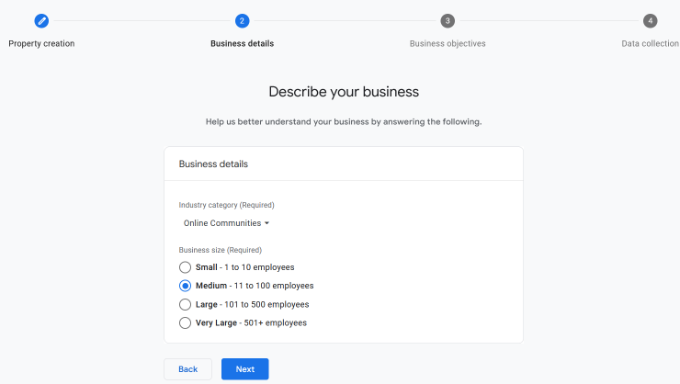
On the next screen, you’ll need to select an ‘Industry category’ from the dropdown menu for your website and choose a ‘Business size’ from the given options.
When you are done, just click the ‘Next’ button.
Next, you’ll need to choose business objectives and select how you intend to use Google Analytics with your business. This will help get personalized reports for your business.
For instance, there are options like generating leads, driving online sales, raising brand awareness, examining user behavior, and more.
You can choose multiple options or all of the given options that meet your needs. We recommend selecting the ‘Get baseline reports’ option so that you get all the Google Analytics reports populated in your account.
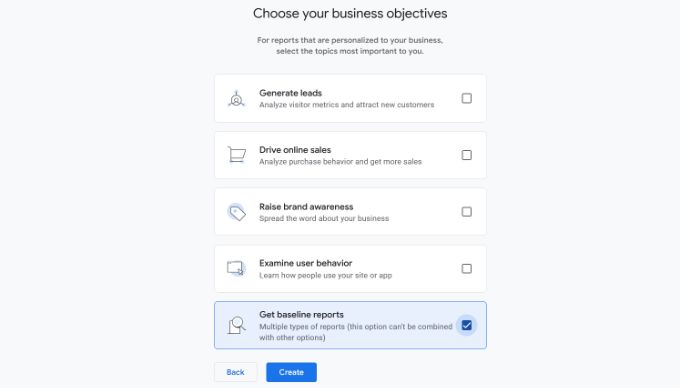
When you are done, simply click the ‘Create’ button.
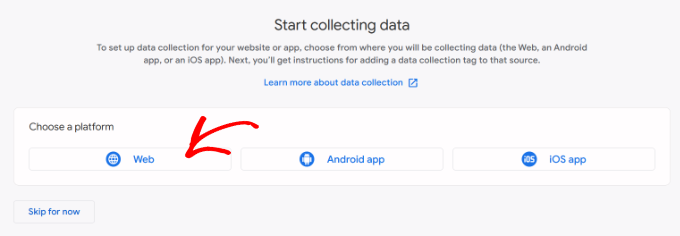
Step 4: Now you will be presented with your Google Analytics Webs stream options.
Since we are setting up Google Analytics for a WordPress site, go ahead and select the ‘Web’ as the platform.
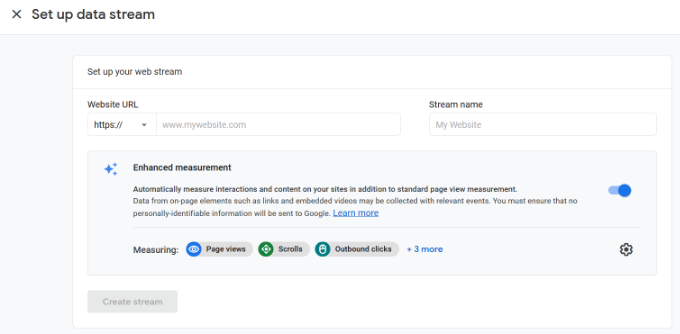
After that, you’ll need to enter your website URL and Stream name.
By default, Google Analytics will have an ‘Enhanced measurement’ option enabled. This allows you to track pageviews, scrolls, outbound clicks, file downloads, and more in Google Analytics.
Note: If you plan to use the MonsterInsights plugin, then you should turn off the ‘Enhanced measurement’ option. Otherwise, the plugin will collect and display double the amount of data.
Next, you can click the ‘Create stream’ button.
You can now see your Stream name, URL, ID, and Measurement ID.
It will also show different enhanced measurements that it will record.
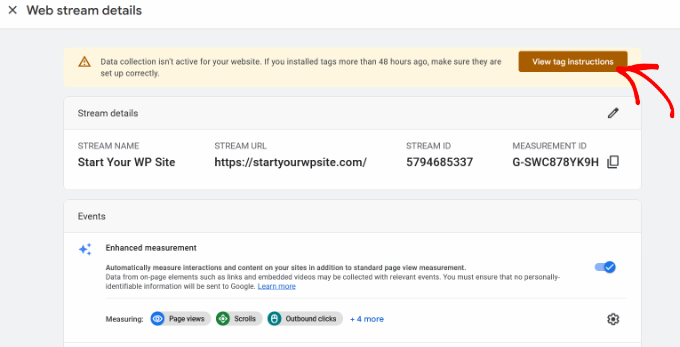
At the top, you will also see an alert bar that will show you how to add Google Analytics to your WordPress site.
Go ahead and click the ‘View tag instructions’ button. You should now see different ways to add the Google Analytics tracking code to your WordPress website.
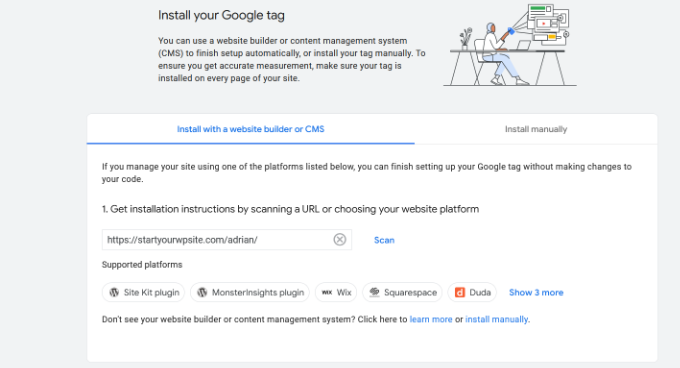
Next, you can switch to the ‘Install manually’ tab.
You’ll then see the Google Analytics tracking code.
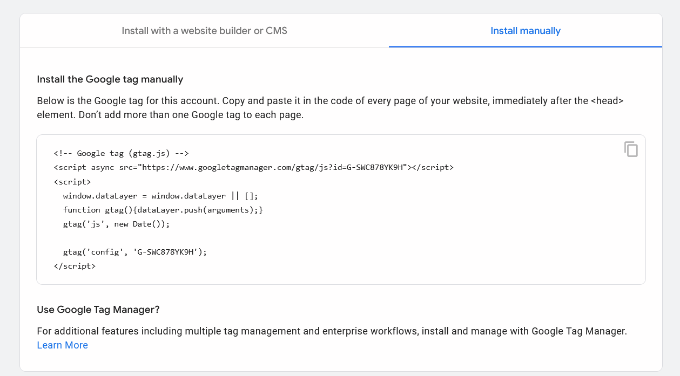
Go ahead and copy this tracking code because you will need to enter it in your WordPress site depending on the method you use below. You can also simply leave this browser tab open and switch back to copy the code when needed.
We suggest leaving the Analytics browser tab open, as you may need to revisit it once you have installed the code on your WordPress site.
Now that you have set up a Google Analytics account, let’s take a look at how to install Google Analytics in WordPress.
How to Install Google Analytics in WordPress
There are a few different ways to set up Google Analytics in WordPress. We will show you three methods where the first option is the easiest and the last is the hardest.
You can choose the one that best suits your needs.
Note: You need to use only one of these methods on your website to avoid double tracking of pageviews in your Google Analytics account.
Method 1: Google Analytics for WordPress by MonsterInsights
MonsterInsights is the most popular Google Analytics plugin for WordPress. Over 3 million websites use it, including the likes of Bloomberg, PlayStation, Zillow, WPBeginner, and more.
It is the easiest and by far the best way to add Google Analytics to WordPress (for all users, beginners, and experts alike). MonsterInsights is available as both a paid premium plugin and a free version. In this tutorial, we will be using the MonsterInsights free version.
You can use the MonsterInsights Pro version if you want more advanced features like eCommerce tracking, ads tracking, author tracking, and so on. The process of setting them up is the same.
For more information, you can see our complete MonsterInsights review.
Let’s get started.
The first thing you need to do is install and activate the MonsterInsights plugin. For more details, see our step-by-step guide on how to install a WordPress plugin.
Upon activation, the plugin will add a new menu item labeled ‘Insights’ to your WordPress admin menu, and you’ll see a welcome screen. Go ahead and click the ‘Launch the Wizard’ button.

Clicking on it will open the MonsterInsights setup wizard.
First, you will be asked to choose a category for your website (a business website, blog, or online store). Select one and then click on the ‘Save and Continue’ button.

Next, you need to connect MonsterInsights with your WordPress website.
Simply click on the ‘Connect MonsterInsights’ button.
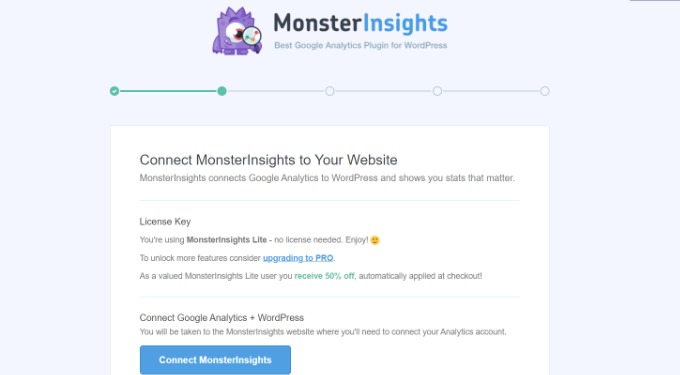
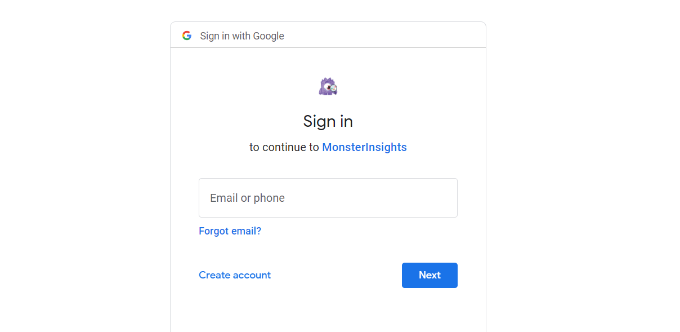
This will take you to Google accounts, where you will be asked to sign in or select a Google account if you are already signed in.
Go ahead and choose your Google account or enter your email to sign in.
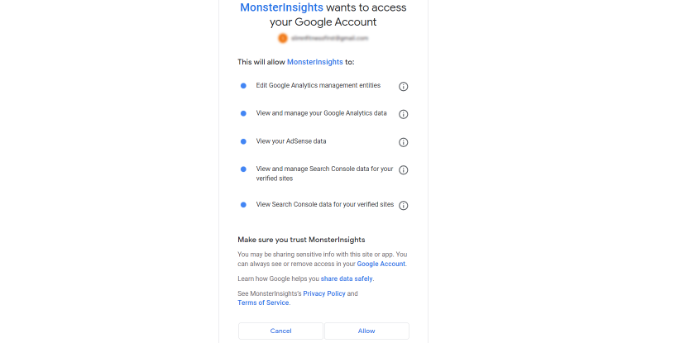
Next, you will be asked to allow MonsterInsights to access your Google Analytics account.
Click on the ‘Allow’ button to continue.
The next step to completing the connection is to select the profile you want to track.
You need to select your website here and then click on the ‘Complete Connection’ button to continue.
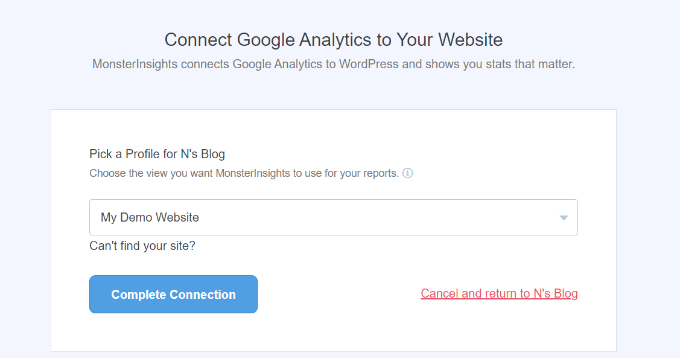
After that, simply click on the ‘Complete Connection’ button to continue. MonsterInsights will now install Google Analytics on your website.
Next, you will be asked to select the recommended settings for your website.
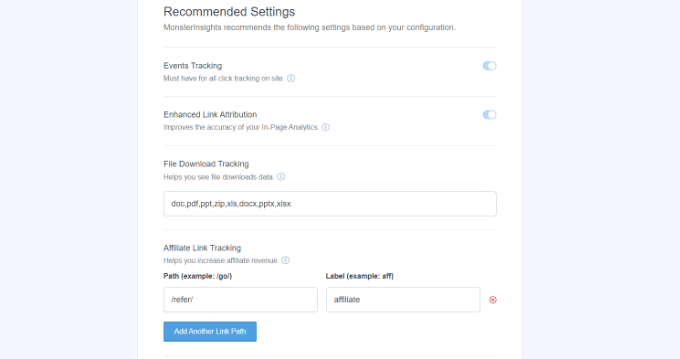
The default settings will work for most websites. If you use an affiliate link plugin, then you need to add the path you use to cloak affiliate links. This will allow you to track your affiliate links in Google Analytics.
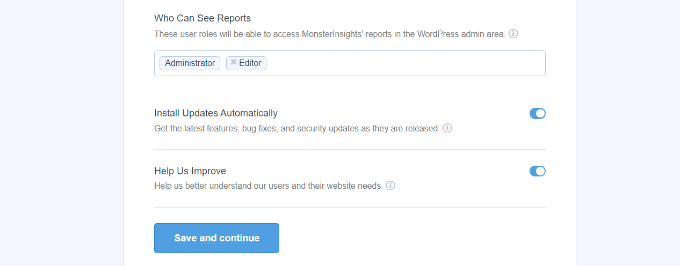
MonsterInsights will also ask who can see the reports. You can choose different WordPress user roles.
Once you are done, just click on the ‘Save and Continue’ button to save your settings.
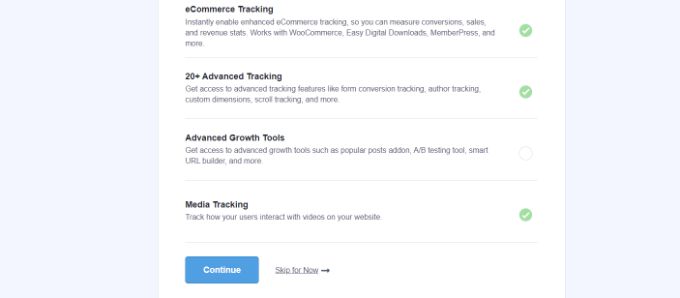
Next, MonsterInsights will show you a list of website tracking features you would like to enable.
You can scroll down and click on the ‘Continue’ button or the ‘Skip for Now’ option.
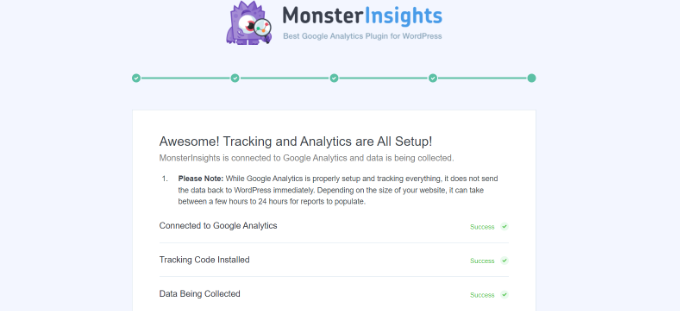
On the next screen, MonsterInsights will show that you’ve successfully set up Google Analytics tracking.
You can see that Google Analytics is connected, the tracking code is installed, and data is now being collected.
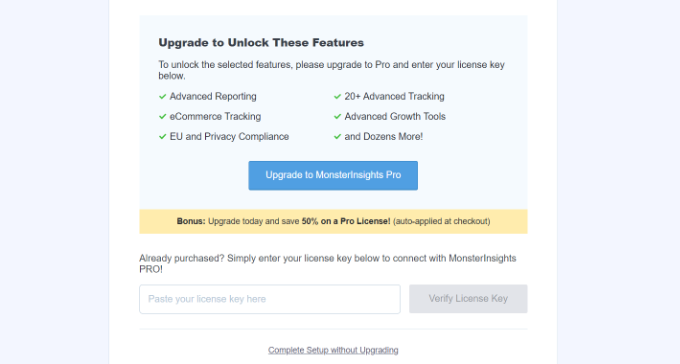
Next, you can scroll down and see a field to enter your license key.
Go ahead and click the ‘Complete Setup without Upgrading’ option for now.
You’ve successfully added Google Analytics to your WordPress website.
Disable Enhanced Measurement in Google Analytics
Now, if you created a Data Stream in GA4 on your own instead of letting MonsterInsights create one, then you’ll need to switch off Enhanced Measurement.
That’s because MonsterInsights adds multiple custom-enhanced tracking features. Leaving the Enhanced Measurement option enabled will skew your data and show incorrect results.
First, you can head to the Google Analytics tab or window in your browser. From here, click on the ‘Admin’ settings option in the bottom left corner.
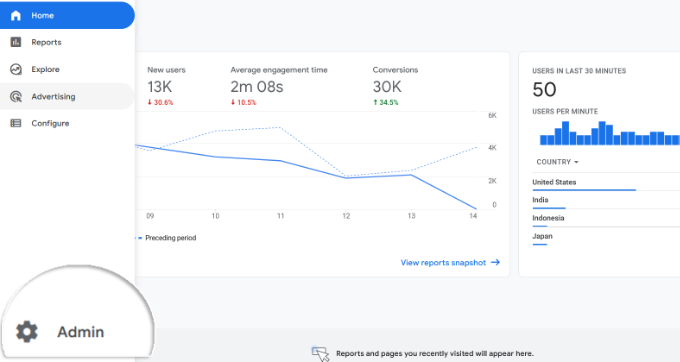
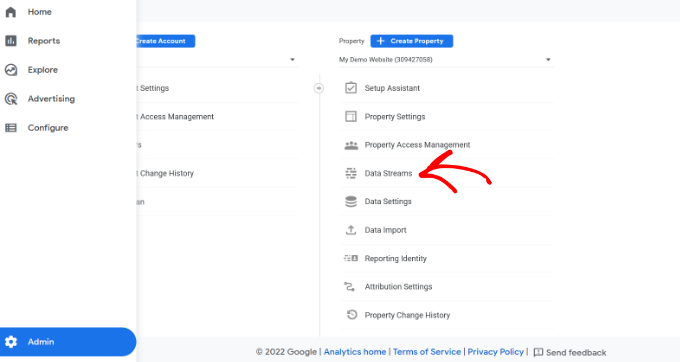
Once you are on the ‘Admin’ page, you’ll see different settings.
Simply click on the ‘Data Streams’ option.
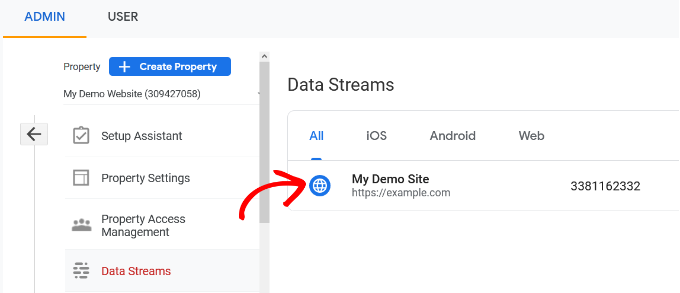
Next, you’ll see your Data Streams.
Simply select the data stream you connected with MonsterInsights.
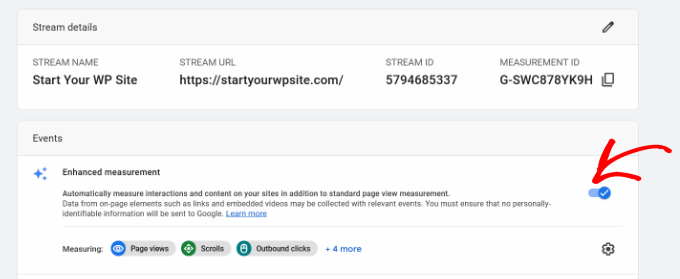
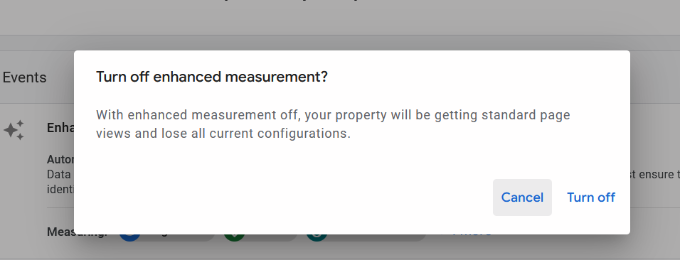
On the next screen, you will need to disable the ‘Enhanced measurement’ option.
To do that, simply click the toggle.
Next, a popup window will open, confirming that you’d like to turn off the enhanced measurement.
Go ahead and click the ‘Turn off’ button.
Change Data Retention Settings in Google Analytics
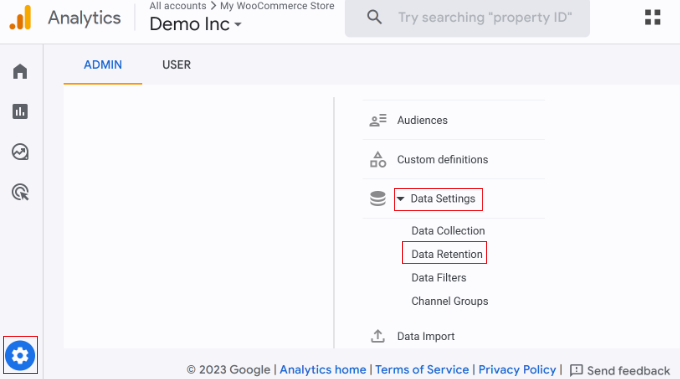
By default, Google Analytics will set the data retention setting to 2 months. However, you can change this so that you can use your data in custom reports beyond 2 months.
First, you need to head to Admin » Data Settings » Data Retention in Google Analytics.
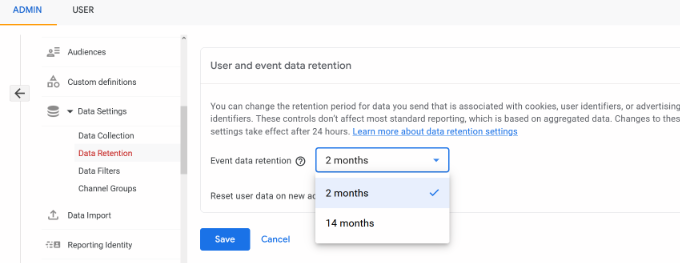
Next, you can click the ‘Event data retention’ dropdown menu.
From here, simply select the ’14 months’ option and click the ‘Save’ button.
Remember, it will take Google Analytics some time before showing your stats.
View Google Analytics Reports Inside WordPress Dashboard
The best thing about MonsterInsights is that you can view your Google Analytics reports inside your WordPress dashboard.
Simply visit the Insights » Reports page to check out a quick overview of your analytics data.
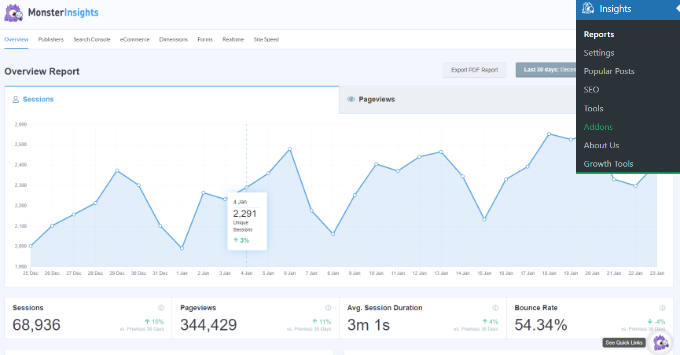
You can also add annotations directly to your MonsterInsights reports to record key changes you make to your website.
For example, you can add a note when you publish a new blog post, add a new landing page, and so on. This makes it easy to track how these events impact your traffic.
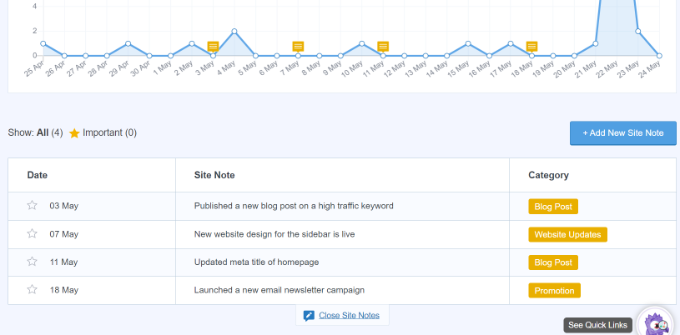
For more details, see this guide on how to get GA4 site annotations in WordPress.
In addition, it comes with a Popular Posts addon that allows you to show your top-performing content to boost your traffic and pageviews.
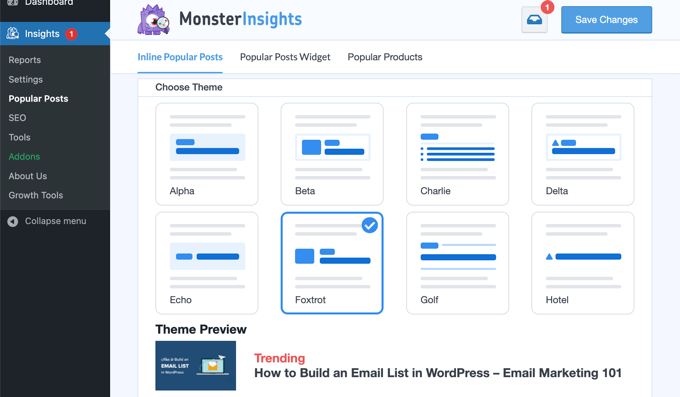
You can use it to automatically add inline popular posts links to boost engagement.
If you are running an online store, then it can also automatically add your top-performing products at the end of each blog post to boost sales:

Note: MonsterInsights was formerly known as Google Analytics for WordPress by Yoast. WPBeginner’s founder, Syed Balkhi, acquired the plugin in 2016 and rebranded it to MonsterInsights. Now it is part of our family of premium WordPress plugins.
Method 2: Install Google Analytics in WordPress With WPCode
This method is not as good as MonsterInsights because you will not be able to do advanced tracking configuration, and you will not be able to view Google Analytics data in your WordPress dashboard.
First, you will need to copy your Google Analytics tracking code (Global site tag) that you copied in Step 4 earlier when creating a Google Analytics account.
Next, you need to install and activate the WPCode plugin. For more details, see our step-by-step guide on how to install a WordPress plugin.
Upon activation, you need to visit the Code Snippets » Header & Footer page. Here you must paste the Google Analytics tracking code that you copied earlier into the ‘Header’ section.
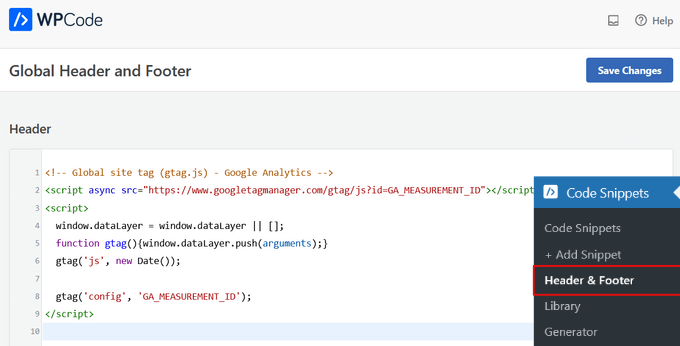
Don’t forget to click the ‘Save Changes’ button to store your settings.
That’s all, you have successfully installed Google Analytics on your site.
Method 3: Install Google Analytics in WordPress Theme
This method is for advanced users who are familiar with the code. It is somewhat unreliable because your code will disappear if you switch or update the theme.
We almost never recommend using this method.
If this is your first time adding code to your WordPress files, then you should check out our guide on how to copy and paste code snippets in WordPress.
First, you will need to copy the Google Analytics tracking code that you copied in Step 4 earlier. You can view it in the Web Stream Installation section under the ‘Install manually’ tab.
Now there are two common ways to add this code to your WordPress theme files. You can choose either one of them (not both).
1. Add Code in header.php File
Simply edit the header.php file in your WordPress theme and paste the Google Analytics tracking code that you copied earlier right after the <body> tag.
Don’t forget to save your changes and upload the file back to your server.
2. Add via Functions File
You can also add Google Analytics tracking code to the WordPress functions file. It will then automatically add the tracking code to every page on your WordPress site.
You will need to add this code to your theme’s functions.php file.
<?php
add_action('wp_head', 'wpb_add_googleanalytics');
function wpb_add_googleanalytics() { ?>

// Paste your Google Analytics tracking code from Step 4 here

<?php } ?>
Don’t forget to replace the ‘Paste your Google Analytics tracking code from Step 4 here’ section in the above snippet with your Google Analytics code.
Viewing Reports in Google Analytics
Google Analytics is capable of showing you a treasure trove of data collected from your stats. You can view this data by visiting your Google Analytics dashboard.
You will see the built-in Google Analytics reports in the left column. Each section is divided into different tabs, and clicking on a tab will expand it to show more options.
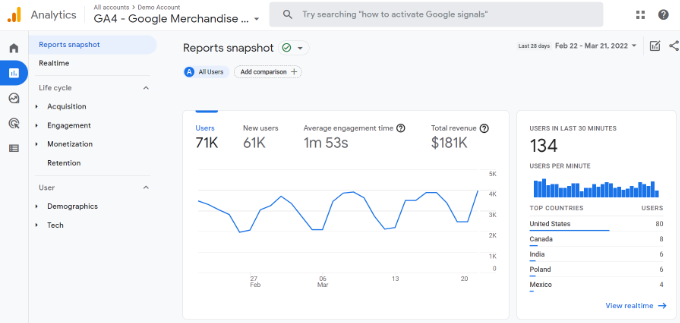
Google Analytics 4 reports are a bit different from previous Universal Analytics reports. In the left column, you’ll see a dedicated Reports option. The reports are grouped together under 2 broad categories, including Life Cycle and User.
One of the most noticeable differences you’ll find in GA4 reports is that there’s no bounce rate metric. Other than that, you’ll find a new reporting interface, new metrics like engagement time, no goals in GA4, and more.
Here’s a breakdown of different reports in Google Analytics 4:
- Realtime report is similar to Universal Analytics and shows active users on your site in real time.
- Acquisition report shows which medium users use to find your websites, like organic, referral, email, and affiliate.
- Engagement report shows conversions and events that take place on your site.
- Monetization report shows all your eCommerce data in one place, along with new reports like in-app purchases and publisher ads.
- Retention report basically shows new vs. returning visitors and helps you get insights about user retention.
- Demographics report helps you see website traffic from top countries, cities, and more. It also shows gender breakdown and interest reports.
- Tech report shows which device, browser, operating system, app version, and screen size people use the most to view your website.
Making the Most Out Of Google Analytics
Google Analytics is an incredibly powerful tool with tons of awesome features. Some of them are quite obvious and easy to use, while others require some additional setup.
Here are some of the resources that will help you make the most out of Google Analytics reports.
- Track user engagement in WordPress with Google Analytics
- Track WooCommerce customers in Google Analytics
- Track outbound links in WordPress
- WordPress conversion tracking made simple – A step-by-step guide
Google Analytics works best with Google Search Console (formerly Google Webmaster Tools). It allows you to see how your website is doing in search results. See our complete Google Search Console guide to learn how to use it to grow your website.
If you want to improve your WordPress SEO rankings and get more traffic, then we recommend using the AIOSEO plugin for WordPress, which is an all-in-one SEO toolkit.
There’s also a free version of AIOSEO that you can use too.
This plugin will help you fully optimize your WordPress site with proper schema markup, sitemaps, and everything you need to improve your SEO rankings.
We hope this article helped you learn how to install Google Analytics in WordPress. You may also want to see our ultimate guide to increasing your blog traffic and our comparison of the best email marketing services.
If you liked this article, then please subscribe to our YouTube Channel for WordPress video tutorials. You can also find us on Twitter and Facebook.




Syed Balkhi says
Hey WPBeginner readers,
Did you know you can win exciting prizes by commenting on WPBeginner?
Every month, our top blog commenters will win HUGE rewards, including premium WordPress plugin licenses and cash prizes.
You can get more details about the contest from here.
Start sharing your thoughts below to stand a chance to win!
rehman says
I am new to google analytics. Today I got the code and just wanted to paste in correct place. I was wondering whether to keep in end of head section or body section. because as per google analytics instruction it was mentioned to keep in the end of head section. I am now able to successfully install google analytics. Thanks for your help.
michaelcselva says
Seems like the easiest way is to insert the script into the footer. Just did that, now I’ll wait 12-24 hours. Hope it works!
NonFictionAddict says
Can you set this up if WordPress hosts your blog? Do you have specific directions for that scenario?
green-van says
I Am having a problem with Google Analytics, the first time i installed it i was getting correct updates, then i changed my address from http://www.green-van.com/test
to http://www.green-van.com and made a new step 6. but since then the same statistics, 3 visits and never any new ones. i am using google analitycs wp plug in now, and in my footer.php i have this
Cufon.now();
i don’t know if that is interfering with anything.
maybe i should not use the wp-plugin and do the code directly inside the footer?
can i send the footer.php or the functions.php to see if things are in the correct order?
kind regards,
Giannis
ardegas says
@wpbeginner That did the trick. It works now. Thank you.
wpbeginner says
@ardegas Try removing the line space in line 2.
ardegas says
Ok. Here is the code: http://pastebin.com/Ht1LSCr6
Remember it’s a child theme file.
wpbeginner says
@ardegas The code above works perfectly fine because all it is doing is adding an action in wp_footer to add google analytics…. the only reason why it would not work is if you paste the code in a manner which is not semantically right. Shoot over an email with your functions.php file code using pastebin or similar service… will evaluate and let you know what is wrong.
ardegas says
@wpbeginner I’m using a child theme, and functions.php is almost blank. The only function I have now is an empty function: <code><?php function twentyten_posted_on() { } ?></code>. I use this function to remove some metadata from my theme. Without the php tags this function won’t work. So it looks I’m using the right semantics. I’m pulling my hairs right now.
wpbeginner says
@ardegas You need to make sure that you are using the write semantics… For example you probably do not need the first <?php code because often functions.php files are already in php… So make sure that you are not opening the php tag if it is already open or closing it when it should be opened….
ardegas says
I tried to insert the Analytics code using functions.php, but it gave me this error:
<i>Warning: Cannot modify header information – headers already sent…</i>. I couldn’t even log in after. I ended removing this offending code from the file manager. It was bad. It’s a pity, because this snippet of code looks beautiful. I tried to remove any offending white space, but it was of no use, and now I’m afraid to even touch the functions.php file again.
lindsayihart says
The dashboard will not save the snippet. I have tried placing it just about </body> and also above the wp_footer tag (the note says you shouldn’tt seperate this from the close body tag) Still NOT saving the code.
wpbeginner says
@martinfarr1 The footer.php is located in your theme’s folder which can be found /wp-content/themes/your-theme-name/
If you really don’t have a clue, then try one of the Google Analytics plugin for WordPress.
martinfarr1 says
where do i find footer.php? Have been trying to do this for days but am a total beginner I’m afraid!
wpbeginner says
@BrianBraker That is because you pasted the other PHP codes without opening the php tag.<?php add_action(‘wp_footer’, ‘add_googleanalytics’); function add_googleanalytics() { ?> <script type=”text/javascript”> var _gaq = _gaq || []; _gaq.push([‘_setAccount’, ‘UA-24076071-1’]); _gaq.push([‘_trackPageview’]); (function() { var ga = document.createElement(‘script’); ga.type = ‘text/javascript’; ga.async = true; ga.src = (‘https:’ == document.location.protocol ? ‘https://ssl’ : ‘http://www’) + ‘.google-analytics.com/ga.js’; var s = document.getElementsByTagName(‘script’)[0]; s.parentNode.insertBefore(ga, s); })(); </script> <?php }
//Here you can paste all the other codes
?>
BrianBraker says
Did not work. Completely screwed up the function.php file so site did not load. Uploaded back up file.There is a bunch of other code in function.php file
Here it is:
<?php add_action(‘wp_footer’, ‘add_googleanalytics’); function add_googleanalytics() { ?> <script type=”text/javascript”> var _gaq = _gaq || []; _gaq.push([‘_setAccount’, ‘UA-24076071-1’]); _gaq.push([‘_trackPageview’]); (function() { var ga = document.createElement(‘script’); ga.type = ‘text/javascript’; ga.async = true; ga.src = (‘https:’ == document.location.protocol ? ‘https://ssl’ : ‘http://www’) + ‘.google-analytics.com/ga.js’; var s = document.getElementsByTagName(‘script’)[0]; s.parentNode.insertBefore(ga, s); })(); </script> require_once(TEMPLATEPATH . ‘/epanel/custom_functions.php’); require_once(TEMPLATEPATH . ‘/includes/functions/comments.php’); require_once(TEMPLATEPATH . ‘/includes/functions/sidebars.php’); load_theme_textdomain(‘StudioBlue’,get_template_directory().’/lang’); require_once(TEMPLATEPATH . ‘/epanel/options_studioblue.php’); require_once(TEMPLATEPATH . ‘/epanel/core_functions.php’); require_once(TEMPLATEPATH . ‘/epanel/post_thumbnails_studioblue.php’); $wp_ver = substr($GLOBALS[‘wp_version’],0,3); if ($wp_ver >= 2.8) include(TEMPLATEPATH . ‘/includes/widgets.php’); global $shortname; if (get_option($shortname.’_enable_dropdowns’) <> ‘false’) { update_option($shortname.’_enable_dropdowns’,’false’); }; ?>
wpbeginner says
@luxdesign28 Yes, Google Analyticator plugin does the job.http://wordpress.org/extend/plugins/google-analyticator/
luxdesign28 says
Hi there,
Is a method or a plugin how to show the data delivered by Google Anlalytic directly on wordpress, without going to Google Analytics webpage ?
Tarun says
How to install the same in a subdomain take for example i have a website http://www.xyz.com and i want to track my subdomain http://www.123.xyz.com what should be done in-order to do so ?
Editorial Staff says
Add a separate tracker.
Admin
Avenir says
It Allows usage of custom variables in Google Analytics to track meta data on pages. Thanks for your support will try soon.
Karl Anthony Borg says
Was trying to figure out how to install Analytics on WordPress but didn’t manage on my own.
Thanks to your info – I now managed and GA is up and running.
Nicholas Massey says
Just what i was after. I just placed it in the footer. Seems like the easiest option to me.
Sven cooke says
Thanks for the information. This is good advice for the beginner and seasoned blogger.
Many thanks
wanie says
hello,
I am using the free wordpress version. Where do I find this part – “theme’s footer.php right above the tag”, so that I can simply copy and paste?
Thank you!
Editorial Staff says
You can’t add this in your WordPress.com account. That is why they offer you with their own statistics.
Admin
Fask says
You can use the same code for the meta robots? in this way:
add_action(‘wp_head’, ‘insert_meta_robots’);
function insert_meta_robots() {
?>
<?php
}
kevin says
Analytics doesn’t work past the first page of my WP blog unless I add the code in my footer AND the sidebar.
Tayler says
This is somewhat of a disaster! I added the code and now I can’t access my blog, it’s completely whited out
Parse error: syntax error, unexpected $end in /home3/sulukuc1/public_html/wp-content/themes/constructor/functions.php on line 344
I saw this error message after I pasted the code in my funtions.php:
Warning: session_start() [function.session-start]: Cannot send session cache limiter – headers already sent (output started at /home3/sulukuc1/public_html/wp-content/themes/constructor/functions.php:21) in /home3/sulukuc1/public_html/wp-content/themes/constructor/libs/Constructor/Admin.php on line 31
Warning: Cannot modify header information – headers already sent by (output started at /home3/sulukuc1/public_html/wp-content/themes/constructor/functions.php:21) in /home3/sulukuc1/public_html/wp-admin/theme-editor.php on line 89
Please help!!!!!!!
Editorial Staff says
You need to make sure that the code is semantically right … meaning that opening PHP tag may or may not need to be there if the PHP is already open.
Admin
Wes Hopper says
I’ve read in the Thesis forums that the new GA code is asynchronous and needs to go in the header to work properly. It also doesn’t affect page load like the old code.
WIP says
Hello again, sorry my bad. I fixed it!
WIP says
Hello,
When I put the Google Analtyics code in the footer.php and in the functions.php my whole blog dissapeared! Total white-out! What happened? What can I do to get it back?
Angela says
so if I use a free wordpress blog I can NOT use this plug-in?
Editorial Staff says
Thats correct. If you are on free WordPress.com then you don’t get this. You however get to use WordPress.com Stats.
Admin
Dan says
Thanks for this, I’d just pasted it into the head.
A function is so much neater though!
Dan
m says
Hello,
Almost, but not quite there, I would like the first option of copy and pasting the code- but, I cannot find the “theme’s footer.php right above the tag” – not in tools, settings, themes, general, etc etc. Sorry to ask its probably simple! I added it to the normal ‘text’ widget works for all else but this.
Editorial Staff says
That is because you are using WordPress.com <<
Admin
Lewis Bassett says
Thanks. I am just beginning to understand all of the great features that Analytics can offer.
Marc says
Great compilation of what a beginner needs to know about Google Analytics and WordPress! I scheduled 1 hour to find out how to setup Analytics for my new site, I was done in 5 minutes… – Thank you!
Ailora says
Magnificent tutorial, thanks. I’m in the 12 – 24 waiting period to see if it works but I already appreciate you instructions and your willingness to reply to comments. I actually found what I was looking for in one of your responses to a poster.
Natalie says
I really can not make sense of Google analytic. I prefer to use Piwik instead.
Ana Pacquiao says
this was very usefull, i had a little trouble because i’m not familiar with the html edition this worked great for me
THNX A LOT!
Brett says
Thanks for the tip, I did the copy and paste and it worked great.
iankramer says
Thanks for the good info.
Any differences/advantages between the direct paste and functions.php methods? Thanks!
Editorial Staff says
There is no advantage or disadvantage… it’s a matter of personal preference.
Admin
Shelley says
Great, clear description – even for someone is a codaphobe. Thanks. I am wondering tho, if when google activates this if the stats will appear in the wordpress dashboard like my other stats package did (the wordpress.com stats) which seems to be broken as of today. Thanks!
Editorial Staff says
There are some advanced Google Analytics plugin that does that, but we recommend that you check on Google Analytics site, to get the full report. Because no plugin gives full integration.
Admin
Rose says
This is indeed an informative site.It was really helpfull.
Ameya Waghmare says
I am not able to figure out still, how do you edit the footer (or header for that matter) of the theme of the webpage?
can you please give instructions where can I find way to edit my footer?
I have tried ‘Edit CSS’, ‘Extras’, and also some other options in the ‘Theme’ menu. Couldn’t get it done.
Please help.
Editorial Staff says
You will need to click on appearance and then editor. Find header.php or footer.php to edit those files.
Admin
Jeremy says
I’m thinking about going the plugin route – do I need to use both plugins or one or the other?
I know that the “Google Analytics for WordPress” asks me where I want to embed it but then then “Google Analyticar” doesn’t ask anything about embedding so I’m wondering if it does it or if I have to do something manually…
Thanks for this walk through!!!
Editorial Staff says
You need the manual code or the plugin… not both. Google Analyticar just adds the code in your site.. It does not give you an option of where to embed.
Admin
chris says
I am attempting to use the Google Analytics for WordPress plugin to add the code to my wordpress site. It gives an option for installing the code in the header. When I look at my header file after activating and authenticating the plugin, I see no added code in my header file. Is there somewhere else the code is installed besides the header for my theme?
Editorial Staff says
It should add it in the area, but it will not modify your theme. If the code is not showing in your theme, then it can mean that your theme does not have a wp_head(); hook in the header.php.
Jan Kasal says
Step 5 states to paste the code above the body end tag. Google has changed it since. It goes above the head. Just to let you know.
Jan
Editorial Staff says
Google has not changed anything… All companies would like to have their scripts added in the header << But it is not wise for the webmaster. Any smart webmaster / developer would keep scripts like analytics in the footer to speed up the load time…
WPBeginner has the codes in the footer. Twitter.com has the code in the footer and many other sites as well.
Admin
physio says
Ok… apparently the commenting system doesn’t like angle brackets. That second paragraph should have said:
If you want more accurate analytics you will use the new snippet version and you will put it in the head. If you are paranoid about page load times you will put it just before the close body tag.
Editorial Staff says
How does the placement reflect accuracy? Whether you put the script in the head, or at the end…. upon the full page load, it will still count one user…
Brandon C. says
i wish i had seen this tutorial before i spent three hours trying to figure it out on my own.
Drew Michaels says
Would love to know your thoughts on which method you recommend for installation. Such as are there advantages to placing the code by hand vs. using a plugin?
Editorial Staff says
Using a plugin is adding multiple database queries that you don’t need. By hand is probably the easiest method and it is efficient for the site
Admin
Omer Greenwald says
This is one of the few features I did use a plugin for, even though it can definitely be achieved manually be pasting the code as you explained, thanks for sharing.
Eden-Avalon says
I just switched over from an entirely hand-compiled website to one using wordpress. This will be most helpful. Thank you!
Saikou marong says
Great tips for a newbie like me i will certainly try it now. The beauty of WPress is that it has a very little limitation.